This page explains how the web interface of the SC//HyperCore™ HyperVisor works. It shows how each panel and display helps you monitor your system and handle day-to-day tasks quickly and easily. If you don’t know the icons or cues mentioned on this page, review the Appendix.
Layout and Navigation
The SC//HyperCore web interface has five core sections: the Heads Up Display (HUD), the System Display Panel, the Virtual Machine Management Panel, the Control Center, and Storage Details.
Heads Up Display (HUD)
The HUD shows aggregated system information at a glance. This includes consumed CPU, consumed RAM, consumed capacity, performance, action items, the system name, and the current software version. Use the HUD with the System Display Panel to monitor system health.

The CPU (processor), RAM (memory), DISK (SSDs and HDDs), IOPS (I/O per second), and LAT (latency) gauges all report system-wide averages. In some cases, gauge data is only available while the interface tab stays open in the browser. The IOPS and LAT gauges both show the average for reads and writes on the system.
For accessibility, several key items on the HUD are interactive, so you can reach common system tasks quickly:
- The Scale Computing logo opens a new browser tab to www.scalecomputing.com/support, where you can find Scale Computing Support contact details.
- The assigned system name links to the Settings tab in the Control Center.
- The system version links to the Update tab in the Control Center.
- The DISK gauge opens the Storage Details dialog, which shows detailed capacity information for the system.
- The currently signed-in user links to the User Management tab in the Control Center.
- The Condition indicators on the right link to the Condition log in the Control Center.
System Display Panel
This panel is part display and part management. Toggle between the RAM (VM) and DISK (capacity) views to see system information and node status details.
In the RAM (VM) view, each running VM appears as a bar on its node. The size of the bar shows the VM’s RAM footprint compared with the node’s total RAM. Click a running VM on any node in the RAM view to focus the Virtual Machine Management Panel on that VM’s card. Double-click a VM in the RAM view to open its VM console in a new browser tab.
In the DISK view, each node shows its disks with their total and consumed capacity. This view also shows the disk hardware type (SATA, SAS, or SSD) and the disk health, including whether a disk is marked for removal.
Virtual Machine Management Panel
Use the Virtual Machine (VM) Management Panel to create, export, import, tag, clone, edit, and organize VMs. You can also do many other day-to-day VM tasks on the system from here.
The VM Management Panel is the central part of the SC//HyperCore web interface. You access, monitor, and manage all VMs on the system through this panel. Each VM appears as an interactive “card” of information. Each VM card has three main screens:
- The Summary screen (gauge icon) — gives an overview of the VM’s health. All reported information is an aggregate of the VM’s resources and/or virtual disks.
- The Devices screen (gear icon) — shows the current hardware settings for the VM, including CPU, RAM, virtual disks, virtual NICs, and VLAN configurations.
- The Snapshots and Replication screen (“layers” icon) — gives an overview of, and access to, any snapshot or replication schedules. It also has an export option for the entire VM.
To change what a VM card shows, use the Summary, Devices, or Snapshots icons on the left side of the card. To change the view for all VMs at once, select the matching icons in the global action bar at the top of the VM Management Panel. To collapse or expand all VM groups in the panel, use the stacked plus (+) or minus (−) symbols in the upper action bar.
For more on the icons, status color coding, tagging and grouping, see the Appendix and Tags and Virtual Machines.
Control Center
Use this panel to check cluster history, see action items in detail, upload ISO files, and shut down the system. You can also set up a remote system connection for replication and monitor health, change system settings, manage accounts, and do many other SC//HyperCore administrative tasks.
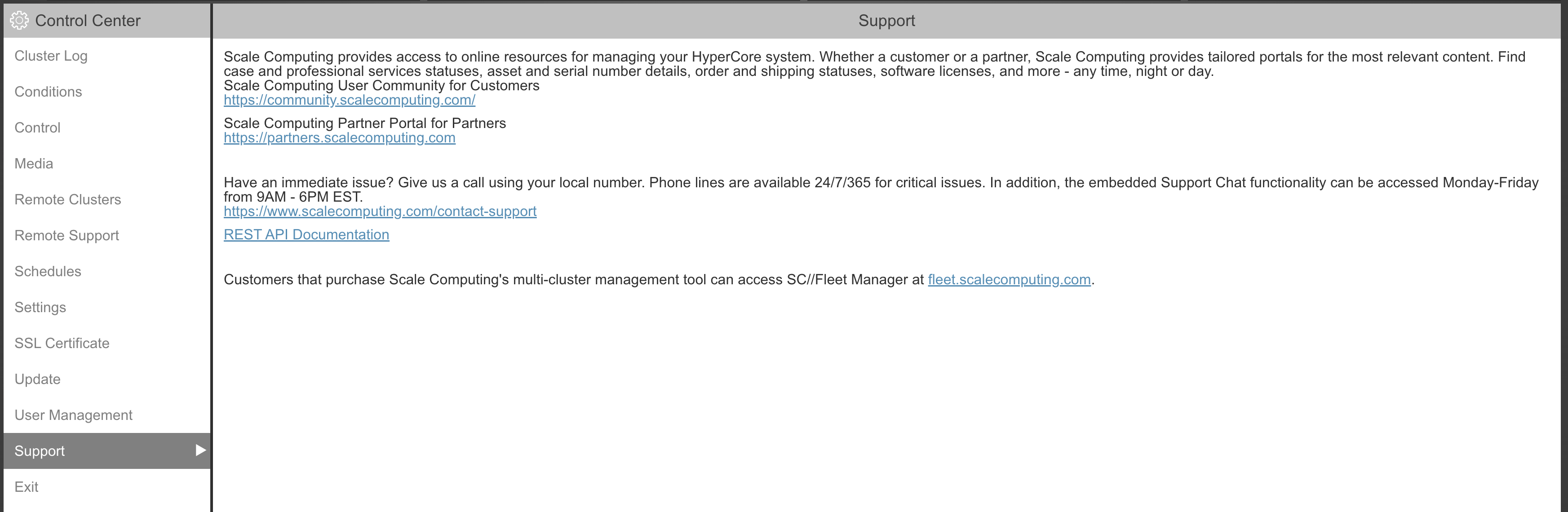
To open the Control Center, click the upper-left gear icon in the VM Management Panel menu bar. The Control Center opens over the VM Management Panel, in the lower part of the SC//HyperCore web interface.
Tabs on the left side of the Control Center give you access to system settings, tools, and information:
| Tab | Description |
|---|---|
| Cluster Log | View system events and history. See Alerts and Log. |
| Conditions | View current system conditions. See Alerts and Log. |
| Control | Gracefully shut down the system. See Shut Down the System. |
| Media | Manage ISO files uploaded to the system. See Add an ISO File and Remove an ISO File. |
| Remote Clusters | Add and manage connections to remote systems for replication. See Add, Monitor, or Remove a Remote System Connection. |
| Remote Support | Open remote support tunnels on a per-node basis for support assistance. |
| Schedules | Set up and manage snapshot schedules. See Snapshot Schedules for a Virtual Machine. |
| Settings | Complete during initial system setup; contains all system settings. |
| SSL Certificate | Upload a self-signed or custom SSL certificate. See SSL Certificates. |
| Update | View and run available system firmware updates. See Update the System. |
| User Management | View, add, remove, and manage SC//HyperCore web interface users. See Access Control. |
| Support | Provides useful links and resources. |
| Exit | Close the Control Center and return the VM Management Panel to focus. Can also be accomplished by clicking the Control Center icon again. |
Storage Details
Click the DISK gauge in the HUD to open a special display of the current used, projected, and saved cluster capacity. This dialog is called Storage Details.
In the Storage Details view, “physical” means the base hardware storage capacity (RAW capacity) of the system. “Logical” means the programmatically defined storage capacity. Currently, the SC//HyperCore system stores a single duplicate copy of each piece of data for redundancy. So the logical capacity is essentially half the physical capacity, before deduplication is taken into account.
Storage Details has three main views:
Utilization — Gives a general overview of the free space left on the system, the current data efficiency ratio from deduplication, and the estimated logical free space left. The Logical side of the graph breaks out consumed space by VM Data Usage and Snapshot Usage.
Efficiency — Shows the deduplication benefits on the system. It compares the Logical usage, assuming there is NO deduplication, with the true Physical consumed space. It also shows the amount deduplication has saved (highlighted in green).
Provisioned — Shows the long-term storage health of the system. The Logical view displays the currently provisioned capacity of the VM disks, the actual consumed capacity, and the snapshot consumed capacity. The red Over Provisioned box shows the extra storage space you would need if all current VM disks were filled to capacity.