You can upload self-signed or custom Secure Sockets Layer (SSL) certificates for the web interface of the SC//HyperCore™ HyperVisor. SSL certificates, sometimes called digital certificates, set up an encrypted connection between a browser or user’s computer and a server or website. The SSL connection can help protect sensitive data from being intercepted by unauthorized parties.
You need these items to upload the SSL certificate. SSL certification configuration is outside the scope of SC//HyperCore product support.
- A valid X.509 PEM-encoded certificate.
- A valid SSL private key belonging to the SSL certificate.
Apply the SSL certificate to each node in the SC//HyperCore system (each individual LAN IP). After you apply it, the SSL certificate persists through reboots and updates.
- Select the Control Center (gear) icon in the upper-left corner of the VM management panel.
- Open the SSL Certificate tab.
- Click the Upload SSL Certificate button. A dialog opens.
- Paste your SSL certificate into its box.
- Paste the private key that goes with the certificate into its box.
- Click OK. An alert may briefly show that the SSL certificate is being updated, and your web interface session disconnects.
- Refresh your browser tab. Your browser may ask you to accept the new SSL certificate.
- Check the Cluster Log to confirm that the SSL certificate upload succeeded. In SC//HyperCore 9.6 and earlier, no upload notice appears and the SSL Certificate tab of the Control Center doesn’t show the certificate.
- Repeat the upload for the other nodes in the deployment as needed.
Browser Security
Depending on your browser and its version, a prompt to confirm the security certificate appears when you access the system. In the Chrome web browser, the warning looks like the image below.
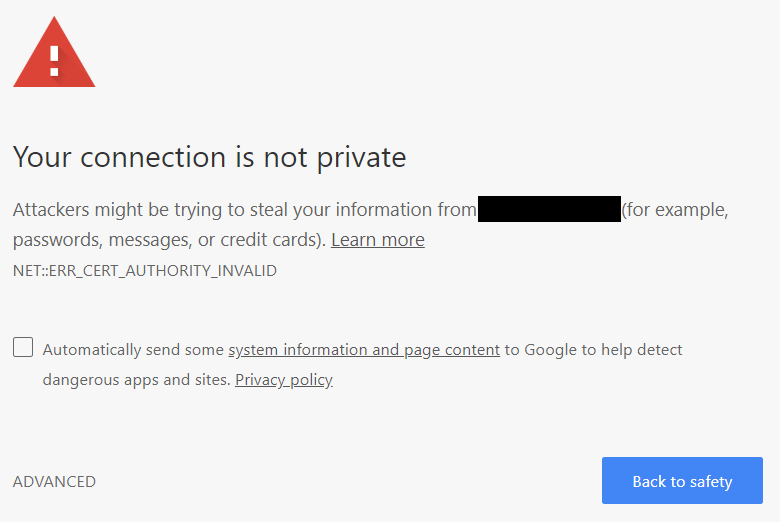
With the default self-signed certificate, this warning is expected and it’s safe to proceed. A certificate signed by a trusted CA removes the warning. Click Advanced, and then click the Proceed to… link.