The web interface of the SC//HyperCore™ HyperVisor uses visual and color cues so you can easily identify actionable buttons, icons, and VM statuses in the VM Management Panel.
VM Card Anatomy
Every VM in the management panel is represented by a card. Its parts are labeled below and referenced by number in the icon table that follows.
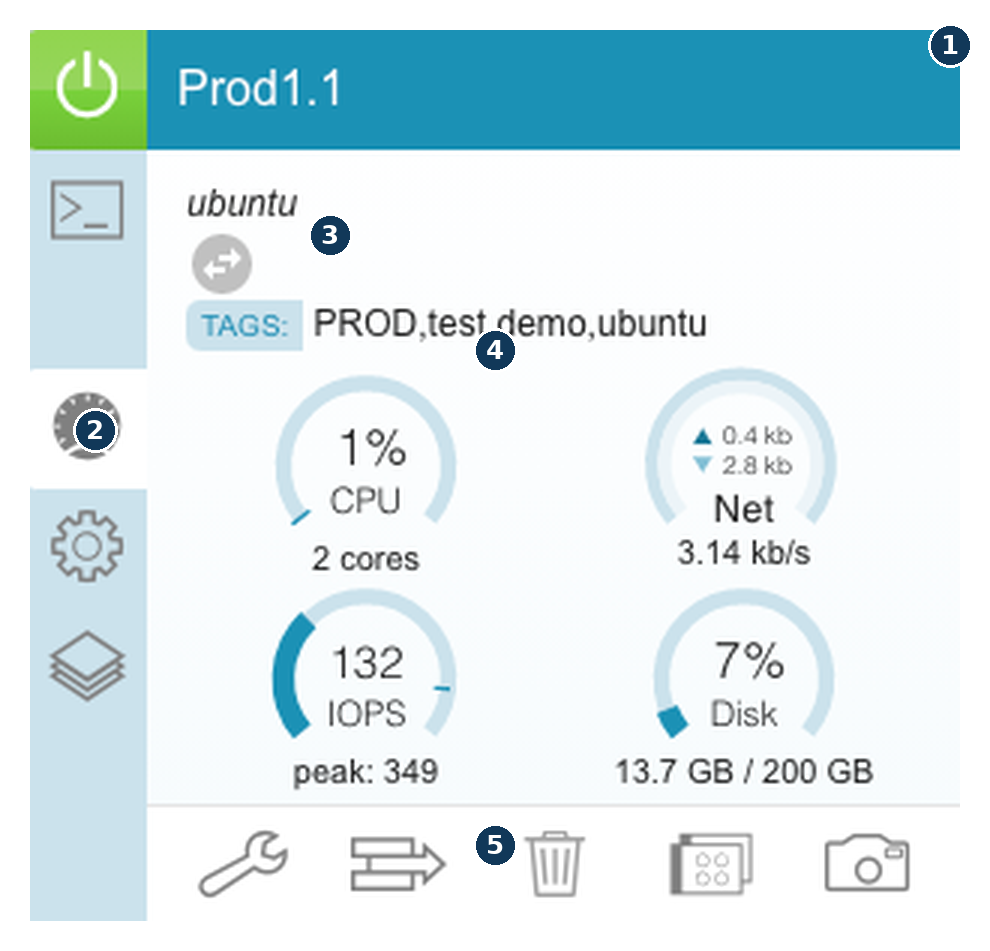
- Name & power state — VM name, with the header color and left-edge power icon indicating powered on / off / working
- Detail tabs — Console, Summary, Devices, and Snapshots & Replication (gauge icon shown active/selected here)
- Guest OS & live migration status — guest OS label and, when present, an in-progress live migration indicator
- Performance gauges — CPU, Net, IOPS, and Disk, each active only while the VM is powered on
- Action row — Edit, Live Migrate, Delete, Clone, and Snapshot; availability of each depends on current VM state
VM Replication Card Anatomy
A Replication Card appears on the Target system once replication is established. It’s an informational container for replicated snapshots, not a live VM instance — most VM actions don’t apply here.
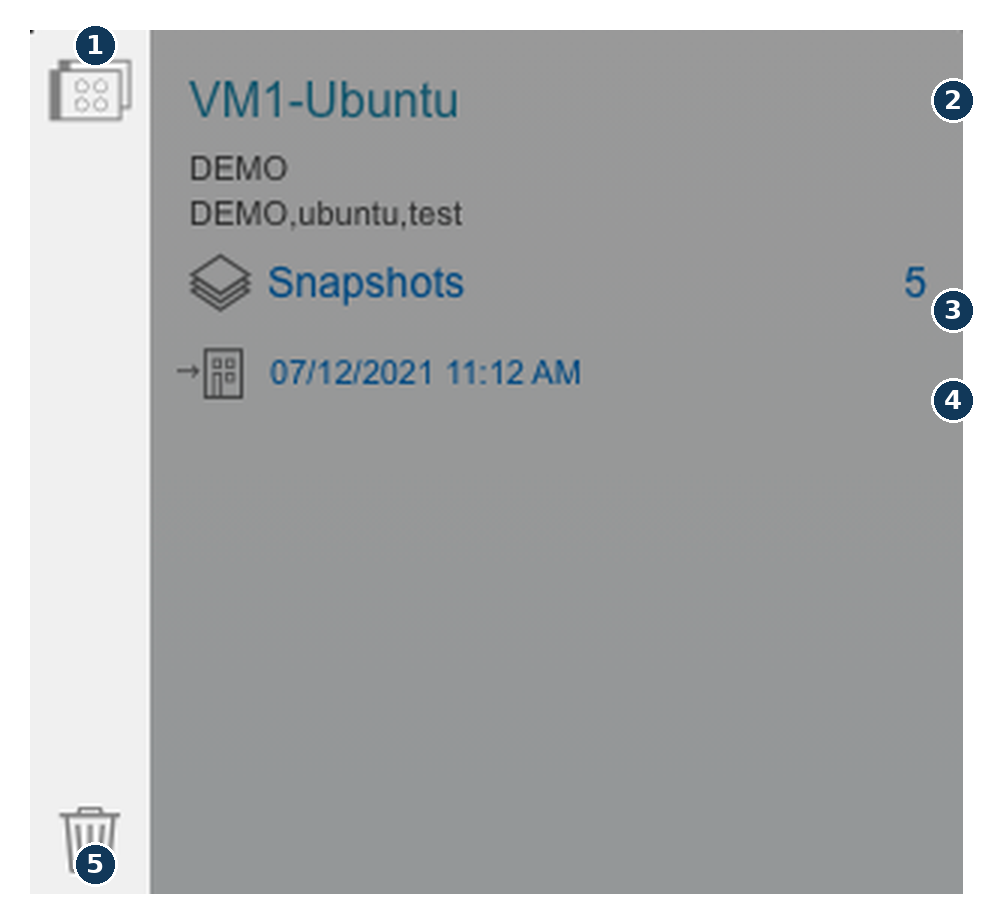
- Card identity — the replication-card icon and source VM name
- Source system & tags — which system this VM is replicating from, plus its tags
- Snapshot count — number of replicated snapshots currently retained
- Last replication — timestamp of the most recent successful replication
- Delete — the only action available on a Replication Card; removes the replicated snapshot history
Icon Reference
| Icon | Icon Name & State | Use / Behavior |
|---|---|---|
 |
Control Center Icon — Always available | Manage the SC//HyperCore system |
 |
Import VM Icon — Always available | Import a previously exported SC//HyperCore VM from a local SMB share; creates a new SC//HyperCore VM using the incoming QCOW2 and XML files |
 |
VM Power Icon — Always available | Power On, Reboot, Shut Down, or Power Off a VM. Available options depend on current VM state. |
 |
VM Console Icon — Always available | Open the VM management console in a new browser tab using the noVNC viewer |
 |
VM Summary Icon — Always available | Summary screen offers access to the Edit, Move, Delete, Clone, and Snapshot icons |
 |
VM Devices Icon — Always available | Devices screen offers management access to virtual CD trays, virtual disks, virtual NICs, as well as Add Disk, Add NIC, and Modify Boot Order |
 |
VM Snapshots and Replication Icon — Always available | Snapshots and Replication screen offers access to view and manage VM snapshots and replication, including snapshot and replication schedules |
 |
VM Edit Icon — Always available (some actions dependent on VM state) | Edit the VM’s assigned Name, Description, Tags, CPUs, or Memory. VM must be shut down to edit CPUs or Memory. |
 |
VM Live Migrate Icon — Dependent on VM state | Live migrate the VM between nodes. VM must be running to live migrate. |
 |
VM Delete Icon — Dependent on VM state | Delete the VM from the system. This is permanent and cannot be undone. |
 |
VM Clone Icon — Always available | Create a clone of the SC//HyperCore VM. Clones copy the parent VM exactly aside from the NIC MAC address (can be manually entered at the time of cloning if desired). |
 |
VM Snapshot Icon — Always available | Create a snapshot of the VM. Snapshots are specific to the VM they are taken on and cannot be manually separated or exported from the SC//HyperCore system. |
 |
VM Virtual CD Tray Icon — Always available | Identifies the virtual CD tray. Eject or insert an ISO image. Virtual CD trays cannot be removed or altered. |
 |
VM Virtual Disk Icon — Dependent on VM state | Identifies the VM virtual disk. Add, edit, clone, or delete a virtual disk depending on VM state. |
 |
VM Virtual NIC Icon — Dependent on VM state | Identifies the VM virtual NIC. Add, edit, or delete virtual NICs, MAC addresses, and VLAN tags depending on VM state. |
 |
VM Boot Order Icon — Dependent on VM state | Power off the VM to modify boot order. Only devices in the Boot Order section will be used to attempt to boot. |
 |
VM Snapshot Schedule Icon — Always available (not applied unless VM is powered on) | View and manage snapshot schedules. Schedules must first be created through the Control Center. |
 |
VM Replication Icon — Always available (not applied unless VM is powered on) | Set up and monitor replication. Remote Cluster Connections must first be established through the Control Center. |
 |
VM Pause Replication Icon — Always available (not applied unless VM is powered on) | Pause replication for the VM whether powered on or off |
 |
VM Resume Replication Icon — Always available (not applied unless VM is powered on) | Resume replication for the VM whether powered on or off |
 |
VM Export Icon — Always available | Export a VM’s QCOW2 and XML files to an external SMB share. All exports are full copies at that point in time. Can occur regardless of VM state. |