Customer Dashboard
A customer network dashboard offers a high-level overview of all the sites within a customer network. The customer dashboard becomes available for partners and customers after the site(s) are installed and/or My Connect licenses are activated. The customer dashboard can be accessed by selecting Customers from the left main menu. This action opens a customer table from which the partner can select the required customer and open the dashboard.
Customers Table
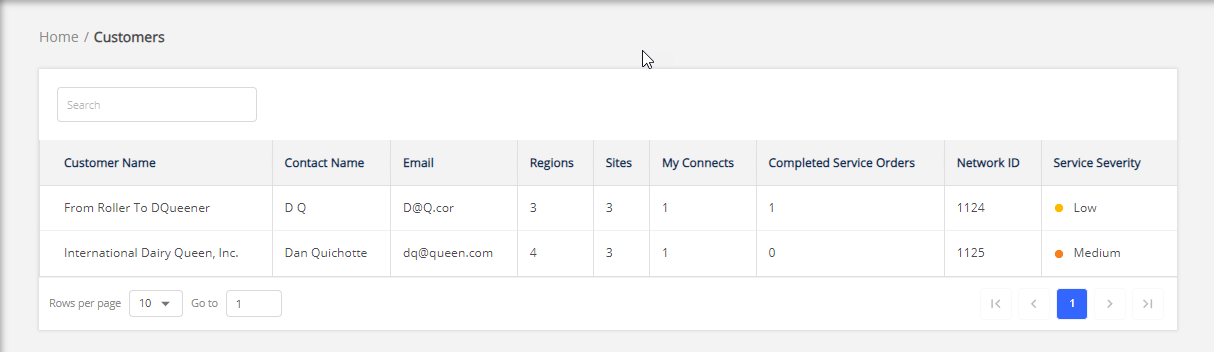
The Customers table shows a list of customers along with the number of Regions, Sites and My Connect License installed in each region. The Network ID shows the ID assigned to the customer network. The network's overall service severity, which is the aggregation of all the site severities within the network, is shown in the Service Severity column. Clicking a customer row will open the customer dashboard.
Customer Dashboard
The type of service installed by the customer determines how the Customer Dashboard appears. The dashboard view varies depending on whether the customer has Sites, My Connect licenses, or both. The following sections show how a customer dashboard appears with different services installed by the customer.
Customer dashboard with only sites
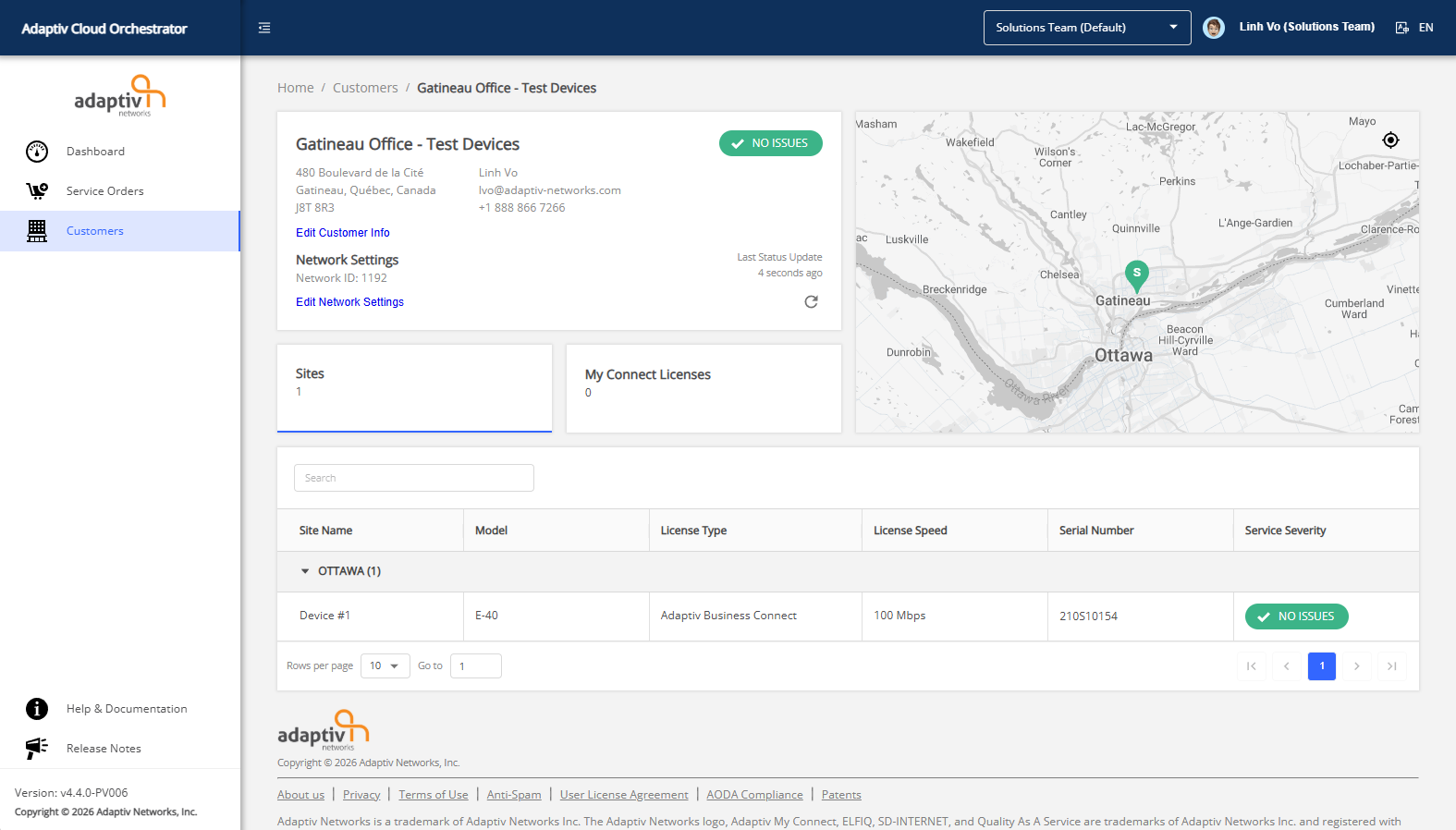
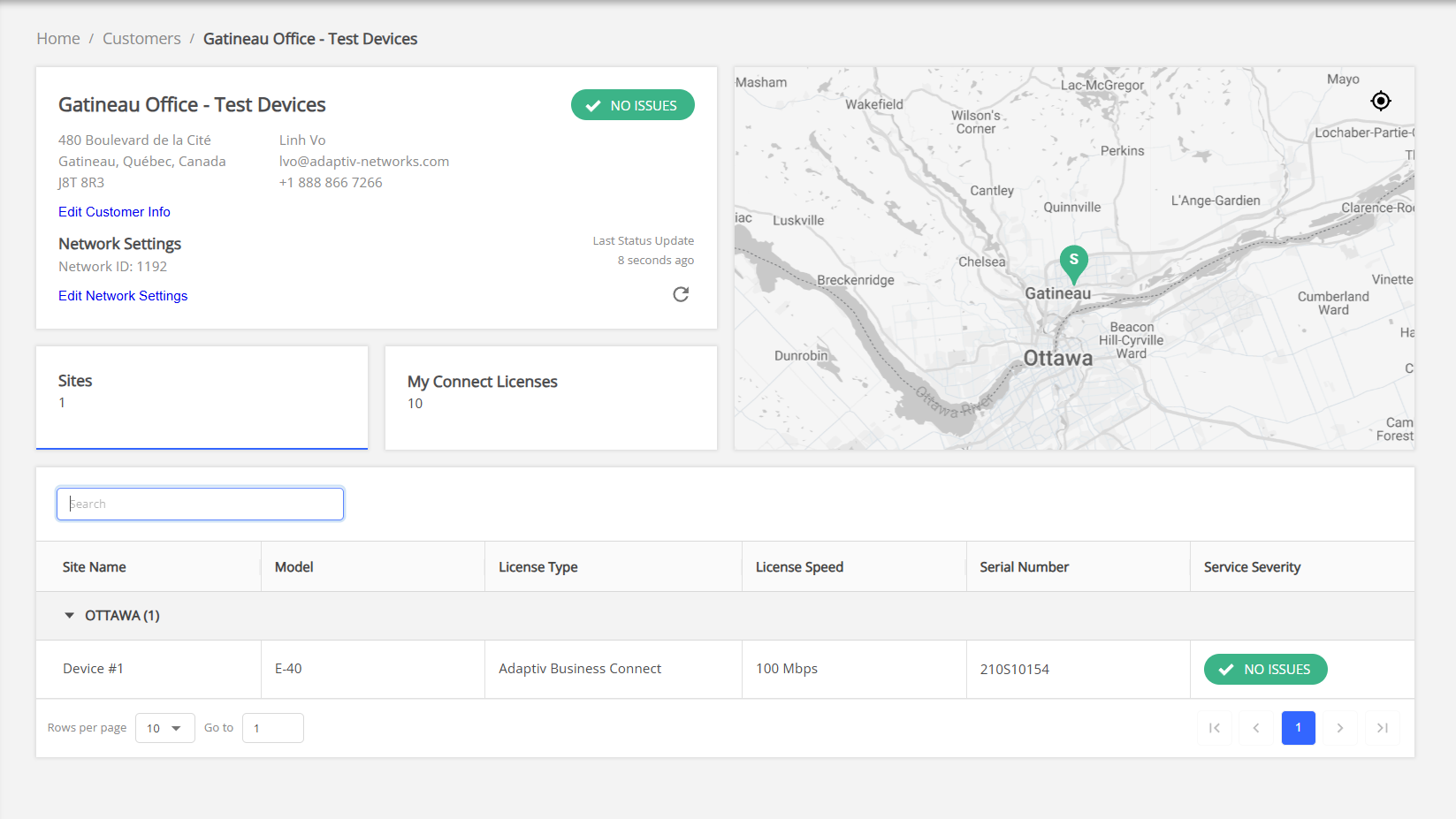
The dashboard view of a customer with only sites and no My Connect licenses is represented in the following screenshot. The dashboard includes the following sections:
- Customer general information
- Customer information — displays the customer's name, address and phone number.
To edit customer information, see Customer Information for more details. - Network Settings — displays the network ID and network status.
To edit or configure the network-level settings that apply to all sites and My Connect users. (for example: to block the QUIC Protocol).
See Network Settings for more details.
- Customer information — displays the customer's name, address and phone number.
- Site map — Shows the location of sites using site pins.
- The colour of each pin corresponds to the status of the site.
- The site pins displayed are associated with the expanded regions in the table.
- When a region collapses, no site pin will be on the map.
- Sites table — Shows the sites installed within the customer network. The table allows you to search and sort sites by hardware model, license type, license speed, serial number, and service severity.
Clicking the site row in the table will take you to the individual site dashboard.
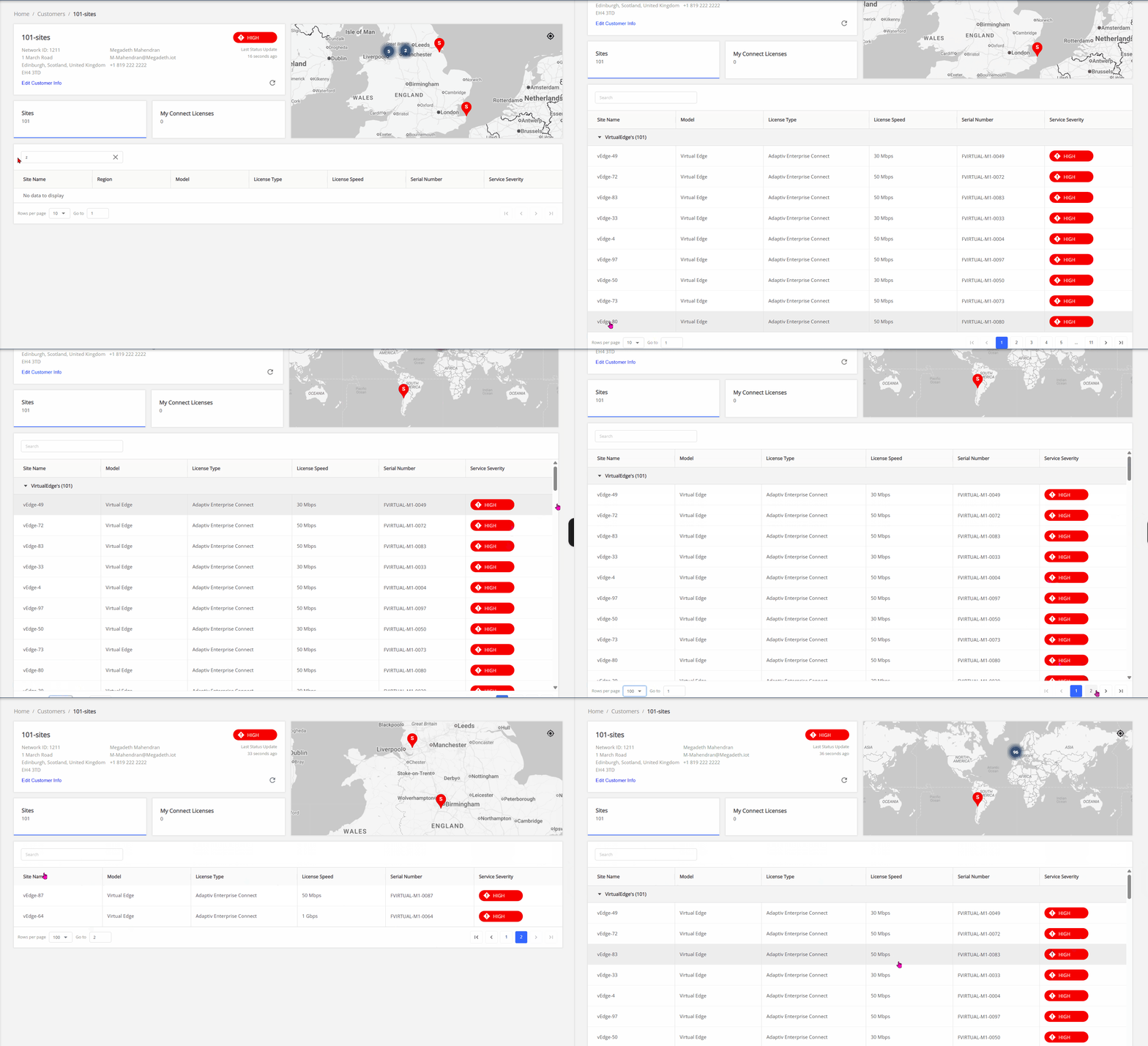
By default, the Sites table displays 10 rows per page, but it can display up to 100 sites per page to ensure optimal performance and readability. If a customer network includes more than 100 sites, users can use the pagination controls to navigate and view the remaining sites along with their corresponding site pins on the Site Map. (see example below)
Example — Customer with 101 deployed sites:
The customer has 101 sites. The user can set Rows per page to 100, then use the arrow button to navigate to the next page to view the remaining site and its corresponding pin.
The region name counts as a row on the first page, so in this example, the second page displays 2 remaining sites.
Note: Applying a search or filter may affect the results.
Customer dashboard with only My Connect licenses
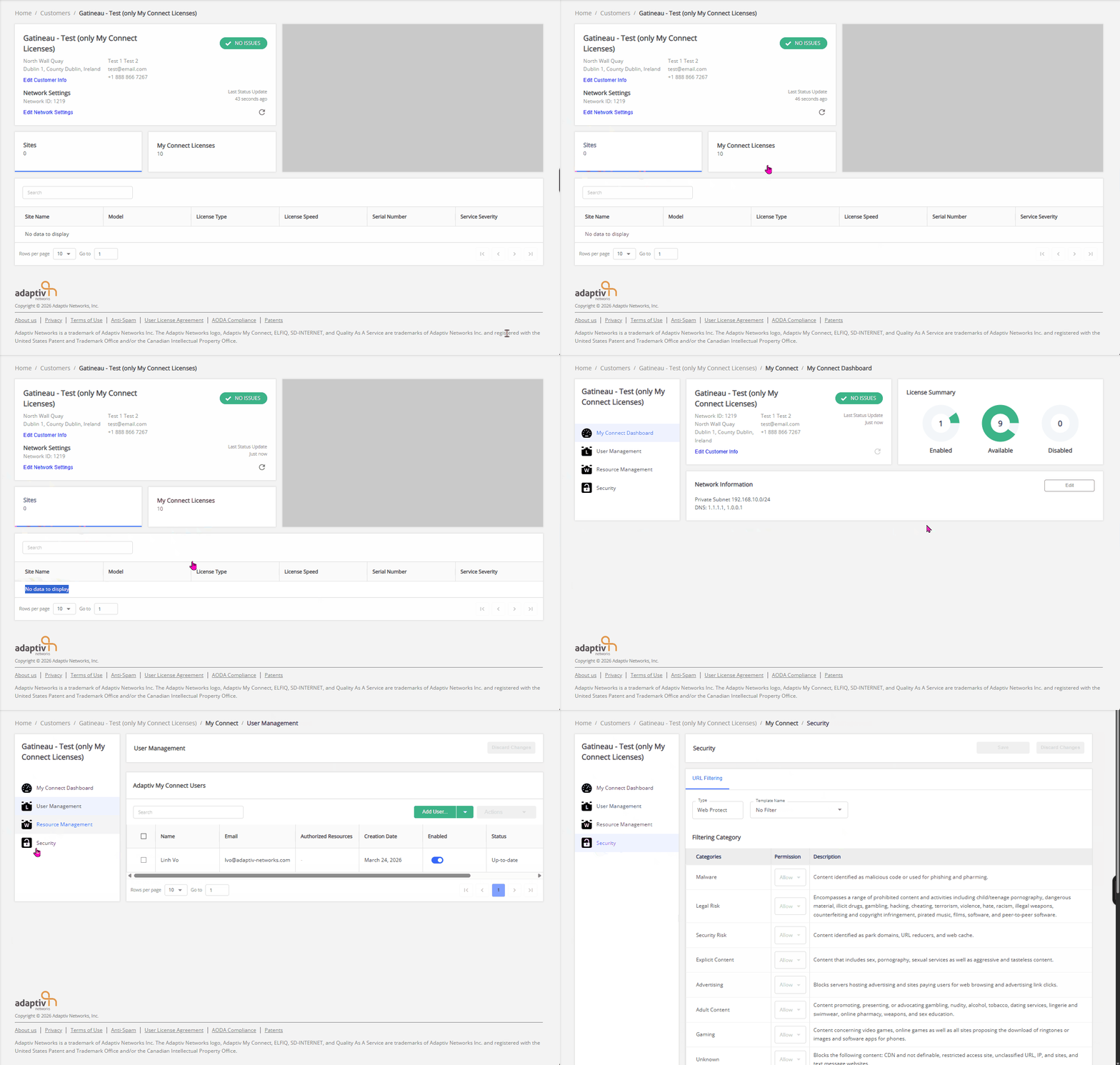
If a customer has only My Connect licenses and no deployed sites, the Customer Dashboard still opens with the Sites view displayed by default. Since no sites are deployed, the Sites table shows a “No data to display” message.
To view My Connect Licenses details, select the My Connect Licenses tab. The My Connect Dashboard is then displayed, providing details about licenses, network configuration, and My Connect users. For more information, see My Connect dashboard.
Customer dashboard with sites and My Connect licenses
If a customer has both deployed sites and My Connect licenses, the Customer dashboard offers a way to navigate between Sites and the My Connect Licenses dashboard.
By default, when opening the dashboard from the Customers table, the Sites view is displayed first. You can switch between views by selecting either the Sites tab or the My Connect Licenses tab to access the corresponding dashboard.
TERMS OF USE | PRIVACY POLICY | USER LICENSE AGREEMENT