Network Settings
The Network Settings feature allows customers to configure network-level settings that apply to all sites and My Connect users.
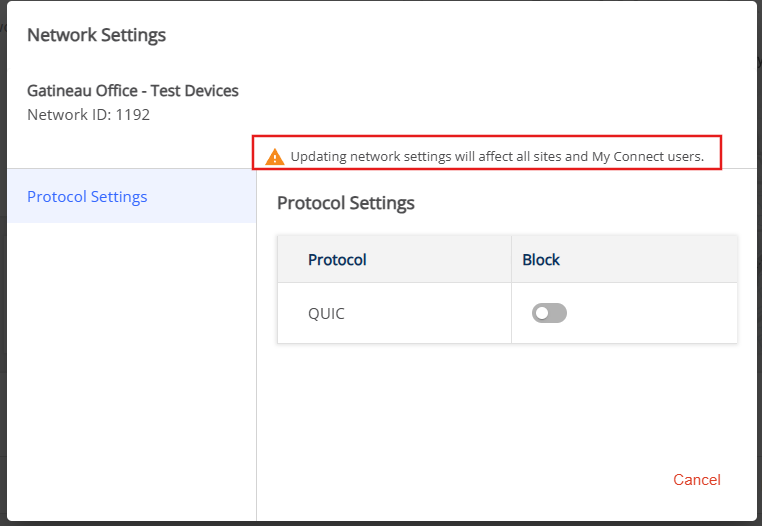
Under the Network Settings section, the Protocol settings section provides a list of protocols that user can block or allow in their network. In the current implementation, customers can configure protocol-based controls, such as blocking traffic for specific protocols (QUIC protocol).
Before you begin
- The Network Settings can only be accessed from the Customer Dashboard after deployment. Ensure at least one site and/or My Connect license is deployed.
- Any changes from this section will impact all Sites and My Connect Users.
To Configure Protocol Settings
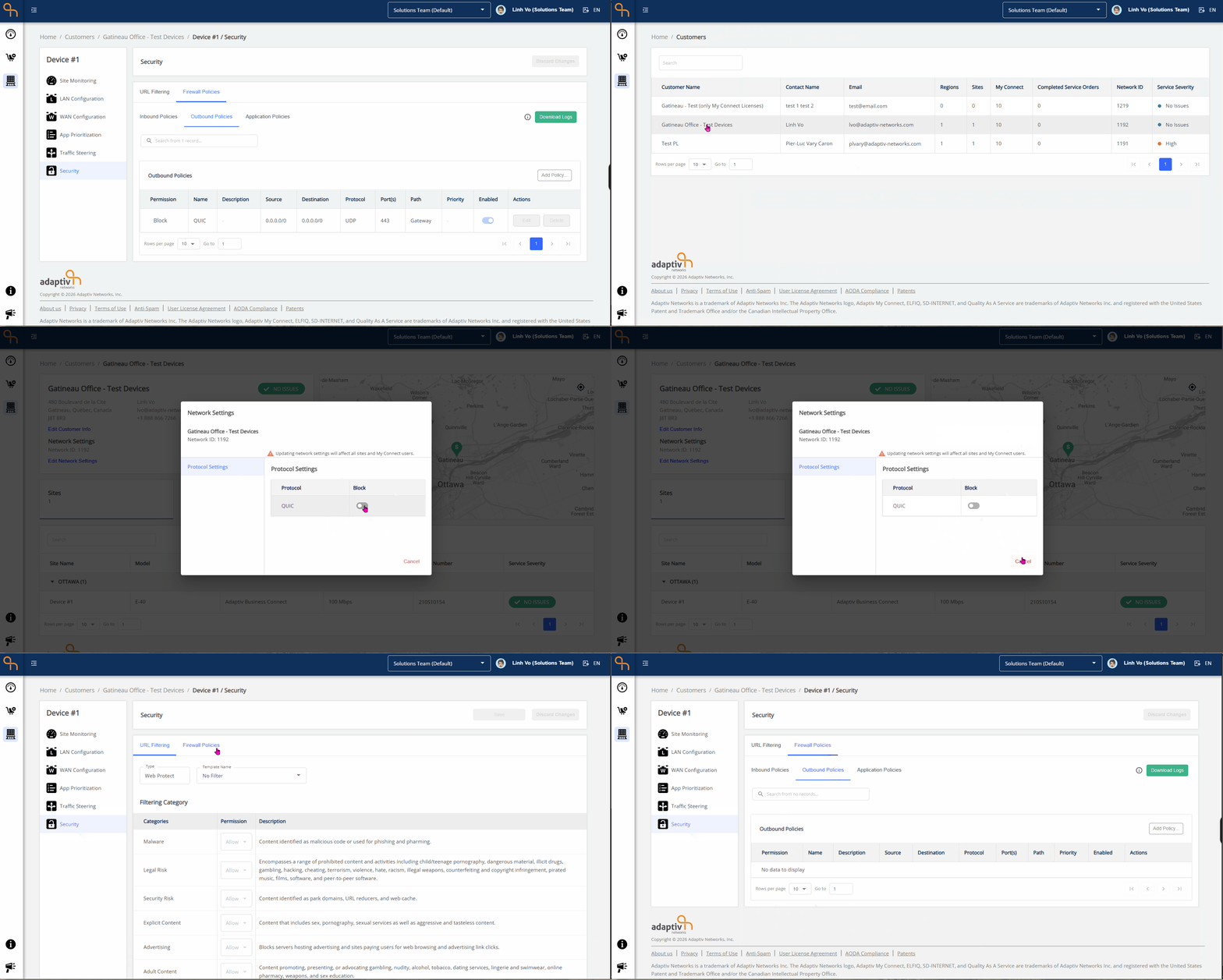
- Go to Customer Dashboard → Customer General Information section
- Click Edit Network Settings.
- The Network Settings dialogue appears.
- Under the Protocol Settings section:
- Toggle on to block a protocol
- Toggle off to allow a protocol
- Default settings:
- New customers: Block (toggle on)
- Existing customers: Allow (toggle off)
- Click Update to apply the changes, or Cancel to discard.
- Indicator:
- A blue dot indicator appears when changes are made.
- An Update button becomes available when there are pending changes.
- Click Update to apply changes to the device.
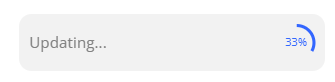
- Update Progress Indicator is displayed while changes are being applied.
Results
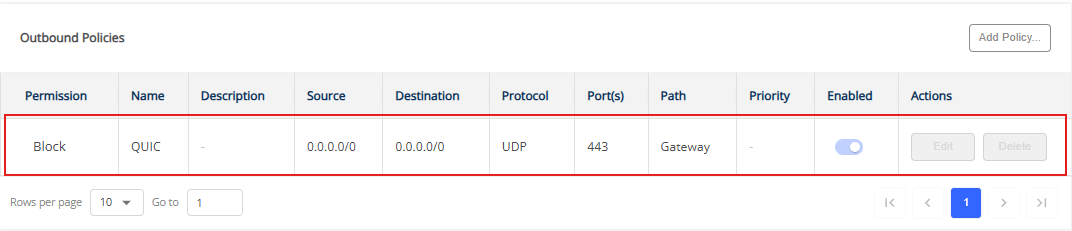
- When a protocol (for example, QUIC) is blocked, a system-generated outbound firewall policy is automatically added to the Firewall Policy table.
- When the protocol is unblocked, this system-generated policy is removed.
For detailed scenarios, system and reversal behaviour variations, see Example Use Cases - This policy is:
- Cannot be deleted or edited.
- Appears in: Security → Firewall Policies → Outbound Policies
- This functionality applies based on the security type:
- Web Protect: These system-generated block policies are visible in the firewall policy outbound table.
- Basic Security: Users can still block/allow protocols, but the Security page and firewall policy section are not displayed.
- For My Connect License only: Users can block/allow protocols, but changes are not displayed anywhere, including the My Connect Dashboard.
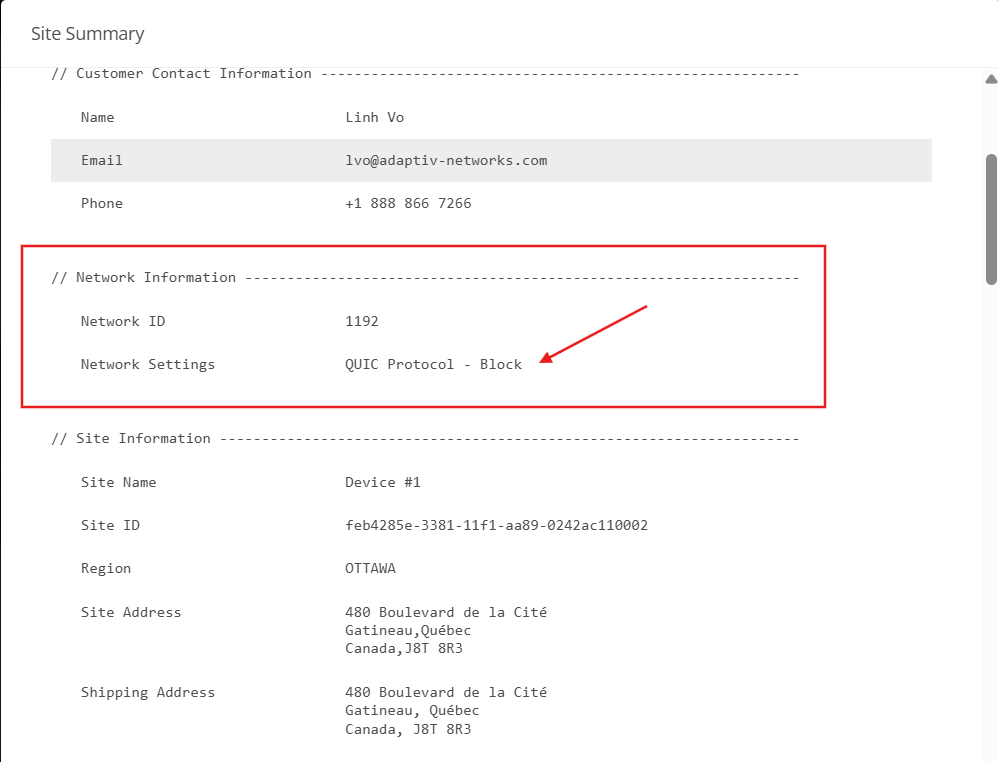
- After the changes are applied, the network information is displayed in Site Summary, and any updates are reflected accordingly.
TERMS OF USE | PRIVACY POLICY | USER LICENSE AGREEMENT
Copyright © 2026 Adaptiv Networks, Inc. Send Feedback