Site Dashboard
A site dashboard is available for all installed sites via the customer dashboard. To open the site dashboard, click Customers in the left main menu, select a customer account from the customer table and open the customer dashboard. From the customer dashboard, click a site name to open the dashboard for that site. The site dashboard is organized into multiple information components that provide comprehensive data on gateway traffic, WAN connections, and other site-related metrics.
Site Dashboard
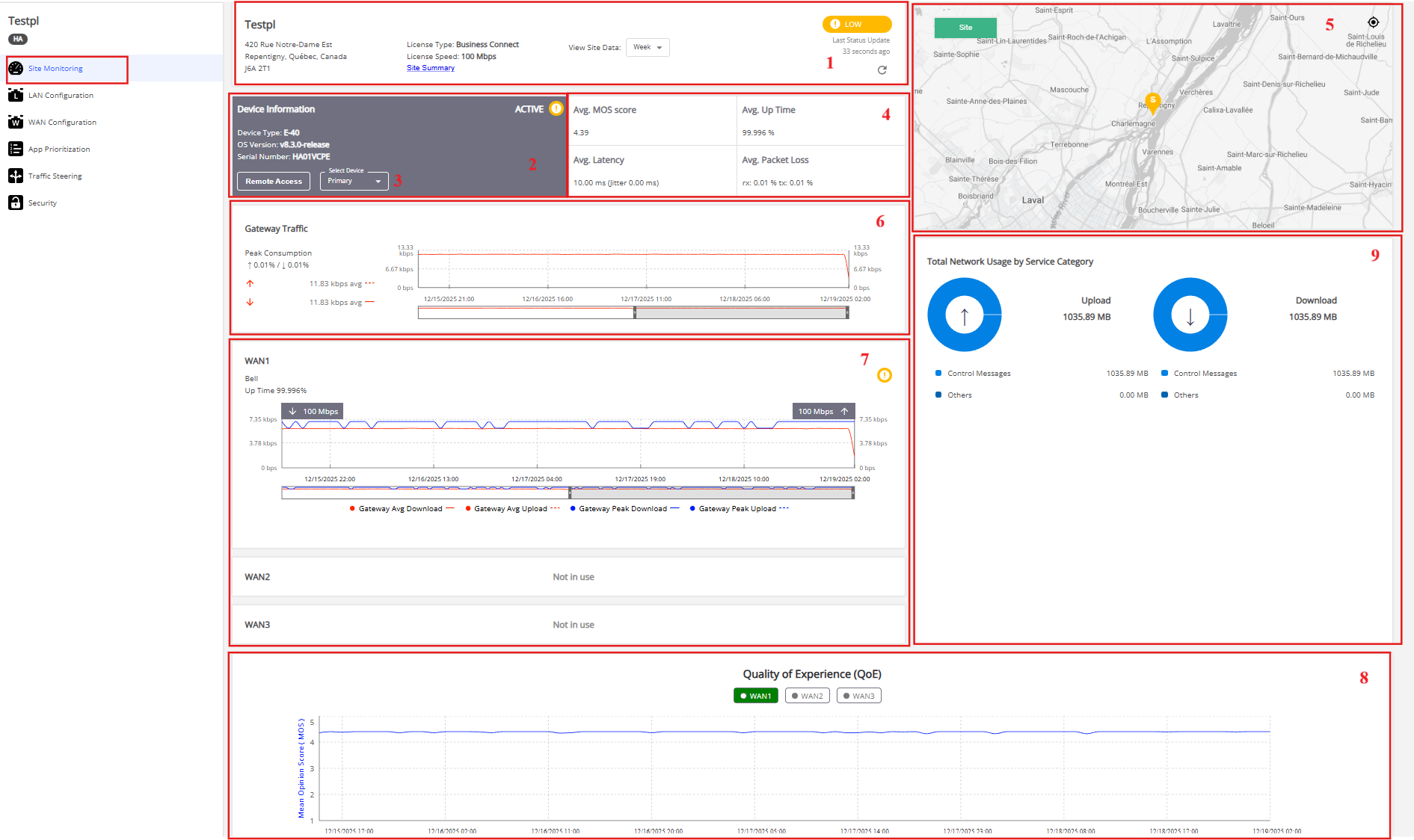
The following information is available from the site dashboard. Please follow the number on the screenshot for each information.
-
Site general information
This section provides the initial overview of the site, including Site general information, Site Summary, View Site Data, Site Status and Refresh features. Please click Site General Information for more details. -
Device information
The Device Information section shows the type of Edge device installed at the site and details such as OS version running on the device and serial number of the device.- High availability (HA) sites – For HA sites, the site dashboard displays a Select Device drop-down menu, allowing users to choose and view data for either the primary or secondary device in the HA setup. It also displays the active/inactive status of each device and highlights service severity for the selected device.
- Non-HA sites – Non-HA sites have only one device, so a separate service severity for the device is not shown. The site's service severity is the same as the device's service severity.
-
Remote Access
The Remote Access button enables remote connection to the device. The feature is available for device running on OS v8.1.0 and greater. Clicking the button opens the device configuration agent. The secure access is facilitated by Auth0 authentication. -
Performance metrics
The performance metrics includes indicators that define the overall performance and quality of a site. The MOS (Mean Opinion Score) measures the quality of experience (QoE) against defined time period. The average up time, latency and packet loss give an insight into how the site is performing. - Site map Site map shows the location of the site with a site pin. The pin color correlates the status of the site.
- Gateway Traffic The gateway traffic graph displays the current throughput in each direction. The percentage of bandwidth used in relation to the license speed is represented by the peak consumption. Customers can use this information to determine whether they need to increase their bandwidth license and how a site is using their license. They can contact their partners to upgrade the bandwidth license.
- WAN and wireless traffic The graphs for individual WAN and wireless ports represent the performance of ISP links. In addition to details such as the provider name, the graphs now display both average and peak gateway bandwidth for each interface. Users can view link health, peak consumption, and real-time upload and download utilization across all configured physical ports. Please click Interface Peak Usage Graphs for WAN and Wireless Traffic for more details.
- Quality of Experience (QoE) chart The QoE chart facilitates visualization of the quality of connection between the Edge device and overlay tunnel for each configured WAN link. To view QoE score for a specific WAN or wireless connection, select the radio button for that link. The graph may display the QoE measurement against each parameter individually or in combination. To view the data related to that parameter, select the radio button located beneath the graph.
- Total Network Usage by Service Category The total upload and download bandwidth consumption across all applications is represented in the form of a pie chart.

|
When the All Breakout template is used for Business Connect sites, the gateway is unable to communicate with these sites. As a result, the site dashboard for these sites does not display any statistics. See Traffic Steering for details. |
TERMS OF USE | PRIVACY POLICY | USER LICENSE AGREEMENT
Copyright © 2026 Adaptiv Networks, Inc. Send Feedback