Site General Information
Site General Information is the first section displayed on the Site Dashboard and provides an overview of the selected site. This section allows users to quickly understand the site’s status and configuration.
Please follow the numbers shown in the screenshot for each item below.
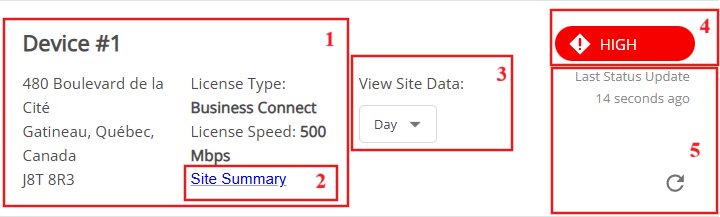
1. Site general information
Displays site name, address, and license details.
2. Site Summary
View or download the site configuration. 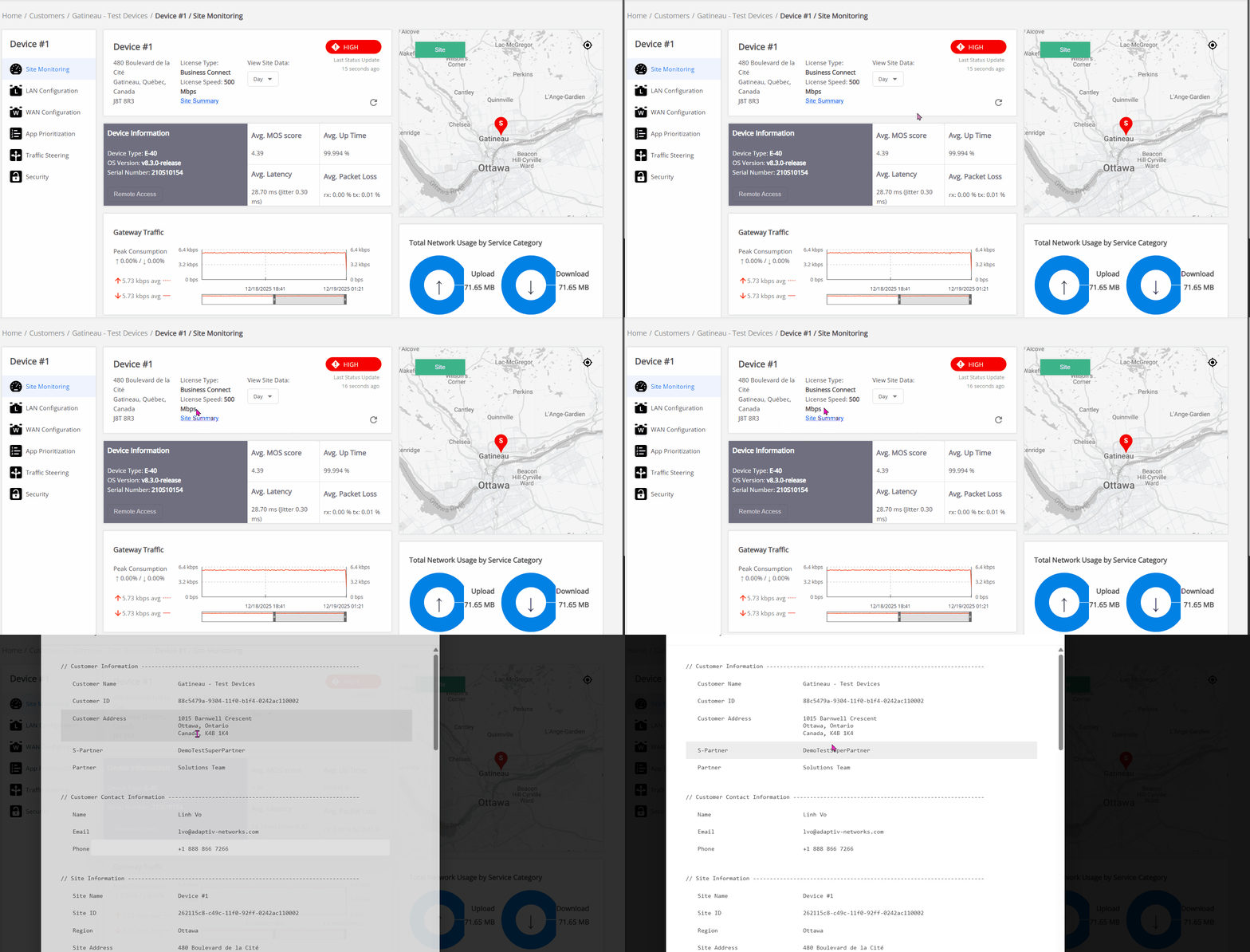
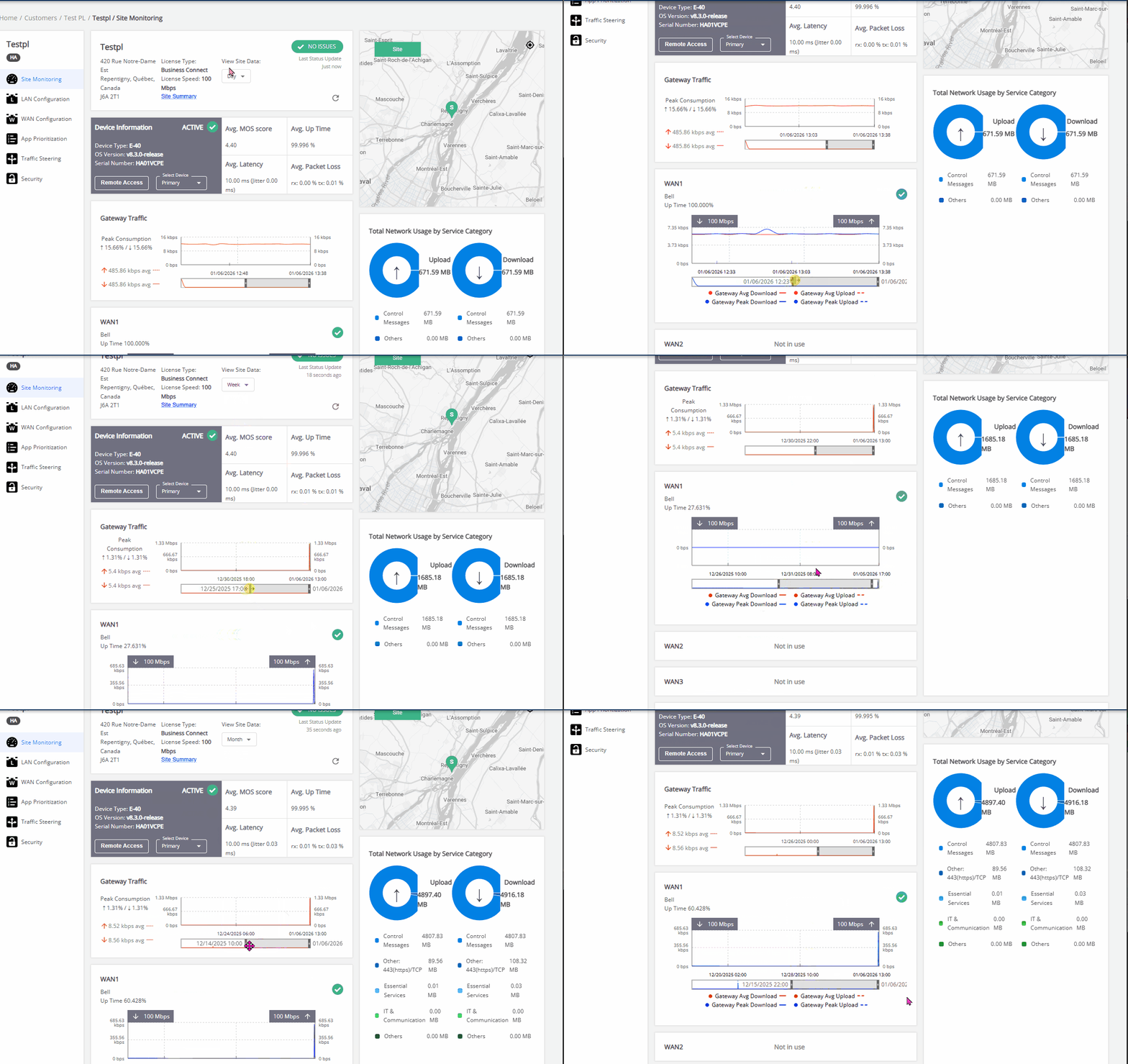
3. View Site Data
A drop-down field that lets users select the time period for viewing the data. ( Default value: View Site by Day)
Based on the selected time selection on the view site data, the time display for Usage Graphs for each WAN and gateway traffic changes as follows:
- For View Site Data = Day → Displays data recorded for the past 24 hours since the device was last connected. Data is displayed at 5-minute intervals.
- For View Site Data = Week/Month → Displays data recorded for the past 1 week or 1 month since the device was last connected. Data is displayed at 60-minute intervals.
4. Current site severity
Indicates the operational status of the site:
- No Issue: The site is up and running without any issues.
- Low/High, etc.: Displayed when issues are detected, based on their Service severity.
5. Refresh button
The Refresh button appears as an icon  on both the Customer Dashboard and Site Dashboard.
During the loading and updating process, an "Updating..." message is displayed, and the button is disabled.
Once the update is complete, the "Last Status Update" message is displayed. The time starts counting from "1 second ago" and then the system automatically refreshes the status every 60 seconds.
When users click on the Refresh button, its behaviour will depend on where it is used:
The Refresh button on the Customer Dashboard:
- Updates the customer status and the status of all sites included in the customer network.
- Restarts the auto-refresh timer to ensure the dashboard always displays the most up-to-date information.
Example:
Refresh button on Customer Dashboard with My Connect only.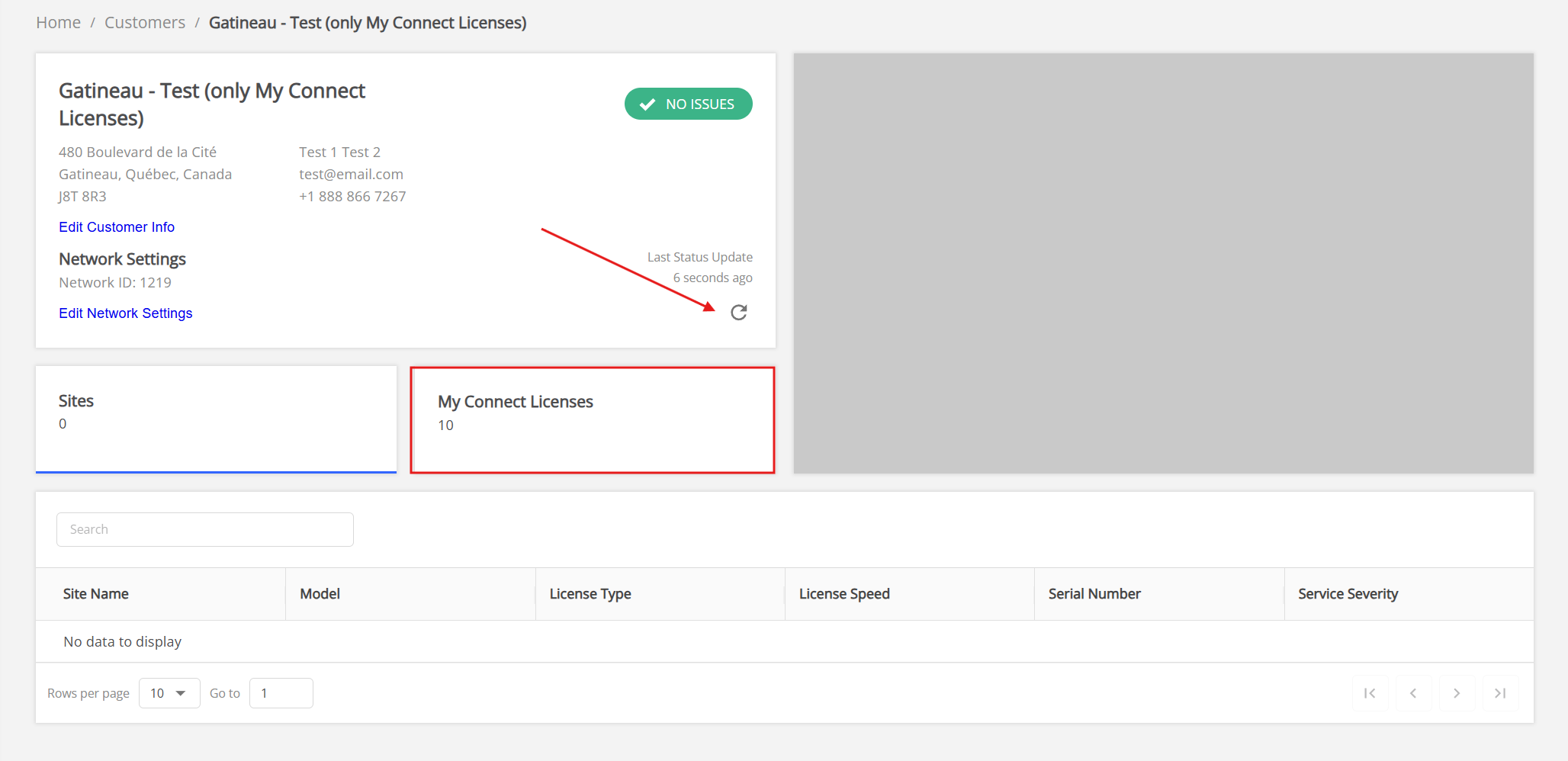
Refresh button on Customer Dashboard with Sites only.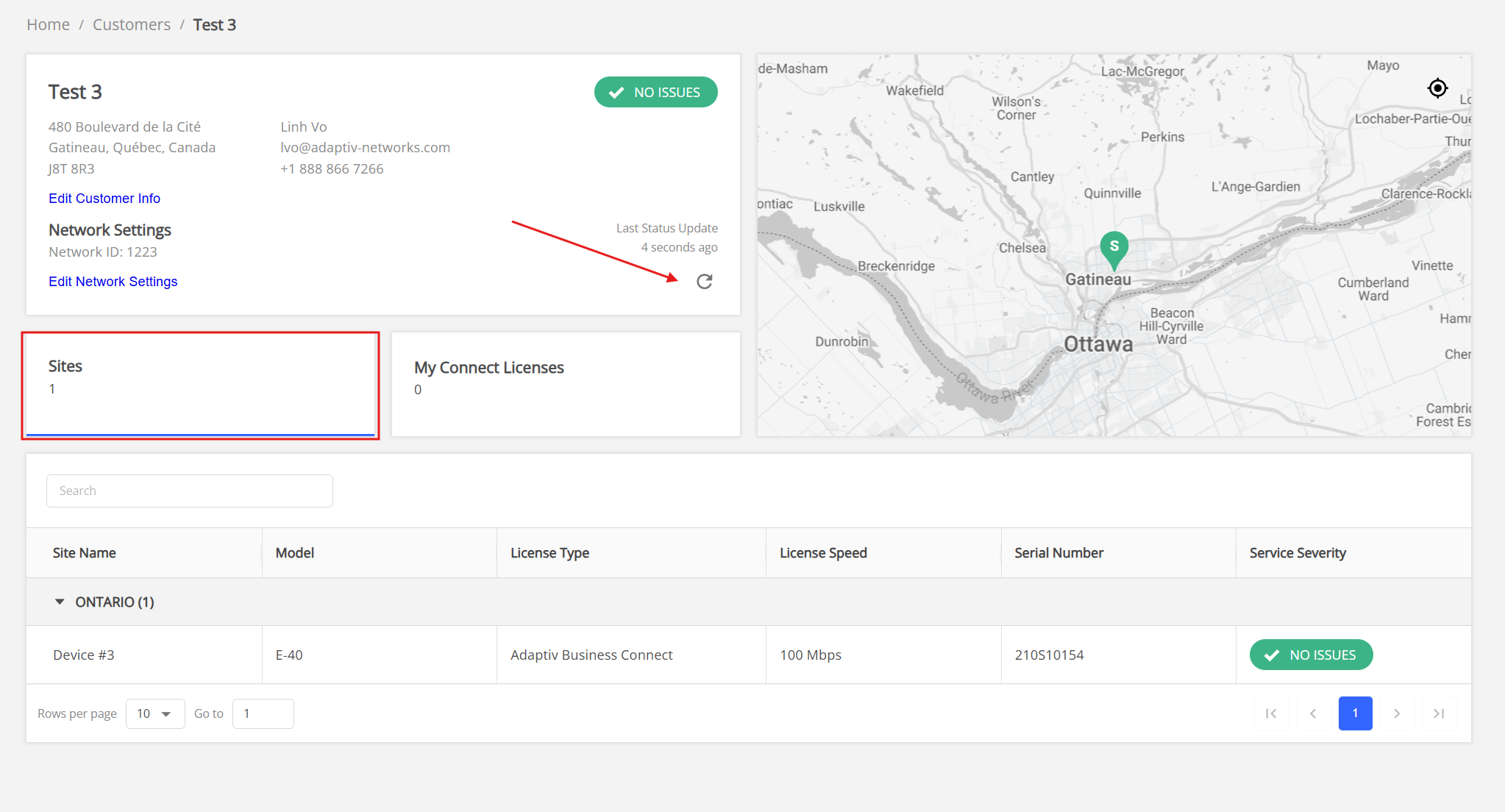
The Refresh button on the Site Dashboard:
- Updates site, device, and link statuses.
- Refetches the following reports: Gateway, Link Status, Quality of Experience(QoE) Graph, and Total Network Usage Pie Graph
- Resets the refresh intervals for both statuses and reports.
Example: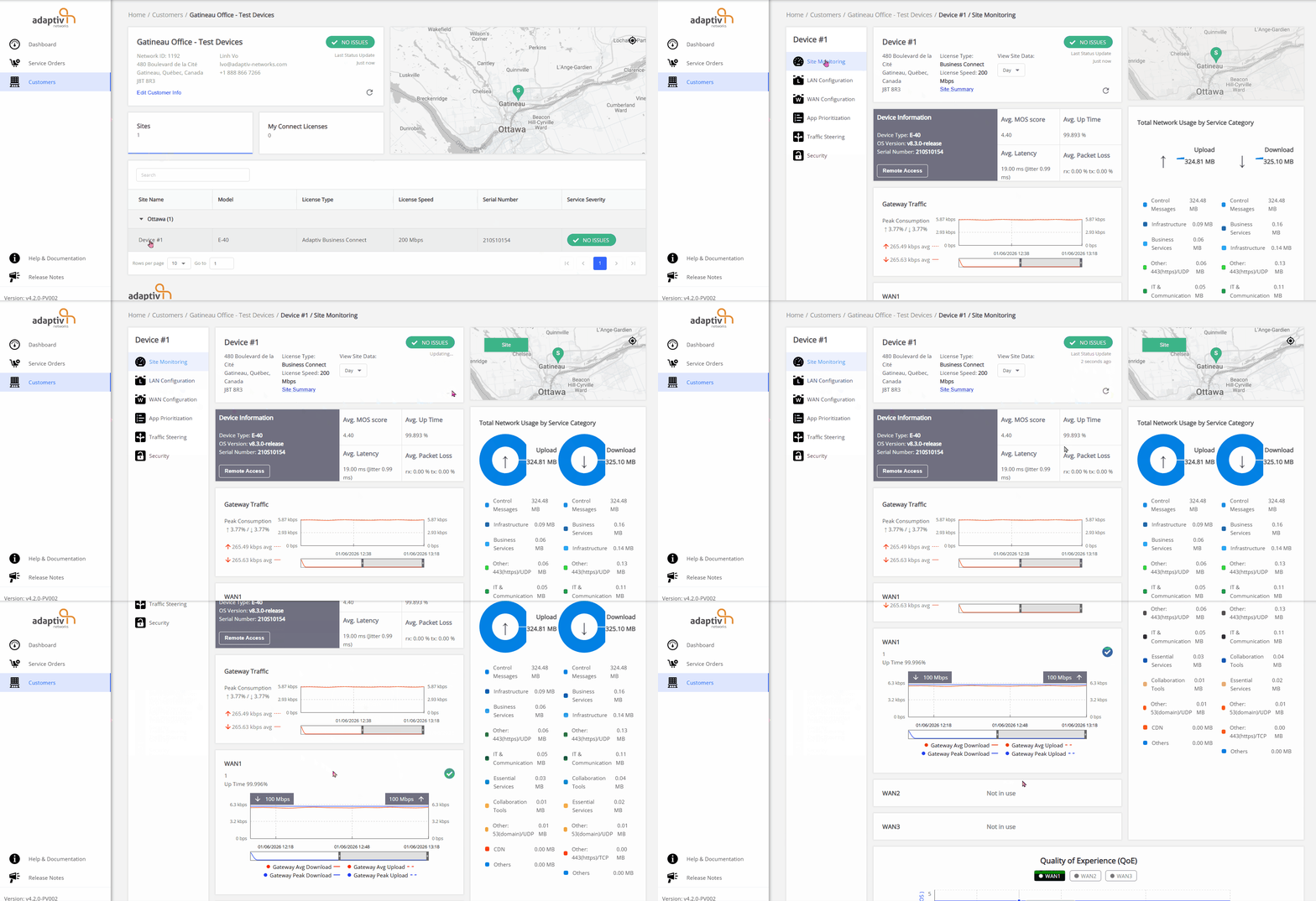
TERMS OF USE | PRIVACY POLICY | USER LICENSE AGREEMENT