Interface Usage Graphs for WAN and Wireless Traffic
The WAN and wireless traffic graphs visualize the performance of each physical interface (e.g., WAN1, WAN2 … WAN-N, and Wireless) on the Edge device. These line graphs now display both average and peak gateway usage for each interface, giving users a more complete view of link utilization and link health.
- Average — represents the mean data transfer rate (throughput) calculated over a specific interval (5-minute for Day view | 60-minute for Week or Month view). It smooths out short-term fluctuations and gives a long-term picture of the typical traffic load during that period.
This metric is useful for understanding sustained usage patterns and planning capacity because it reflects the normal operating conditions rather than momentary spikes. - Peak — on the other hand, shows the highest observed data transfer rate (throughput) within a specific interval (5-minute for Day view | 60-minute for Week or Month view). It captures traffic bursts or sudden surges that might occur due to large file transfers, backups, or application updates.
Monitoring peak values is important for identifying potential congestion points and ensuring that the network can handle occasional spikes without performance degradation.
Details for Each Physical Interface
Under Site Dashboard, the following details are available for each interface. Refer to the numbered items in the screenshot for each information.
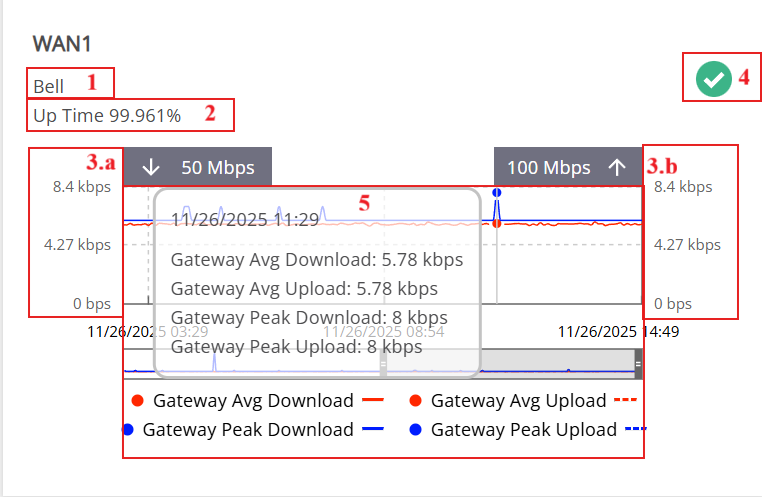
- ISP information — Display the internet service provider name (e.g., Bell.)
- Up Time — The percentage of time that a link has remained active since its last connection (e.g., 99.961%)
- Download and Upload Speed for each WAN
- Download Speed —
 Down arrow on the left. The download values are shown along the left vertical axis.
 - Upload Speed —
 Up arrow on the right. The Upload values are shown along the right vertical axis.
- Download Speed —
- Overall link health — Top-right icon. See Link Severity for more details. (e.g.,

 )
) - Average and Peak Usage Graphs — A line graph displays traffic for both Average and Peak Download/Upload per interface. Hovering over any points in the line graph reveals the exact value and timestamp for average/peak data points.
Average and Peak Usage Graphs
Only physical interfaces (WAN 1, WAN 2 … WAN N, and Wireless) display all four selector options:
- Gateway Average Upload and Download:
- Gateway Avg Download – displayed as a red solid line ____
- Gateway Avg Upload – displayed as a red dotted line ........
- Gateway Peak Upload and Download:
- Gateway Peak Download – displayed as a blue solid line ____
- Gateway Peak Upload – displayed as a blue dotted line .......
By default, all 4 selectors are enabled and shown on the graph. Users can customize the view in the following ways:
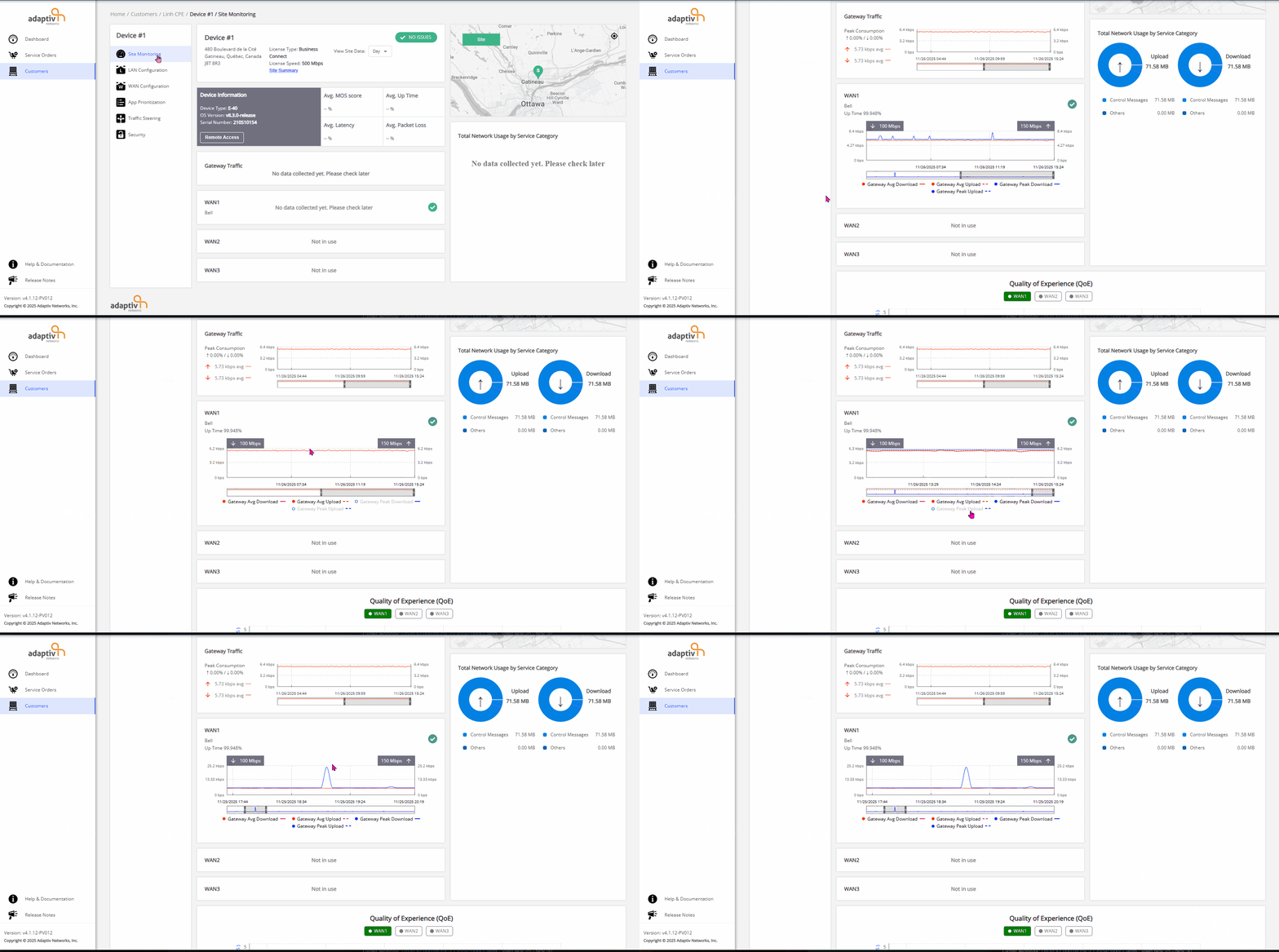
- Toggle selectors to show or hide any of the four selectors.
- Adjust the date-time range using the slider chart below the graph. This allows users to zoom in or out and analyze average and peak upload/download traffic over a specific time period.
TERMS OF USE | PRIVACY POLICY | USER LICENSE AGREEMENT
Copyright © 2026 Adaptiv Networks, Inc. Send Feedback