This topic explains how partners can create, configure, deploy, and remove My Connect licenses.
License activation is a simple three‑step process:
Create the My Connect Licenses
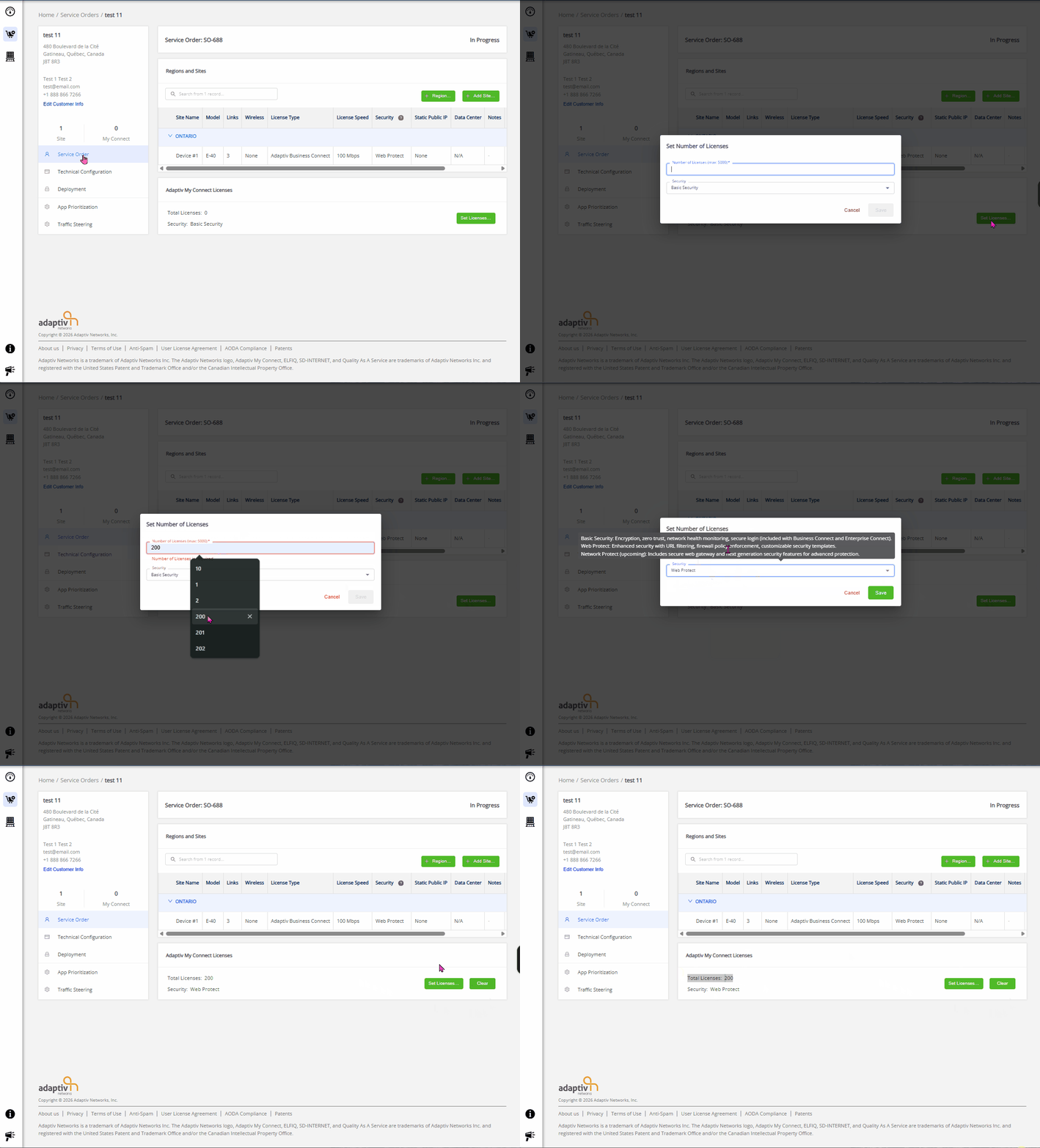
After the Service Orders have been created (see Service Order creation step), to create My Connect Licenses, follow the steps:
- On the Service Order page, click Set Licenses.
- A Set Number of Licenses form appears.
- Enter the following information:
- Number of Licenses — Enter the number of required licenses.
Note: The maximum supported number of licenses is 5000. - Security — From this section, users can select security types provided by Adaptiv Networks to manage traffic flowing through their networks. Depending on the chosen security level and configuration, this feature helps block malicious software, illegal content, and other threats that could compromise the customer’s network. Adaptiv Networks offers the following security levels:
- Basic Security
- Web Protect
- Number of Licenses — Enter the number of required licenses.
- Click Save to proceed. To discard, click Cancel.
Configure My Connect network
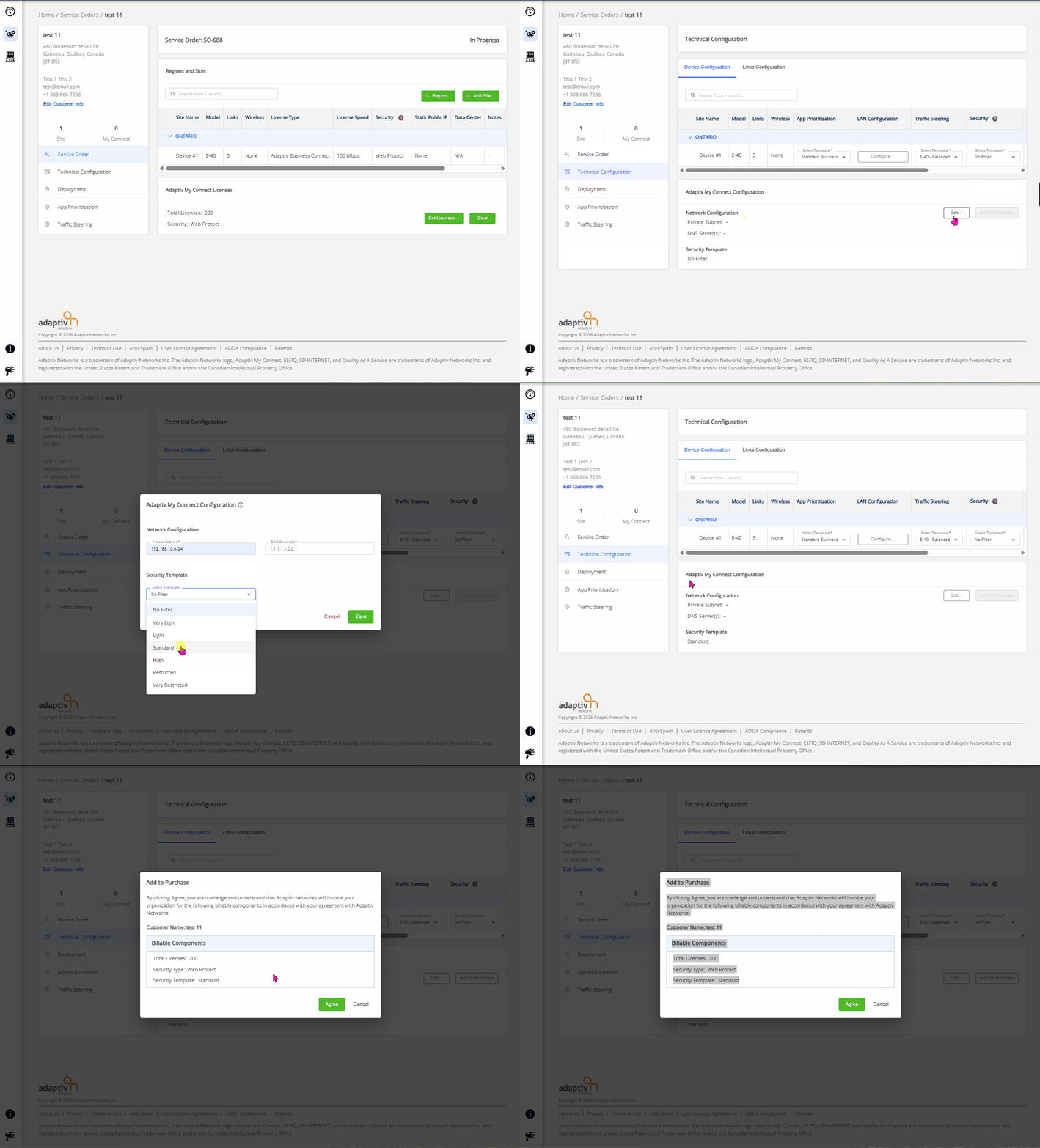
- On the Technical Configuration page, click Edit.
- An Adaptiv My Connect Configuration form appears.
- Provide the required information:

The Security template is available for My Connect Configuration with Web Protect.
For My Connect using Basic Security, this option is unavailable, and users cannot select a security template. In this case, the default No Filter template is applied.- Private subnet — The private subnet must contain sufficient IP addresses to support the total number of licenses requested.
- DNS server(s).
- Security template
- The default option is No filter. Select one of the following options:
- No filter
- Very Light
- Light
- Standard
- High/Restricted
- Very Restricted
- The default option is No filter. Select one of the following options:
Deploy My Connect Licenses
Add To Purchase
- On the Technical Configuration page, locate the Adaptiv My Connect Configuration section.
- Click Add to Purchase.
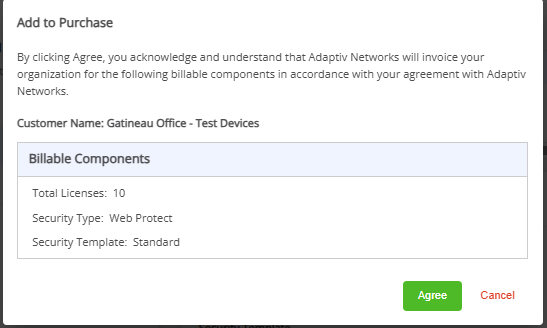
- A confirmation dialogue appears, informing the user that:
- They are confirming their purchase with Adaptiv Networks.
- The user is presented with two options:
- Agree – Confirms the purchase and initiates billing.
- Cancel – Discards the action and does not proceed with the purchase.
Deploy Licenses
- Navigate to the Deployment page
- Under the Adaptiv My Connect section, click Deploy.
Once the deployment is completed, the deployment status changes to Licenses Activated.
If the deployment fails, the status will change to Deployment Failed.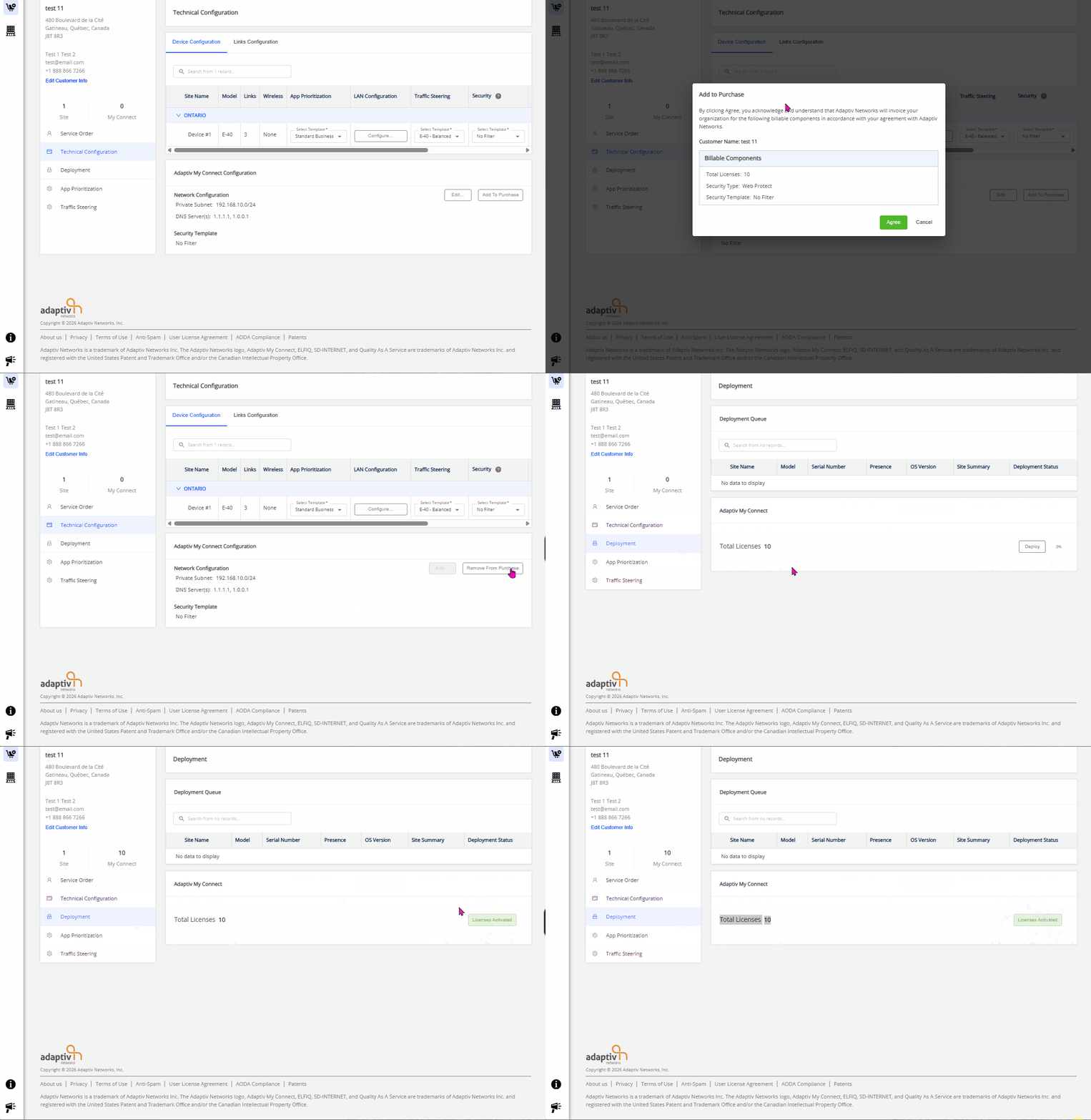
Delete My Connect License
Remove Users from Adaptiv My Connect Licenses
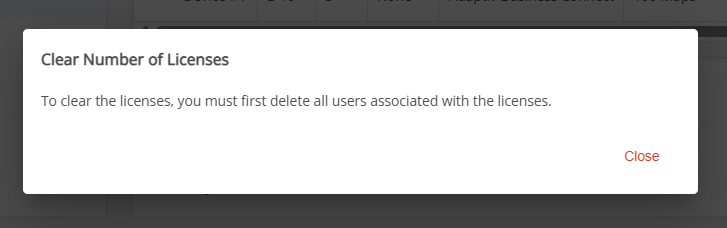
Before deleting or clearing Adaptiv My Connect licenses, you must first remove all users associated with those licenses. If users attempt to delete licenses without first removing the associated users, the action cannot be processed. A warning message is displayed prompting users to clear the number of licenses (see screenshot below).

|
If the Adaptiv My Connect license has no user associations, you can skip this step and proceed directly to license deletion. |
Depending on the user type, users can be deleted using one of the following methods:
How to delete Adaptiv My Connect licenses
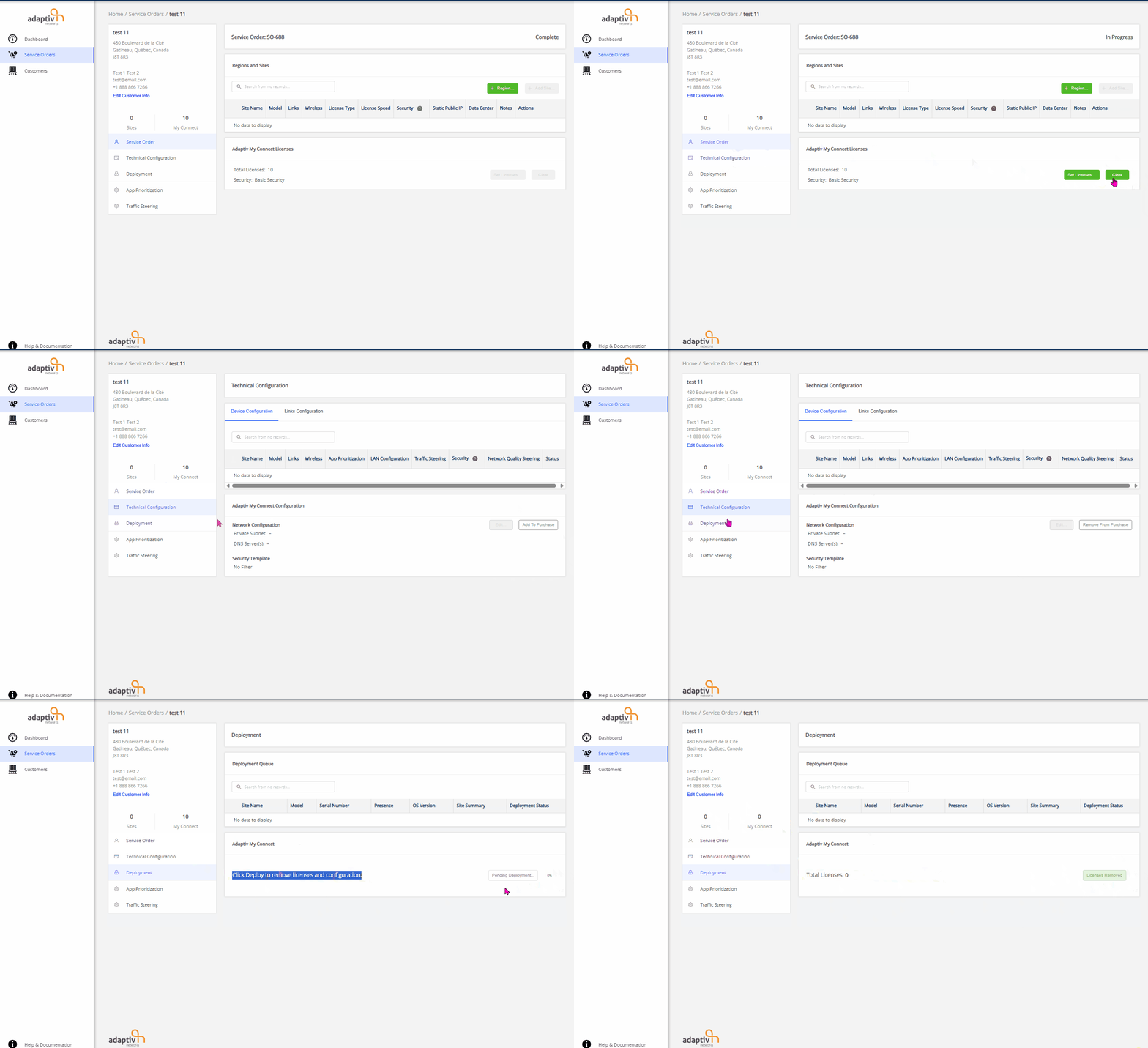
Once all associated users are removed, follow the steps below to delete Adaptiv My Connect licenses.
- In the Technical Configuration section, click Remove From Purchase.
- Go to the Service Order section, click Clear to remove all My Connect licenses and configuration.
- Return to the Technical Configuration section, click Add to Purchase.
- In the Deployment section, click Deploy to clear the licenses and associated configuration.
TERMS OF USE | PRIVACY POLICY | USER LICENSE AGREEMENT