Managing Multiple Users (Batch Operations)
My Connect users can be managed simultaneously using batch operations in the Adaptiv My Connect Users table. Batch operations enable the simultaneous execution of multiple actions for multiple users.
Available Actions:

|
Before you begin:
|
Before performing a batch operation, read the To Begin a Batch Operation section below to ensure that the batch actions are available from the Actions menu and the selected user types are eligible.
To Begin a Batch Operation
- Select one or more users from the Users table using the checkboxes.
- Once users are selected, batch actions become available from the Actions drop-down menu.
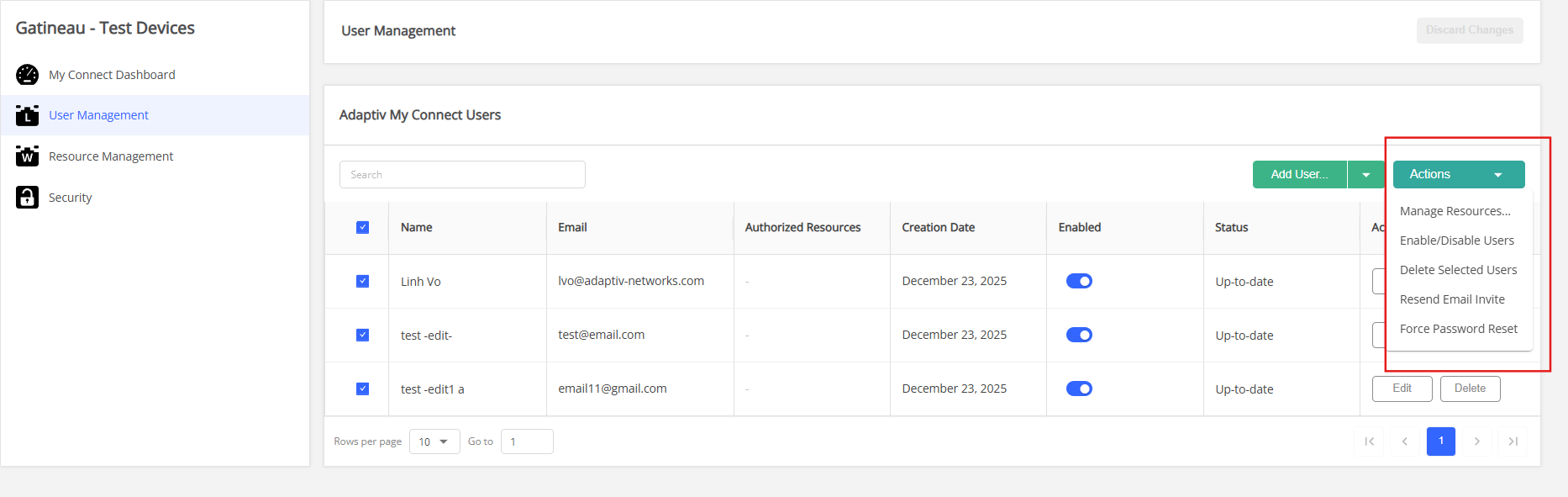
The multiuser selection checkbox is enabled for all user types except those selected for deletion.
Although the multiuser selection checkbox may be enabled for a user, the availability of batch actions depends on the selected user's Type.
- One or more selected users for batch action are ineligible → The batch action can not execute. A prompt appears asking the user to remove them from the selection. (see example below).
- All selected users for batch action are eligible → The batch action executes as expected.
Example:
A new user (not yet activated) is ineligible for the Force Password Reset batch action.
Although the multiuser selection checkbox is enabled, the action cannot proceed. A prompt appears asking the user remove the ineligible user from the selection to proceed with this action. 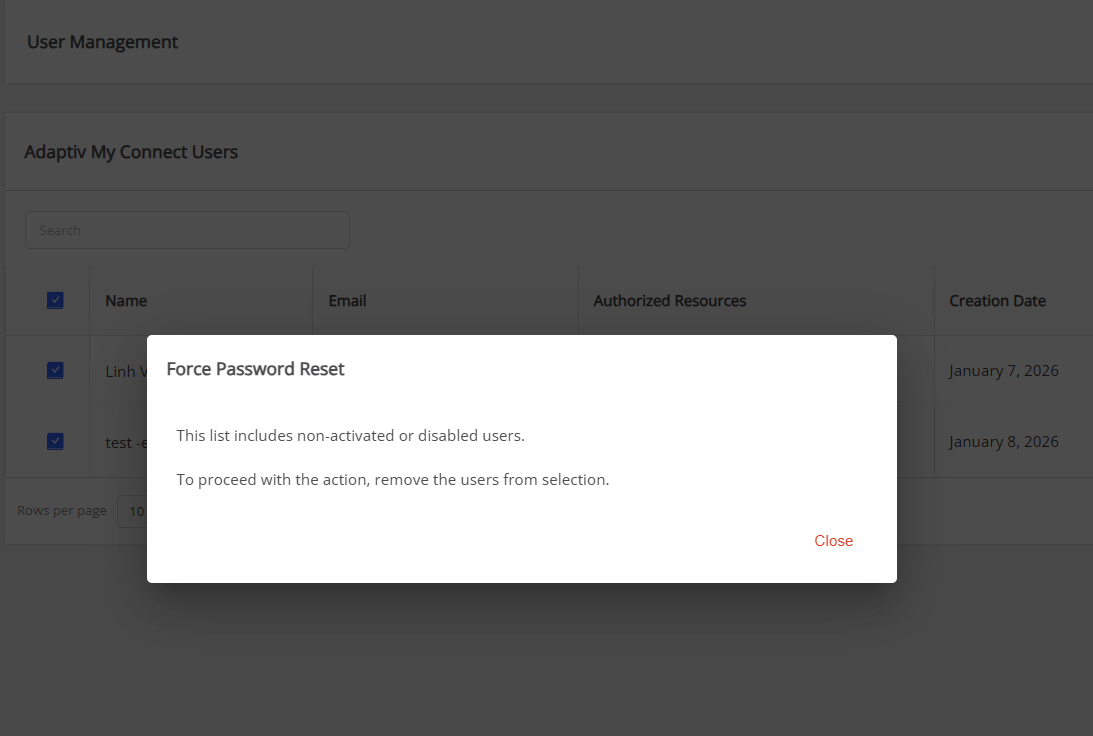
Please refer to the User Type/Action Matrix below for details.
| User Type/Action | Manage Resources | Delete Selected Users | Enable / Disable Users | Resend Email Invite | Force Password Reset |
|---|---|---|---|---|---|
| Activated users | Allow | Allow | Allow | Allow | Allow |
| New Users (NOT activated users) | Allow | Allow | Allow | Deny | Deny |
| Disabled User | Allow | Allow | Allow | Deny | Deny |
| User selected for deletion | Deny | Deny | Deny | Deny | Deny |
| Adaptiv My Connect (AMC) user with ACO permissions | Allow | Deny | Deny | Allow | Allow |
Manage resources
- Select users from the users table.
- Open the Actions drop-down menu → click Manage Resources...
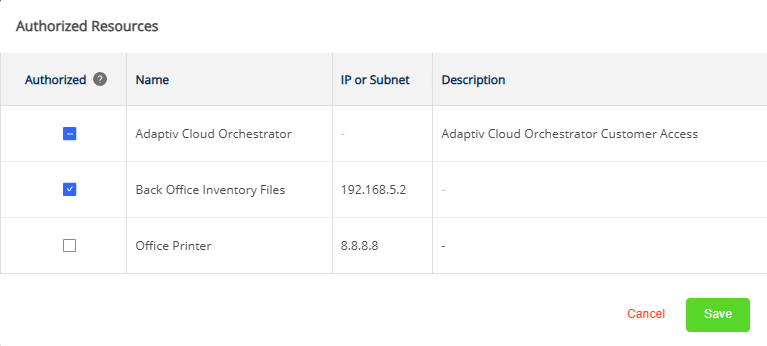
 indicates that the resource is authorized for all users.
 indicates that the resource is not authorized for all users.
 indicates that the resource is authorized for some, but not all users.
- To enable resources for all users, select the checkbox.
- To disable a resource for all users, unselect the checkbox.
- If a resource is partially authorized for users, selecting or deselecting the resource will remove partial authorization for that resource and enable or disable the resource for all users.
- Click Save to save modifications to the resource authorization, or Cancel to close the form.
- To apply any of the changes, click Update. For detailed steps, see Apply the Changes.
Enable/Disable Users
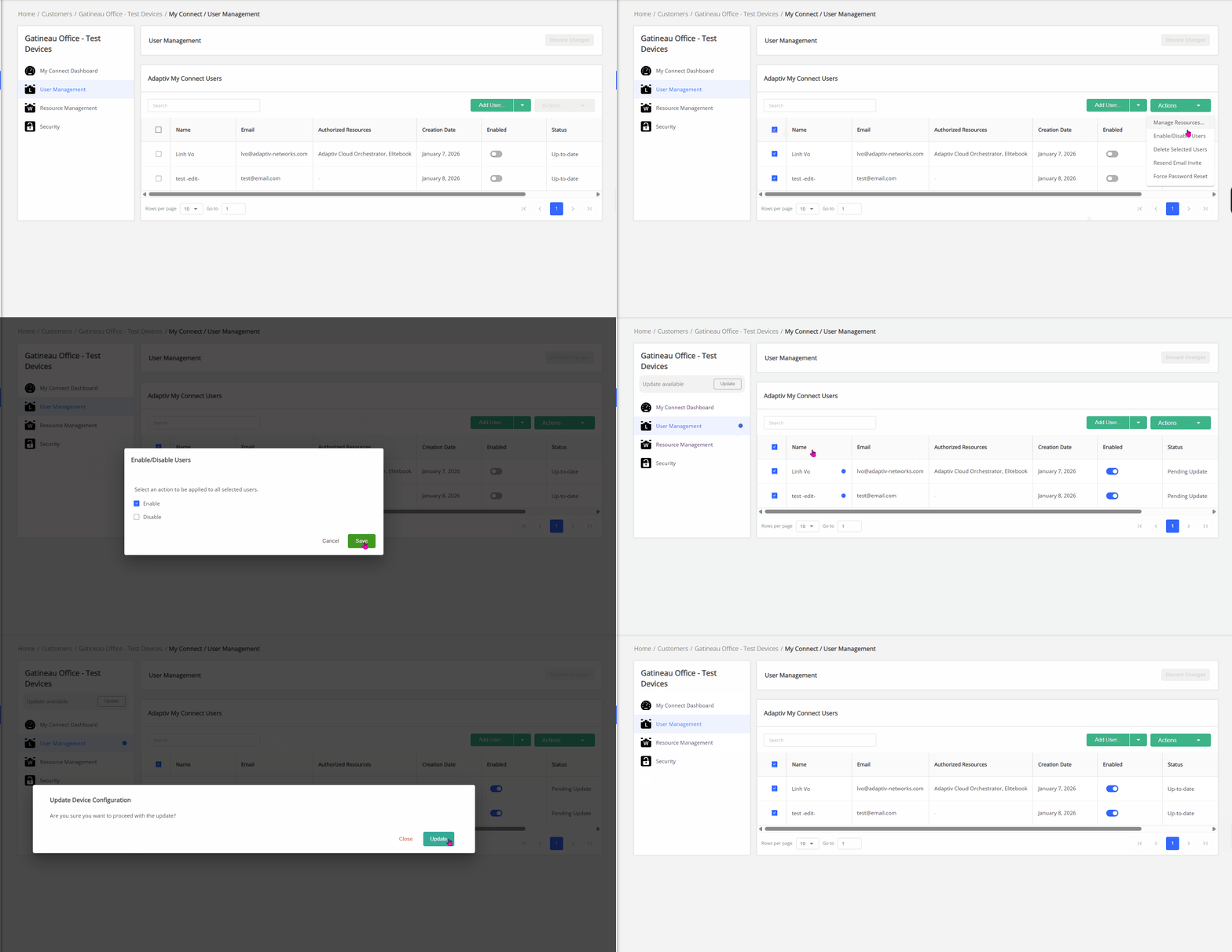
- Select users from the users table.
- Open the Actions drop-down menu → click Enable/Disable Users
- The Enable/Disable Users form appears.
- Users select an action (Enable or Disable) to apply to all selected users.
- Click Save to apply the action, or Cancel to close the form.
- To apply any of the changes, click Update. For detailed steps, see Apply the Changes.
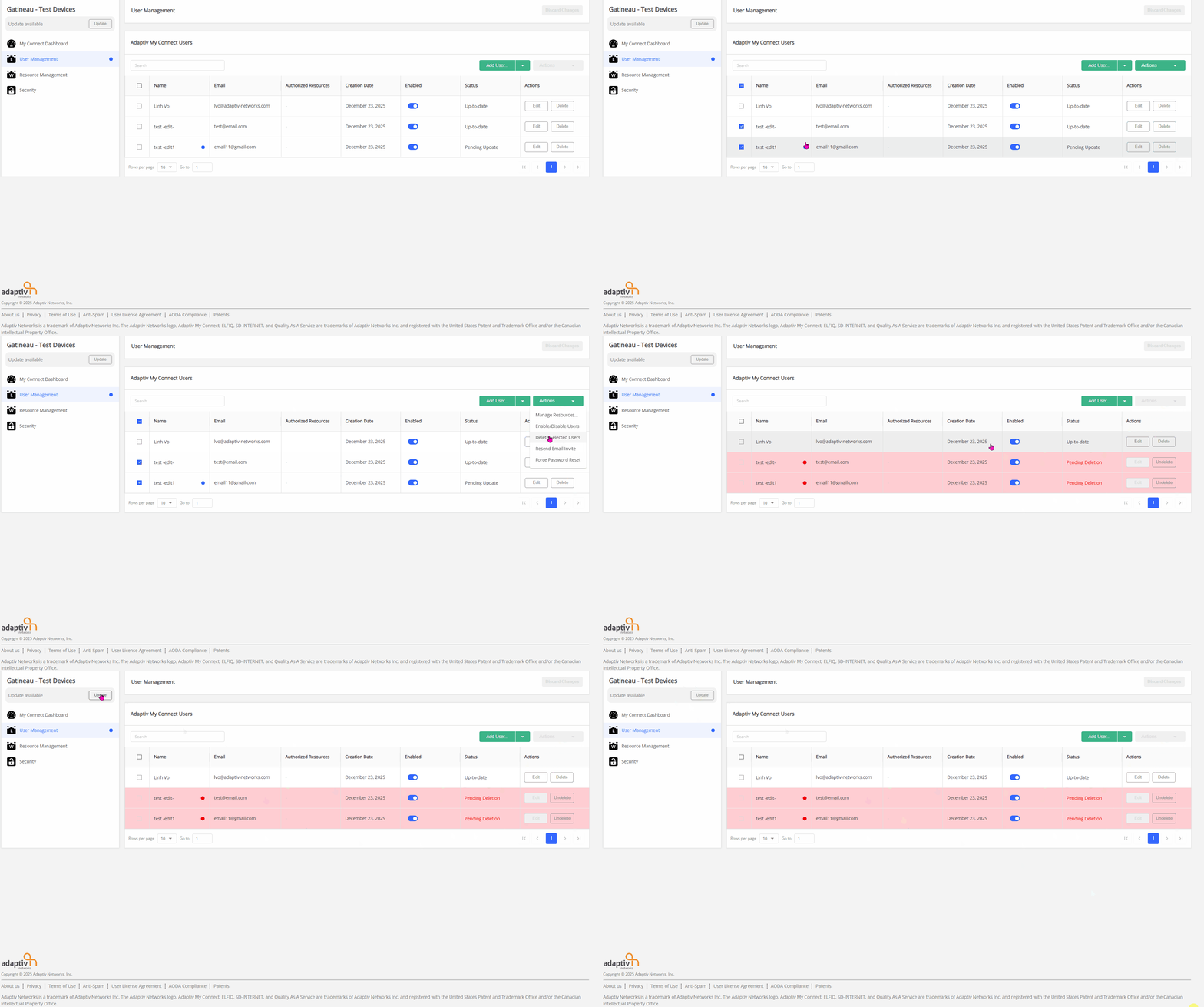
Delete multiple users
- Select users to be deleted from the users table.
- Open the Actions drop-down menu → click Delete Selected Users.
- A red dot indicator appears next to the user's name when a deletion is marked.
- To restore the user, click Undelete. The red indicator dot disappears
- To apply any of the changes, click Update. For detailed steps, see Apply the Changes.
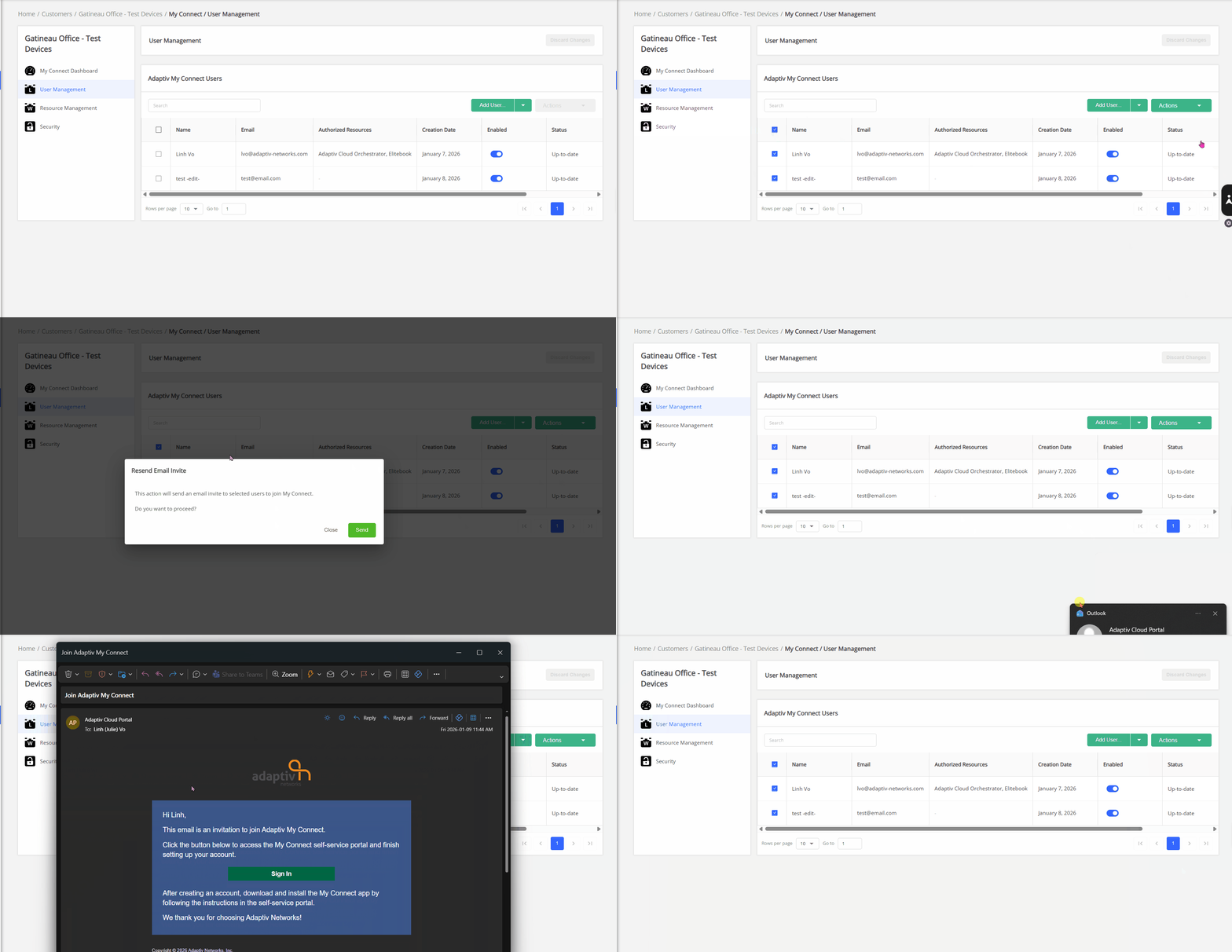
Resend email invite
- Select the users from the table.
- Open the Actions drop-down menu → click Resend Email Invite.
- In the Resend Email Invite dialogue box, click Send. This action will send an email invite to selected users to join Adaptiv My Connect.
Force a password reset
- Select the users from the table.
- Open the Actions drop-down menu → click Force Password Reset.
- In the Force Password Reset dialogue box, click Force Reset, or Cancel to close the form.
This action will force the selected users to change their My Connect application password. An email is sent requesting a password reset, and when the users log out of the application(s), they are unable to log in again unless a new password is set up.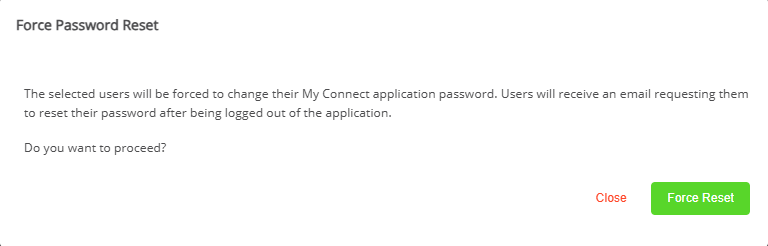
TERMS OF USE | PRIVACY POLICY | USER LICENSE AGREEMENT