Managing Individual Users
Individual My Connect Users can be managed directly from the Adaptiv My Connect Users table. Available actions include:
|
Before you begin:
|
Add a new user
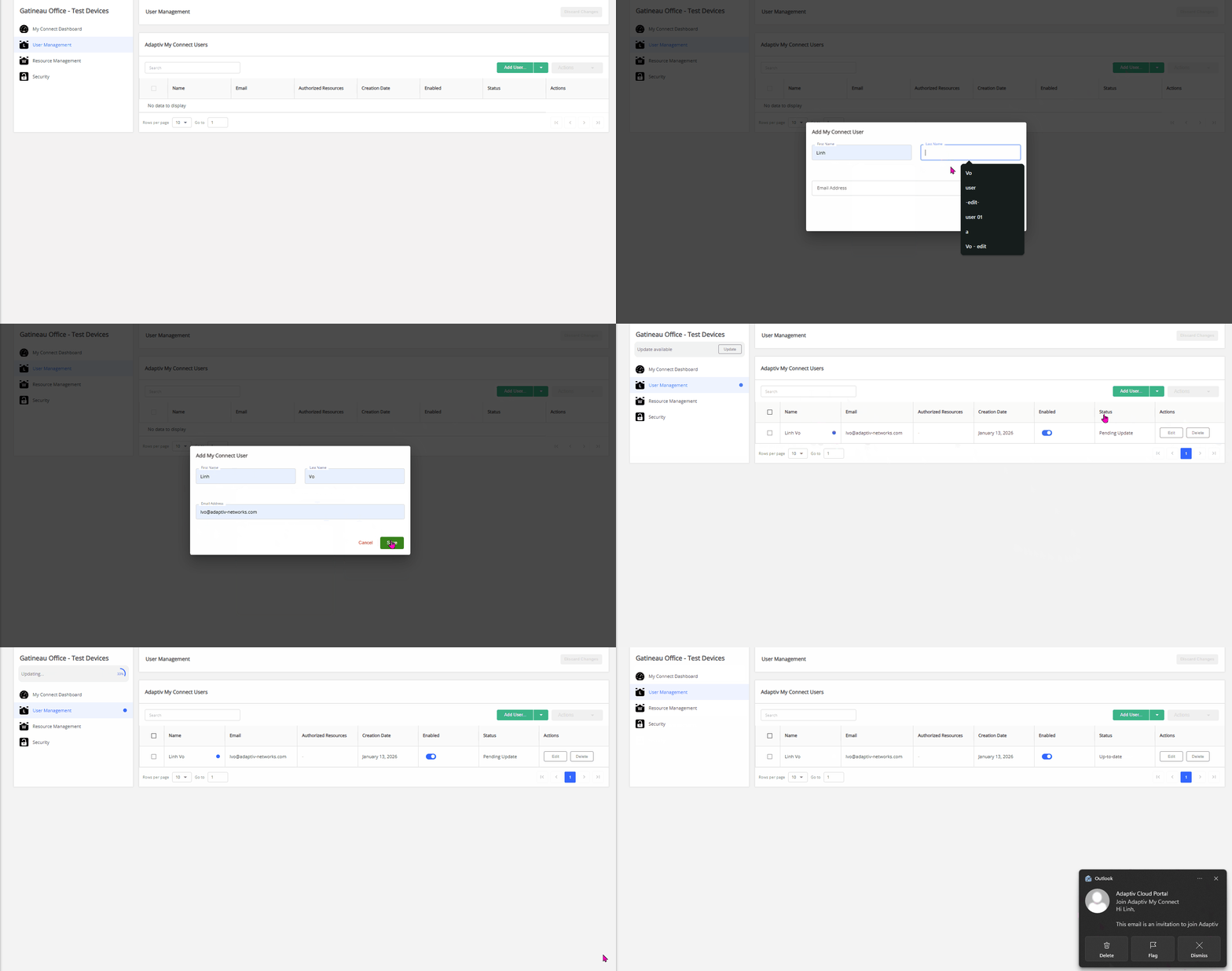
- Click Add User...
- In the 'Add My Connect User' form, provide the user's first and last name, along with their email address.
- Every My Connect user added to the network must have a unique email address, and the email address must use lowercase letters.
- Once a user is created, their email address cannot be changed. To use a different email address, the user must be deleted and re-created.
- Click Save. This action will list the user in the Adaptiv My Connect Users table.
To discard, click Cancel. - A blue dot indicator appears next to the user's name.
- To apply any of the changes, click Update. For detailed steps, see Apply the Changes
Enable or disable a user
- Use the toggle switch in the Enabled column of the Adaptiv My Connect Users table to enable or disable a user.
The switch to enable/disable users is enabled when a user is created. - A blue dot indicator appears next to the user's name when changes are made.
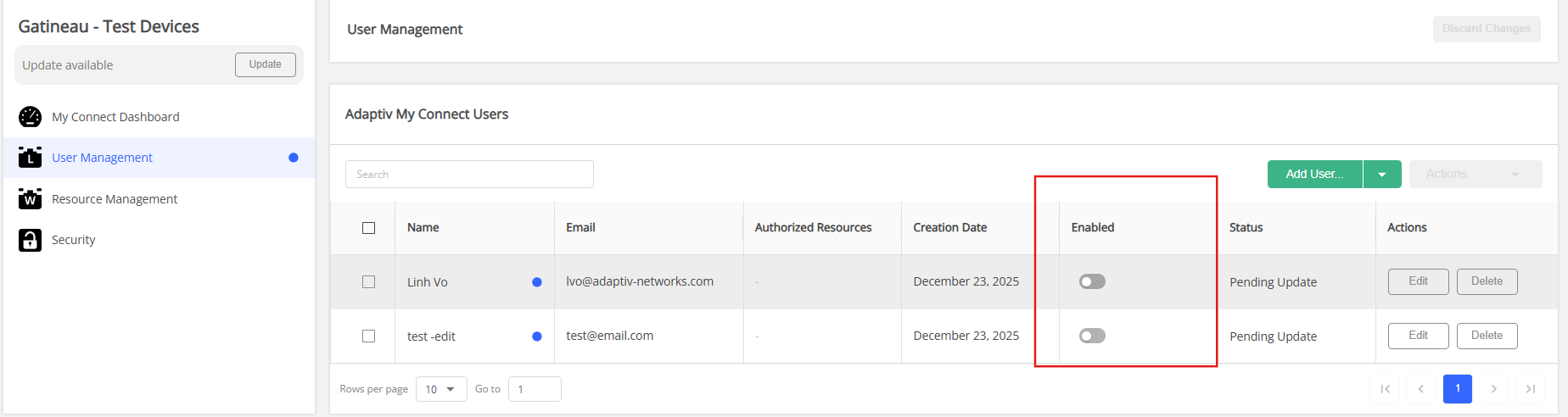
- To apply any of the changes, click Update. For detailed steps, see Apply the Changes.
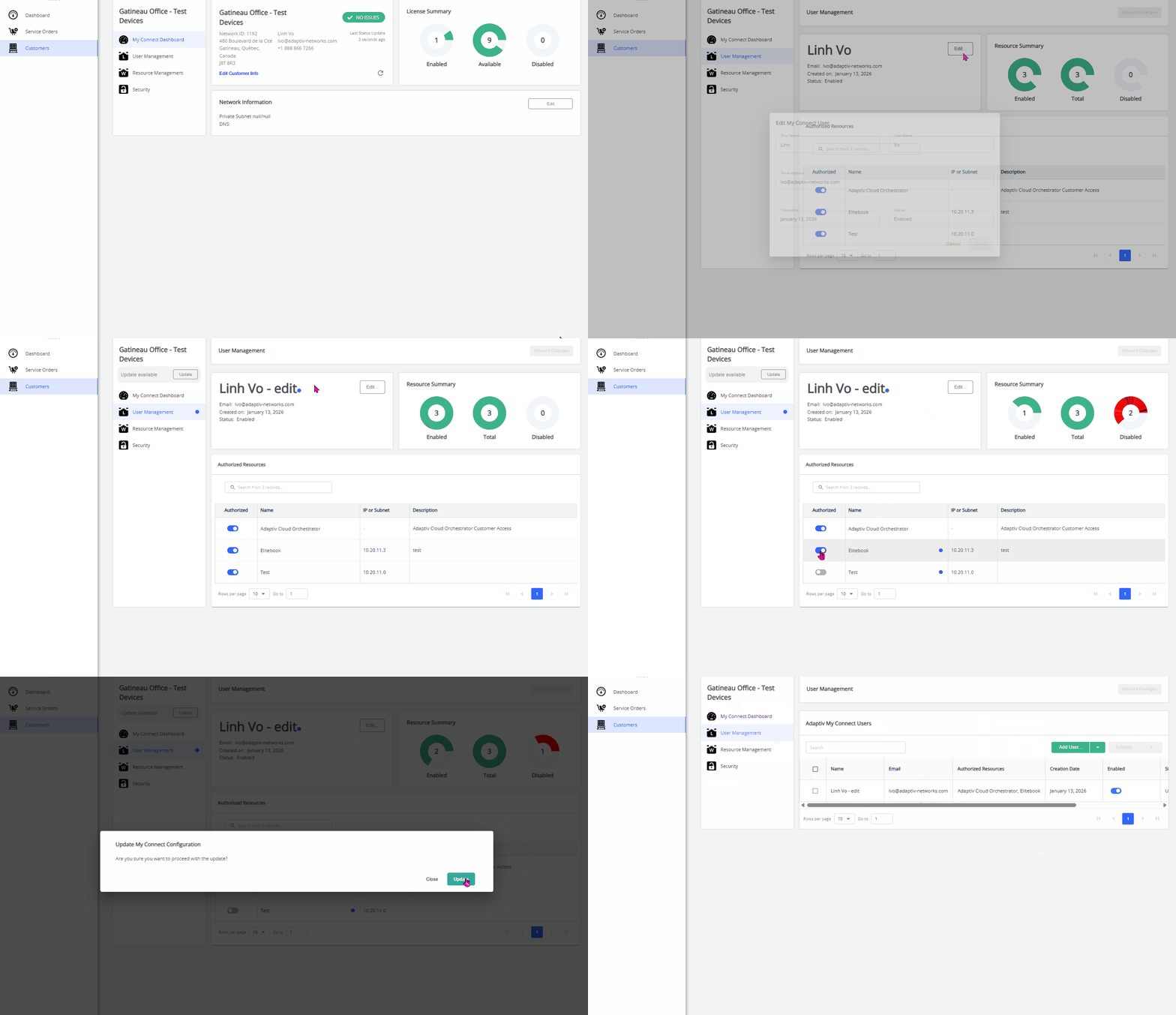
Edit user information
- Click Edit in the Actions column.
- On the user information page:
- To modify user information, click Edit.
- In the Edit My Connect User form, modify the user's first and/or last name
- Click Save to apply the changes. To discard, click Cancel.
Once a user is created, their email address cannot be changed. To use a different email address, the user must be deleted and re-created.
- A blue dot indicator appears next to the user’s name when changes are made.
- In the Edit My Connect User form, modify the user's first and/or last name
- In the Authorized Resources table, use the toggle switch in the Authorized column to grant or remove authorization for a user. For more details, see Resource Management.
A blue dot indicator appears next to the authorized resource names when changes are made.
- To modify user information, click Edit.
- To apply any of the changes, click Update. For detailed steps, see Apply the Changes.
Delete a user
- Click Delete in the Actions column.
- A red dot indicator appears next to the user's name when a deletion is marked.
- To restore the user, click Undelete. The red indicator dot disappears.
- To apply any of the changes, click Update. For detailed steps, see Apply the Changes.
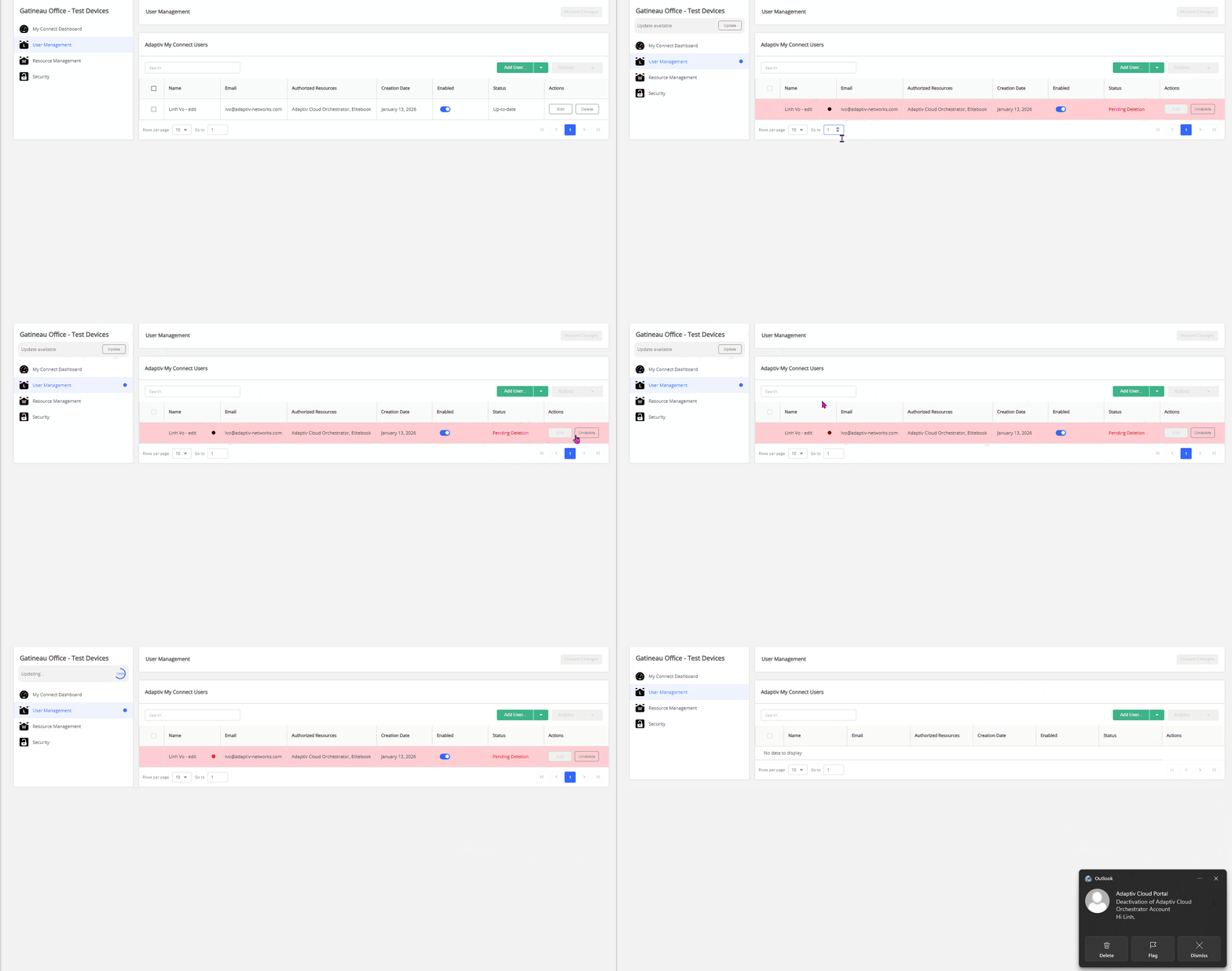

When a user is selected for deletion, no batch actions can be applied to that user, and the user is excluded from batch selections.
Deleting a user deactivates the user’s account, and the user will no longer be able to access the Adaptiv My Connect application or any authorized resources.
Apply Changes
To apply any changes made in the steps above:
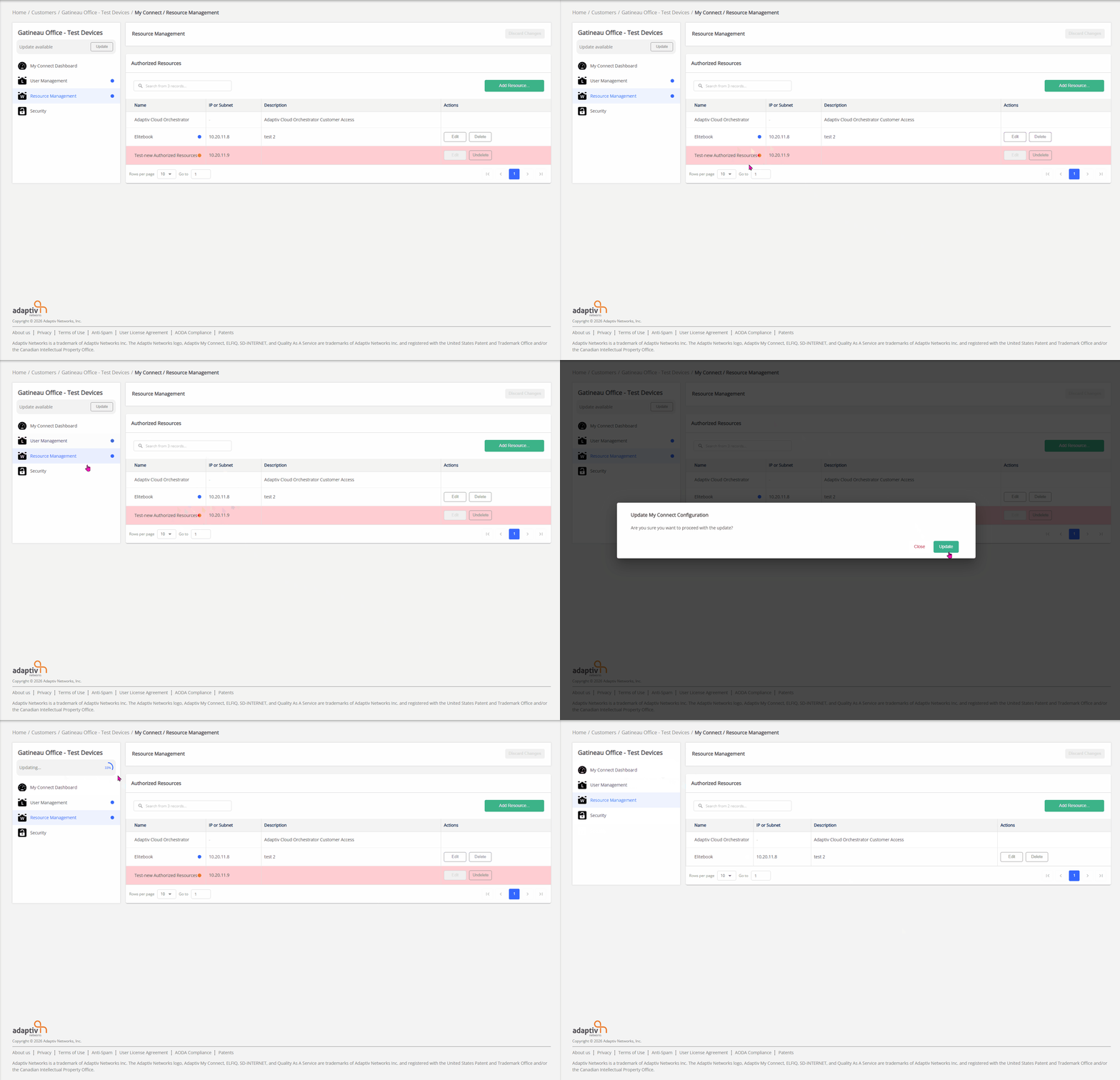
- Click Update at the top of the My Connect dashboard.
- An Update My Connect Configuration confirmation dialogue appears.
- Click Update to proceed with the changes. To discard the changes, click Close.
- In addition to the existing blue and/or red dots from previous steps, an additional blue dot indicator appears next to User Management whenever a user is created, modified, enabled, or deleted. All indicators disappear after the user clicks Update, including:
- Blue dots from adding, enabling/disabling, and/or editing users
- Red dots from deleting users
- Blue dot from applying changes (additional blue dot)
- After clicking Update in the confirmation dialogue, all indicators disappear. The status column will change to "Update-to-date".
TERMS OF USE | PRIVACY POLICY | USER LICENSE AGREEMENT
Copyright © 2026 Adaptiv Networks, Inc. Send Feedback