Managing Regions and Sites
You can use the Service Orders module to create service orders for your customers. A service order allows partners to add regions and sites for their customers. The site information contains details of the billable configuration to be applied to that site.
To create a service order
- On the dashboard, click Service Orders.
- In the Service Orders table, click + Add Service Order.
- In the Add Service Order dialogue:
- Select a customer account from the list (if the customer account already exists), or
- Create a customer account by entering the customer's name and completing the required details.
Click Create Service Order.
To create a Region and Site
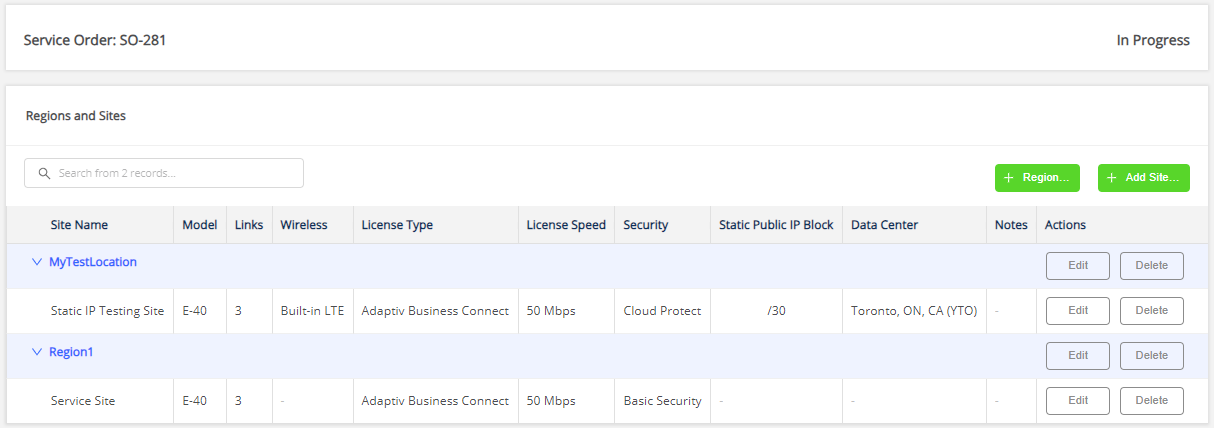
To create a region, click + Add Region on the Service Order page.
Enter the region name and click Save.Region is a geographical area common to all sites associated with it.
After creating a region in a service order, you can add one or more sites.
To create a site, click + Add Site.
Complete the required fields. Refer to the Add Site Form for more details.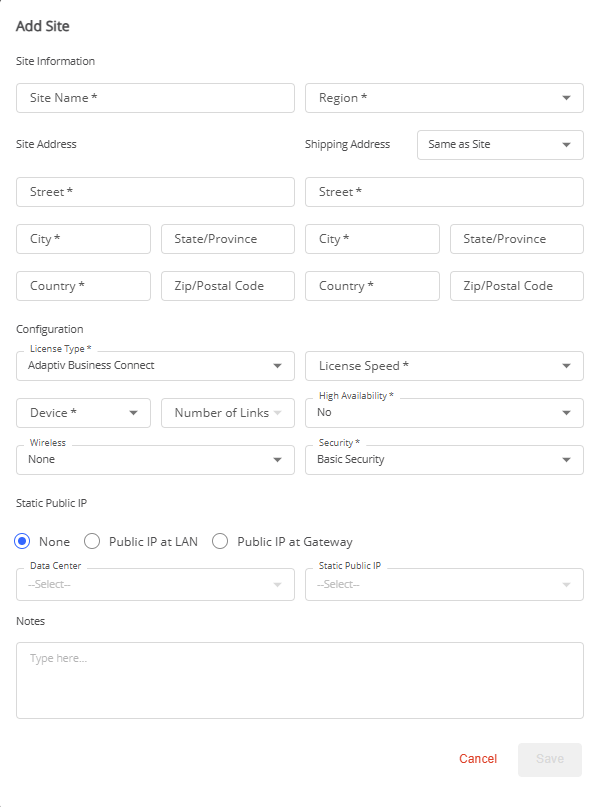
Site is the location at which the Edge device is physically located.
- Click Save to apply the change or Cancel to close the Form.
Repeat the above steps to create additional regions and sites within the service order.
To edit a site or region
- Under Home/Service Orders, open the required service order by clicking the Order ID.
- On the Service Order page, do one of the following:
- Edit a region: Locate the desired region and click Edit in the Actions column. Update the required information.
- Edit a site: Expand the desired region, locate the site, and click Edit in the Actions column. Update the required information.
Refer to the Edit Site Form for more details.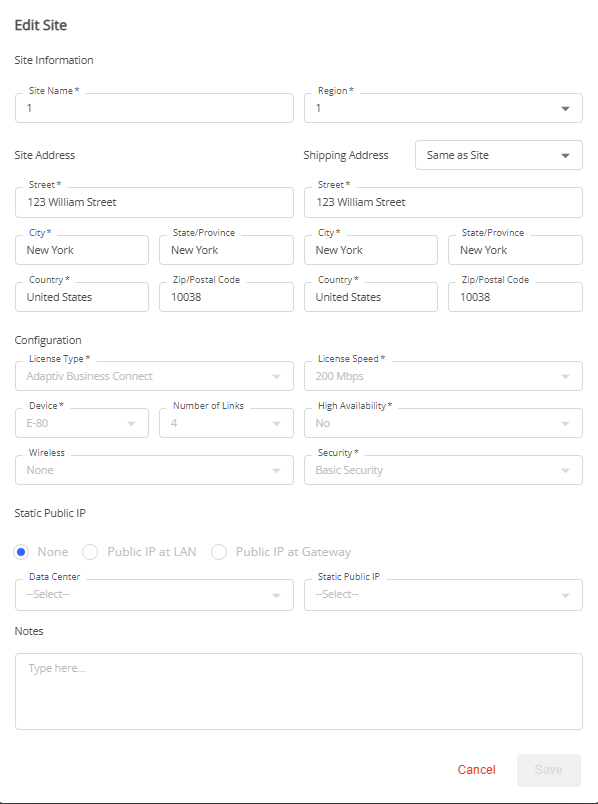
- Click Save to apply the change or Cancel to close the form.
- If you need to make a change to the billable configuration for a deployed site, such as license speed, you must first remove the site from the deployment queue. To remove a site from the queue, go to the Technical Configuration page and click Remove From Purchase in the Status column.
- When a site is in read-only mode, it cannot be edited. See Adaptiv Managed Sites.

|
To delete a site or region
- Open the Service Orders table.
- To edit a site or region, open the required service order by clicking the Order ID.
- To delete a region or site, click Delete in the Actions column.
- To delete a region, you must delete all the sites created under that region in different service orders.
- To delete a site, you must first remove it from the purchase. Deleting the site removes it from the network.
- When a site is in read-only mode, it cannot be deleted. See Adaptiv Managed Sites.
TERMS OF USE | PRIVACY POLICY | USER LICENSE AGREEMENT