Device Configuration
Device Configuration tab enables you to define LAN interface configuration and select a template for application prioritization and traffic steering. It also allows you to enable or disable the network quality steering algorithm for your site. Based on the type of security selected in the service order, you can select and apply a security template to the site. From here, you can add your site to Purchase and prepare for the next step in the deployment process.
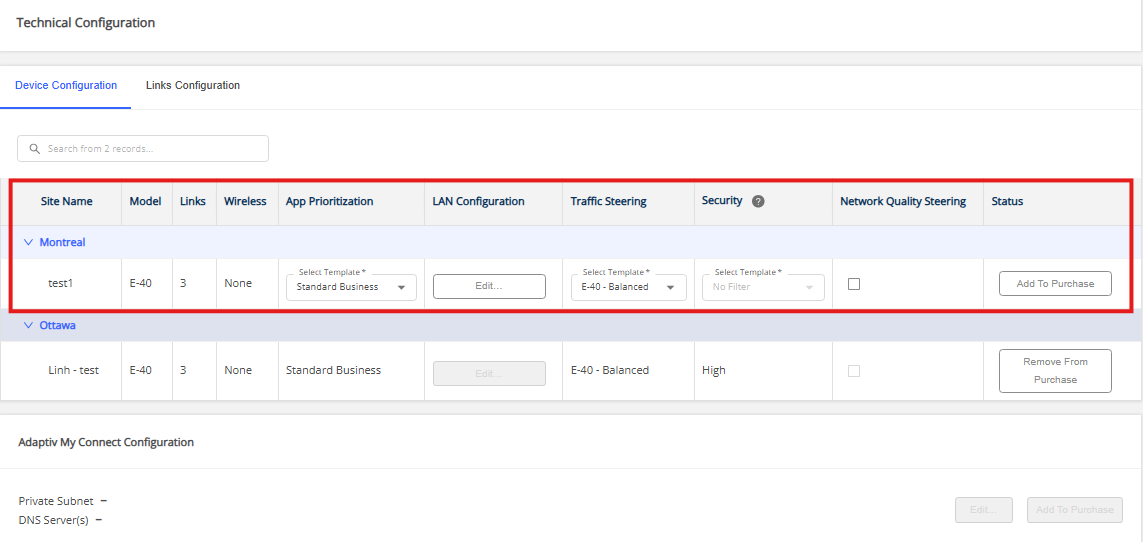
To proceed with configuration, select the Device Configuration tab in Technical Configuration.
- App Prioritization— App Prioritization enables you to select and apply an application prioritization template to the device. The default template is Standard Business, which is applied to a site if no other template is selected. The details of each template are available in App Prioritization in the left panel.
- To select and apply a template to the device, click the template drop-down menu and select the desired template.
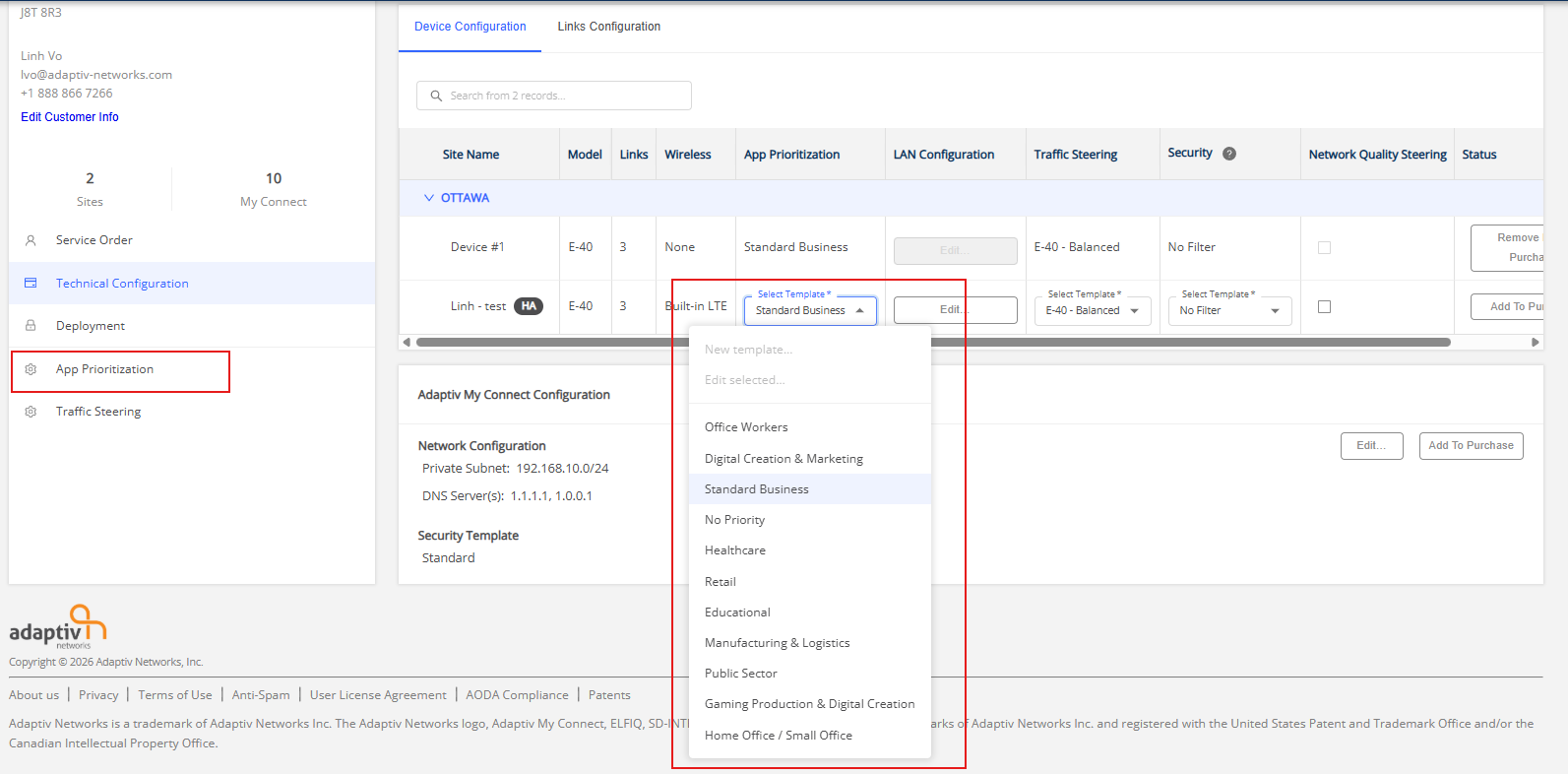
- To select and apply a template to the device, click the template drop-down menu and select the desired template.
- LAN Configuration — The LAN Configuration form allows you to provide information for the LAN Configuration associated with the Static Public IP address selected during the site creation. If you have selected a static IP in the LAN or gateway configuration, the LAN configuration form is pre-populated with the details of the static IP. However, you must edit and save the LAN Configuration form to save the configuration.

For a site with active configuration dependencies (such as DHCP IP Reservation, IP rules, Port Access Management rules, and/or Routable Subnets), users cannot use a service order to modify the static public IP configuration.
Refer to Modifying Static Public IP Configuration with Dependencies for more details.- Accessing the LAN Configuration:
- For service orders with no static IP configuration, click Configure.
- For service orders with a static IP at the LAN or Gateway, select Edit.
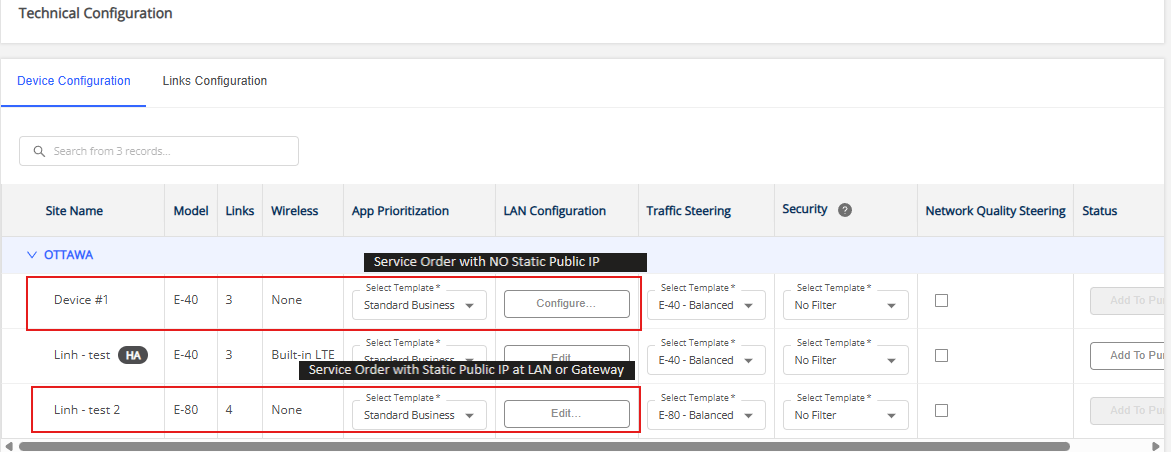
- Configuration Requirements:
- For E-80, Core, and Virtual Edge devices only, the LAN port must be specified along with other IP configuration details.
- In the IP Configuration section, provide the required IP details and the DHCP Server (if applicable).
- For E-80, Core, and Virtual Edge devices only, the LAN port must be specified along with other IP configuration details.
- Saving changes:
- Click Save to apply and store the configuration, or Close to discard any changes.
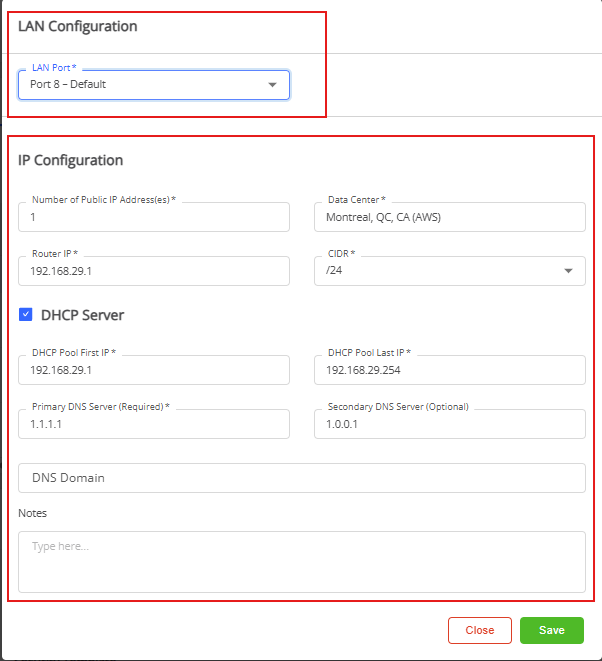
- Click Save to apply and store the configuration, or Close to discard any changes.
- Accessing the LAN Configuration:
- Traffic Steering — Traffic Steering allows you to select and apply a traffic steering template to the device. By default, the Balanced template is applied to a site. The details of each template are available in Traffic Steering in the left panel. To select and apply a template to the device, click the template drop-down menu and select the template.
- Security — Security enables you to select a security template for the site.
- For sites with basic security, the No Filter security template is applied and cannot be changed.
- For sites with Web Protect security, select a template from the template drop-down menu. By default, the No Filter template is pre-selected from the drop-down menu.
- Network Quality Steering — Network Quality Steering, when enabled, utilizes the MOS score to select a WAN link for traffic.

The Network Quality Steering checkbox is available for demo purposes only. It is strongly recommended not to enable this checkbox for customer sites.
TERMS OF USE | PRIVACY POLICY | USER LICENSE AGREEMENT
Copyright © 2026 Adaptiv Networks, Inc. Send Feedback