Site Information and Configuration
Use the Add Site or Edit Site form to enter or modify site information, device settings, and static public IP options. The form name depends on the action you are performing:
- Add Site – Displayed when creating a new site.
-
Edit Site – Displayed when modifying an existing site.
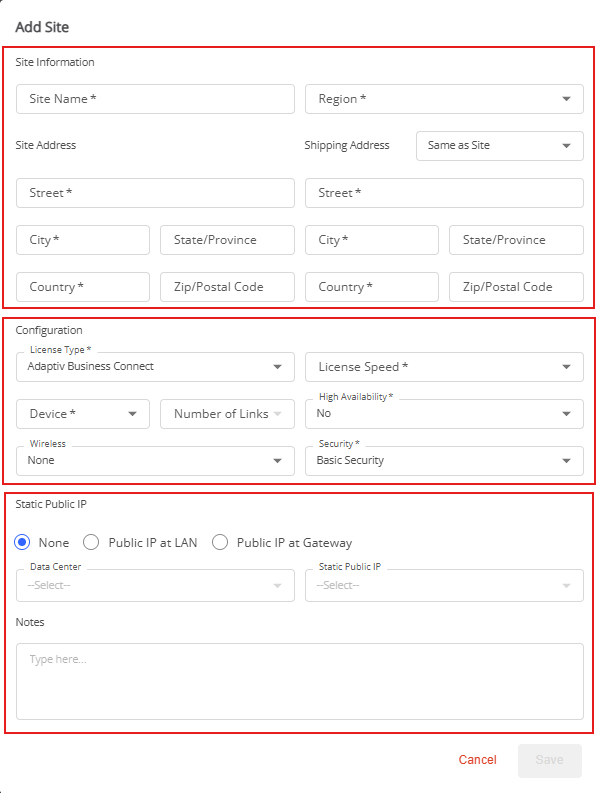
Site Information
Site information includes Site Name, Region, and Site Address. Under the Site Address, the Shipping Address field provides four options to ship the device:
- Partner Location – Selecting this option will ship the device to the partner address registered with Adaptiv Networks.
- Same as Site – This is the default option. The device will be shipped to the site address.
- Ship from Partner Inventory – The device will be shipped from the partner's inventory to the customer site.
- Custom Location – To ship the device to a location other than the partner or site.
Configuration
- License Type – Select the required service: Adaptiv Business Connect or Adaptiv Enterprise Connect
- License Speed – Select the license speed in order to enable the device menu.
- Device – The Device menu will display devices based on the selected license speed. If the license speed is changed and the selected device does not support it, the device menu will automatically select a device supporting the changed license speed.
- Number of Links – The field is automatically populated with the number of ISP links supported by each device.
- High Availability – Select Yes to configure a high availability site.
- Wireless – If a wireless connection is required, you can select an option from the given menu.
- Security – Select the level of security to be applied at the site.

|
The high availability status (Yes or No) for a site cannot be changed once the site is created. The device type for a site cannot be modified once a site has been added to the deployment queue. To change these parameters, delete the site and create a new site. |
Static Public IP
In this section, select one of the following options:
- None - The site does not require a static public IP address. (A private IP is assigned to this site)
-
Public IP at LAN - Assigns a static public IP block to the site (available at an additional cost).
If you select this option, the following fields are required:- Data Center
- Public IP block - Available Public IP Block depends on the selected data center. Unavailable subnets are grayed out and cannot be selected.
-
Public IP at Gateway - Assigns one or more individual static public IP addresses to the site.
If you select this option, the following fields are required:- Data Center
-
Number of Public IPs - You can request up to 64 public IP addresses, depending on availability.
Important Notes
To prevent invalid configuration changes that could disrupt the current network configuration, the following restrictions apply:
1. Switching between Static Public IP options
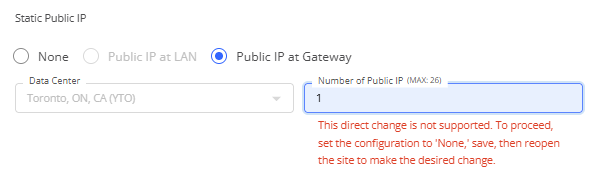
For sites currently configured with the Public IP at LAN or the Public IP at Gateway, direct switching between these options is not supported.
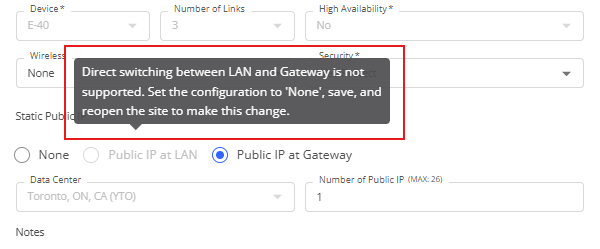
To switch these options:
- Select None and save the configuration.
- Edit the site again.
- Select the desired Public IP at LAN or Public IP at Gateway option.
2. Configuration dependencies
For sites that have configuration dependencies (such as DHCP IP Reservation, IP rules, Port Access Management rules, and/or Routable Subnets), any change in the Static Public IP setting is blocked.
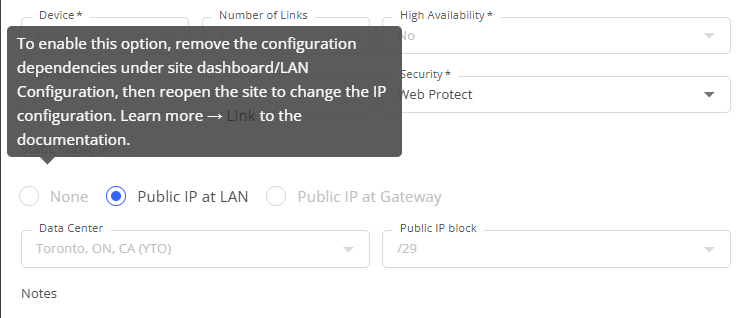
If you see the tooltip error shown in the screenshot above, you must first remove the configuration dependencies before modifying the Static Public IP settings.
To modify the Static Public IP configuration when dependencies exist:
- In Service Order, select Add to Purchase and then Re-deploy the site.
- Navigate to the Customer → Site Dashboard.
-
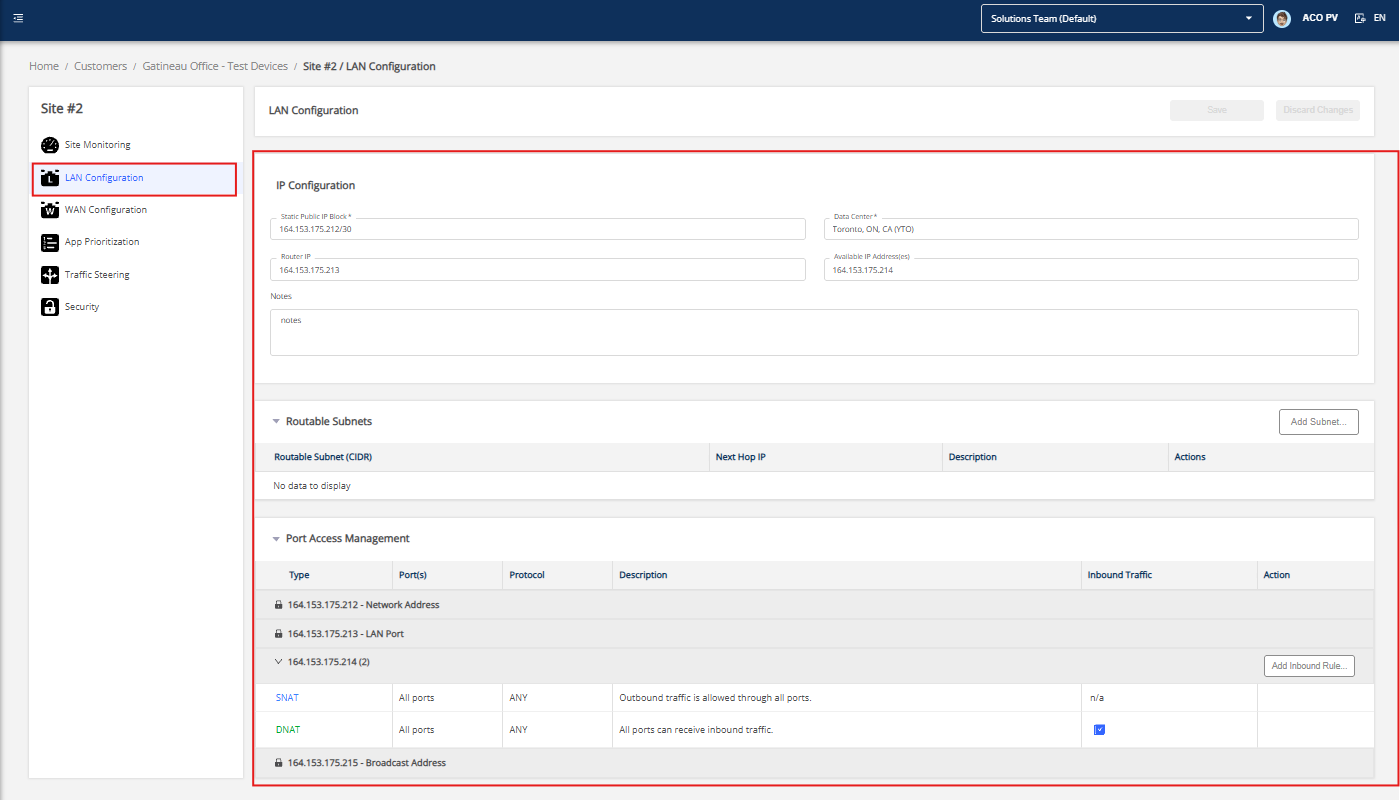
Remove all configuration dependencies (such as DHCP IP Reservation, IP rules, Port Access Management rules, and/or Routable Subnets).
-
Return to Service Order and select Remove From Purchase for the site.
The tooltip error should no longer appear. - Modify the Static Public IP configuration as required.
- Select Add to Purchase again.
- Redeploy the site to apply the updated configuration.
3. Modify Public IPs at Gateway
- When modifying the number of Public IPs for the Public IP at the Gateway, the system only reserves the additional IPs required by the new configuration. Directly decreasing the number of Gateway Public IPs through the Edit operation is not supported.
-
To reduce the allocation, you must first remove the existing Gateway Public IP configuration by selecting None, then reconfigure it with the desired value.
4. Public IP Availability
- If no public IP blocks or individual IP addresses are available, the orchestrator displays a message indicating that the required IP addresses are unavailable. Contact Adaptiv Networks to reserve the required IP block or addresses.
-
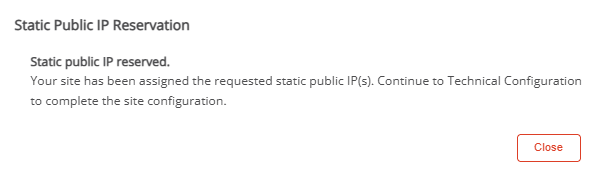
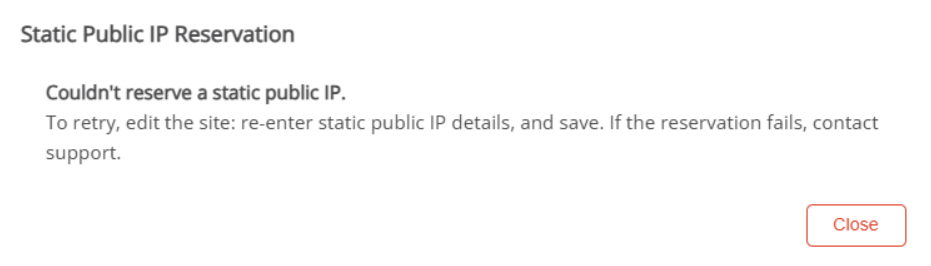
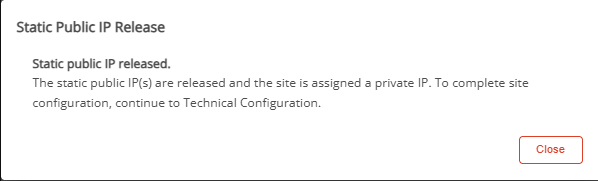
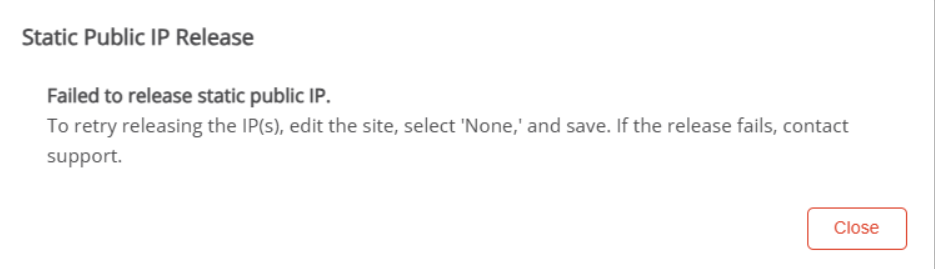
If the required IP addresses are available, the orchestrator reserves them and displays a progress indicator during the reservation. A success message is displayed after a successful reservation or release. If it fails, an error message allows the user to retry the operation.
See the examples below for successful and failed use cases in reservation and release messages.

TERMS OF USE | PRIVACY POLICY | USER LICENSE AGREEMENT