Viewing locations
Locations represent the physical sites in an SC//Reliant™ platform estate and anchor the site tier of the estate-visibility model. Each location ties its address details to the nodes, edge appliances, and eVDI virtual terminals deployed at that site, making it the join point between physical geography and the workloads running there. In SC//Reliant Platform Manager, locations roll up into region, brand, and estate-level views, and they feed the topology view that displays per-site health (green / yellow / orange / red / gray) alongside the high-level geographic rollup. From any location detail page, operators can drill from the site into the specific nodes, jobs, and resources running there.
Your locations are also viewable in the SC//AcuVigil™ Dashboard. SC//Reliant Platform Manager is the authoritative source for this data, with changes synchronizing to AcuVigil.
Viewing locations in SC//Reliant Platform Manager
To view locations in SC//Reliant Platform Manager, you can use the following steps.
- Access and log in to the SC//Reliant Platform Manager at https://platform.reliant.io/.
- From the left navigation menu, choose Locations, which displays a list of locations for your tenant.
- You can click on a specific location to view additional details about the location, including:
- Address details
- List of associated edge devices and eVDI virtual terminals
- List of active and recently completed Remote Job Executions and Exporter Jobs associated with resources at the location
How to Use the Search Bar
You can search based on the following fields: name, addressline1, addressline2, city, state, country, or zipcode.
To build a query, you'll combine a field name, an argument, and a value. For example, to search for all locations in Texas, you'd type state contains TX.
Available Arguments
You can use a variety of arguments to define your search criteria:
contains: Finds values that include your search text. For example,city contains Austinwill matchAustin,North Austin, andWest Austin.does not contain: Finds values that do not include your search text.equals: Finds values that are an exact match. For example, state equals TX will only find entries where the state is exactly "TX."is not equal: Finds values that do not exactly match.in: Finds values that are in a list you provide. For example, state in (TX, CA, NY) will find locations in Texas, California, or New York.not in: Finds values that are not in a list you provide.
Combining Your Searches
You can combine multiple search criteria using and or or to create more complex queries.
and: Returns results that match all of the specified conditions. For example,state equals TX and city equals Austinwill only show locations that are in Austin, Texas.or: Returns results that match any of the specified conditions. For example,state equals TX or city equals Austinwill show all locations in Texas, plus any locations named Austin in other states.
By using these fields and arguments, you can create precise and powerful searches to quickly find the information you need.
Understanding the Status field
On the location detail page, you see the list of edge appliances associated with the location. The Status field shows the keepalive response from each node and server.
The following is an example showing two green status nodes.
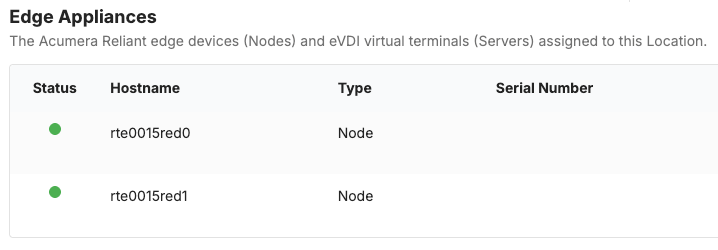
The following table describes each keepalive status color and its description.
| Status color | Description |
|---|---|
| Green | The Node is Online. The most recent keepalive check was successful and within the last 120 seconds. |
| Red | The Node is Offline. The last keepalive check was unsuccessful or is older than 120 seconds. |
| Grey | The Node status is Unknown. The following are common causes of an Unknown status:
|
Viewing locations in AcuVigil
To view locations in AcuVigil, you can access the AcuVigil dashboard. Each tile represents a location.
The following is an example of location tiles in the AcuVigil dashboard. The color of each tile indicates the status of that location.
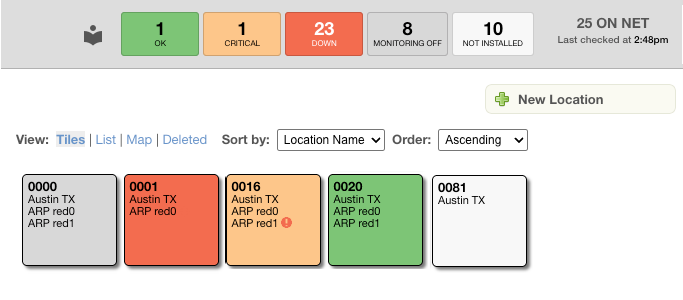
The following table describes each tile color and its description.
| Color | Description |
|---|---|
| White | There is no hardware installed at the location. |
| Grey | Monitoring is suspended at the location. |
| Orange | One or more components are giving a critical error. |
| Red | The network at the location is down. |
| Green | All systems are up and running correctly. |