Resource Management
The process of granting or denying access to resources within a customer network is known as authorization. Within the customer network, a resource can be any service, such as a server, an application, or office collaboration tools.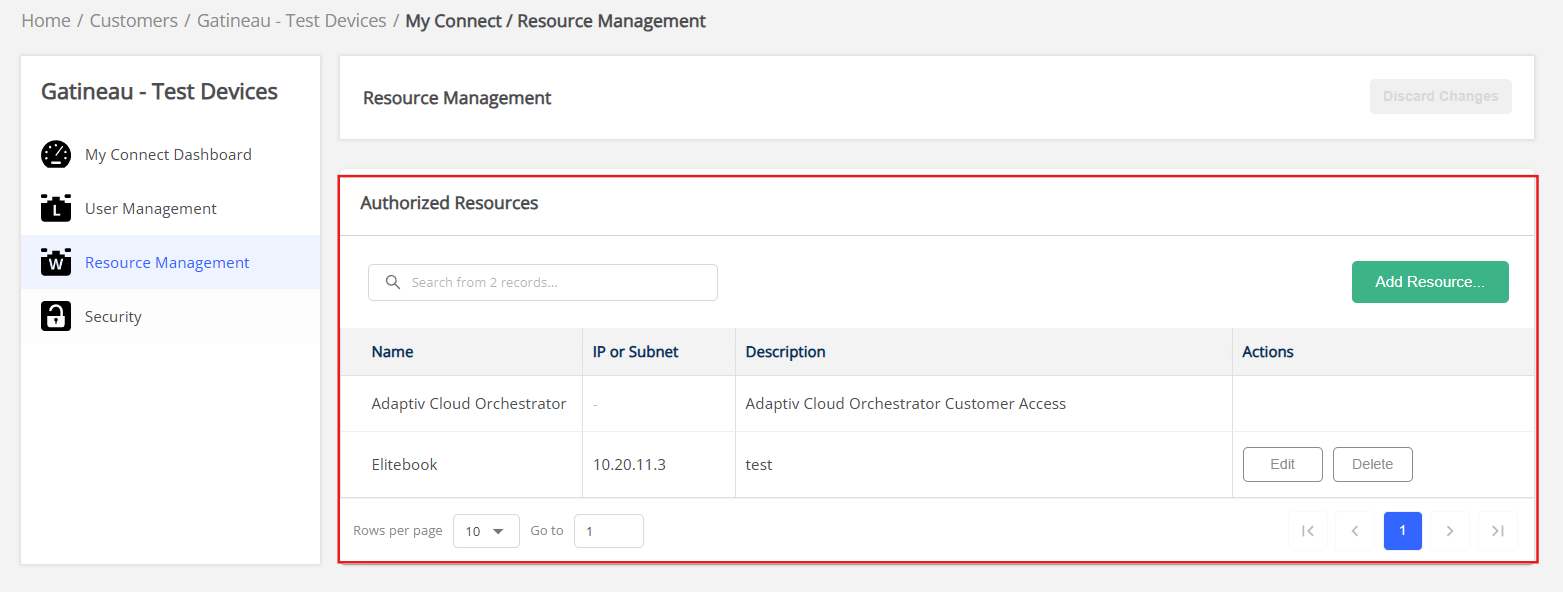
Resource Management allows you to add resources for My Connect users and control access to those resources.
A single or multiple users are authorized to use these resources, which could be managed from the User Management page. When a resource is added, modified, or deleted, the updated information is applied globally and becomes available to all users.
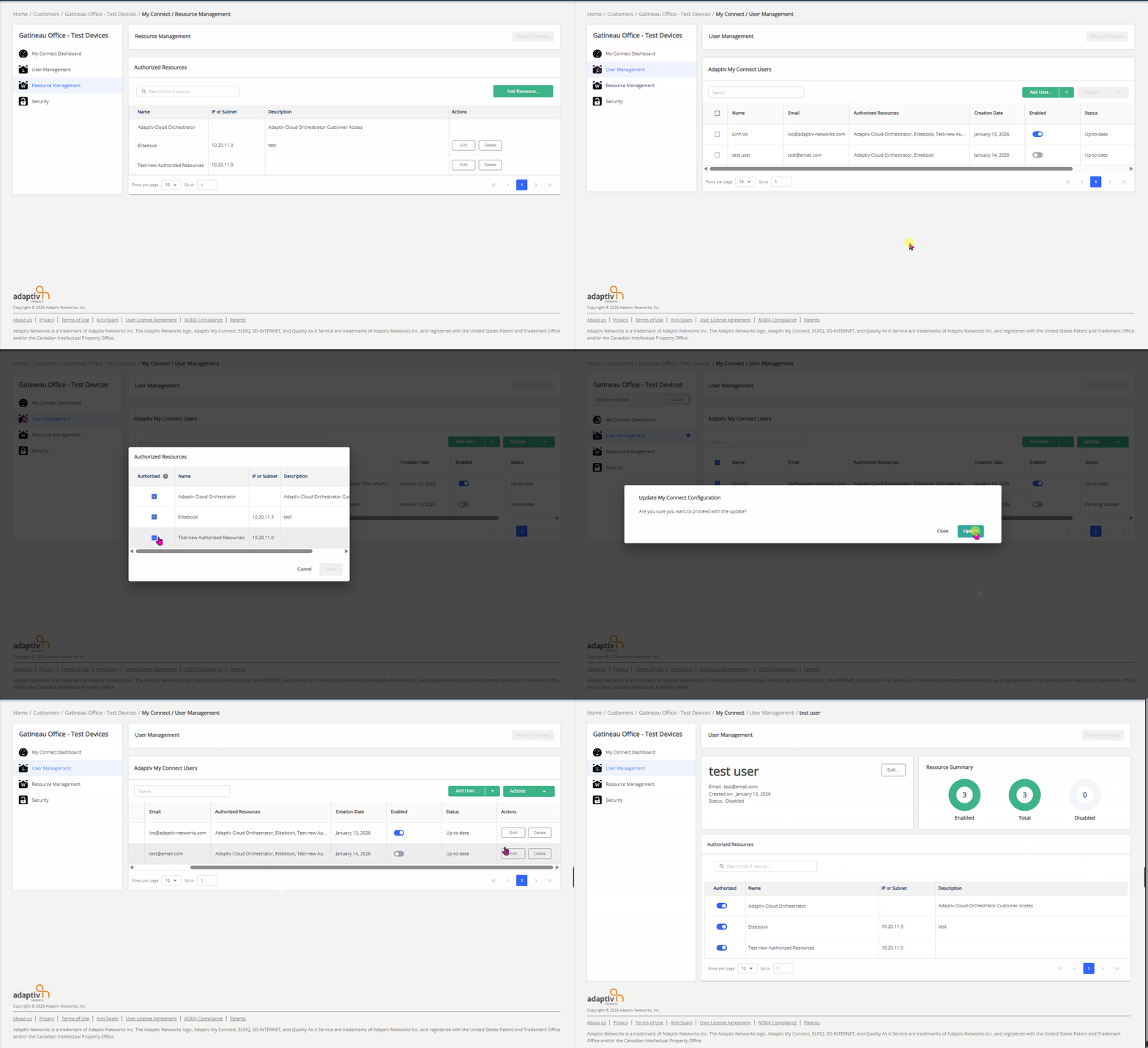
To manage resources
Add a resource
- In the Authorized Resources section, click Add Resource...
- In the Add Resource form, enter the following information: Resource name, IP or subnet to access the resource, and a description of the resource for tracking and management (optional).
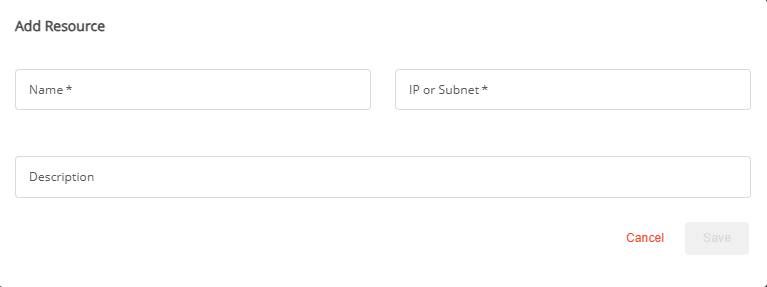
- Click Save, or Cancel to close the form.
Indicator: A blue dot indicator appears next to the Name column in the Authorized Resources table when an authorized resource is marked for creation.
|
Each user added to the My Connect network can be given access to Adaptiv Cloud Orchestrator as a resource. The orchestrator information cannot be modified or deleted. 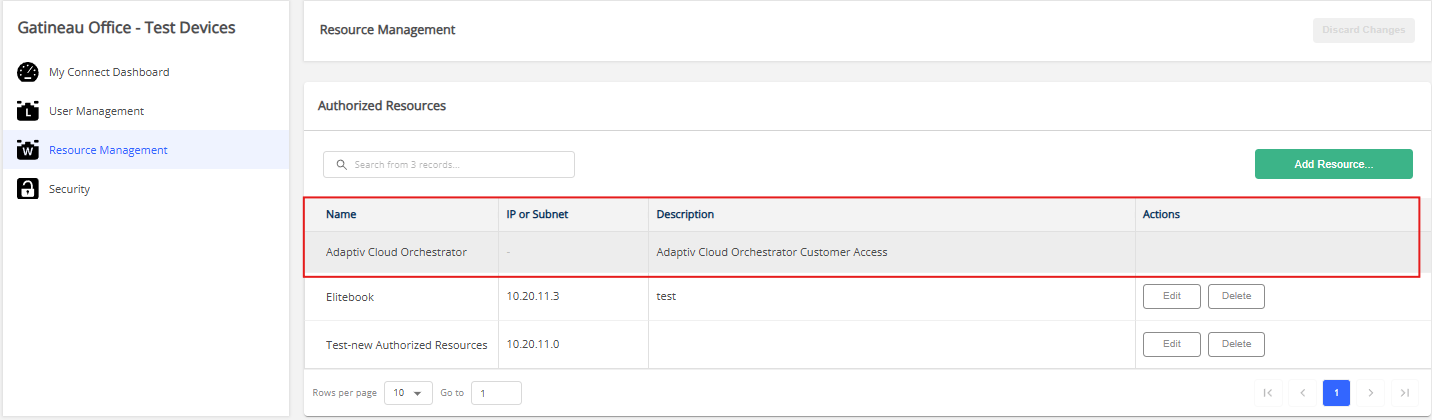 |
Edit a resource
- Click Edit in the Actions column.
- In the Edit Resource form, modify the information as required.
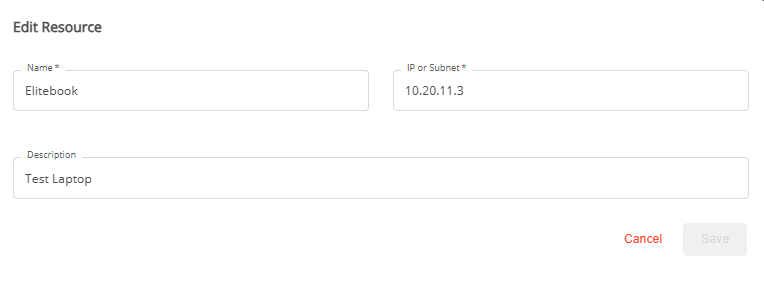
- Click Save, or Cancel to close the form.
Indicator: A blue dot indicator appears next to the Name column in the Authorized Resources table when an authorized resource is marked for creation.
Delete a resource
- Click Delete in the Actions column.
- To undelete a resource, click Undelete.
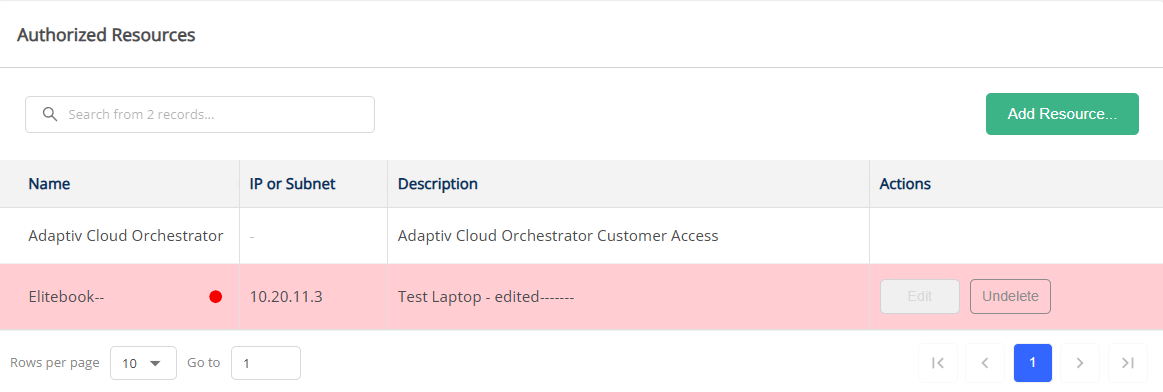
Indicator: A red dot indicator appears next to the Name column in the Authorized Resources table when an authorized resource is marked for creation.
Apply Changes
- To apply the changes made in the steps above, click Update on top of the My Connect dashboard.
- An Update My Connect Configuration confirmation dialogue appears.
- Click Update to proceed with the changes. To discard the changes, click Close.
Indicator: A blue dot appears next to Resource Management whenever any authorized resources are created, modified or deleted.
The indicator (including both the blue dots from adding, editing, or red dots from deleting resources and the blue dot from applying changes) disappears after the user clicks Update.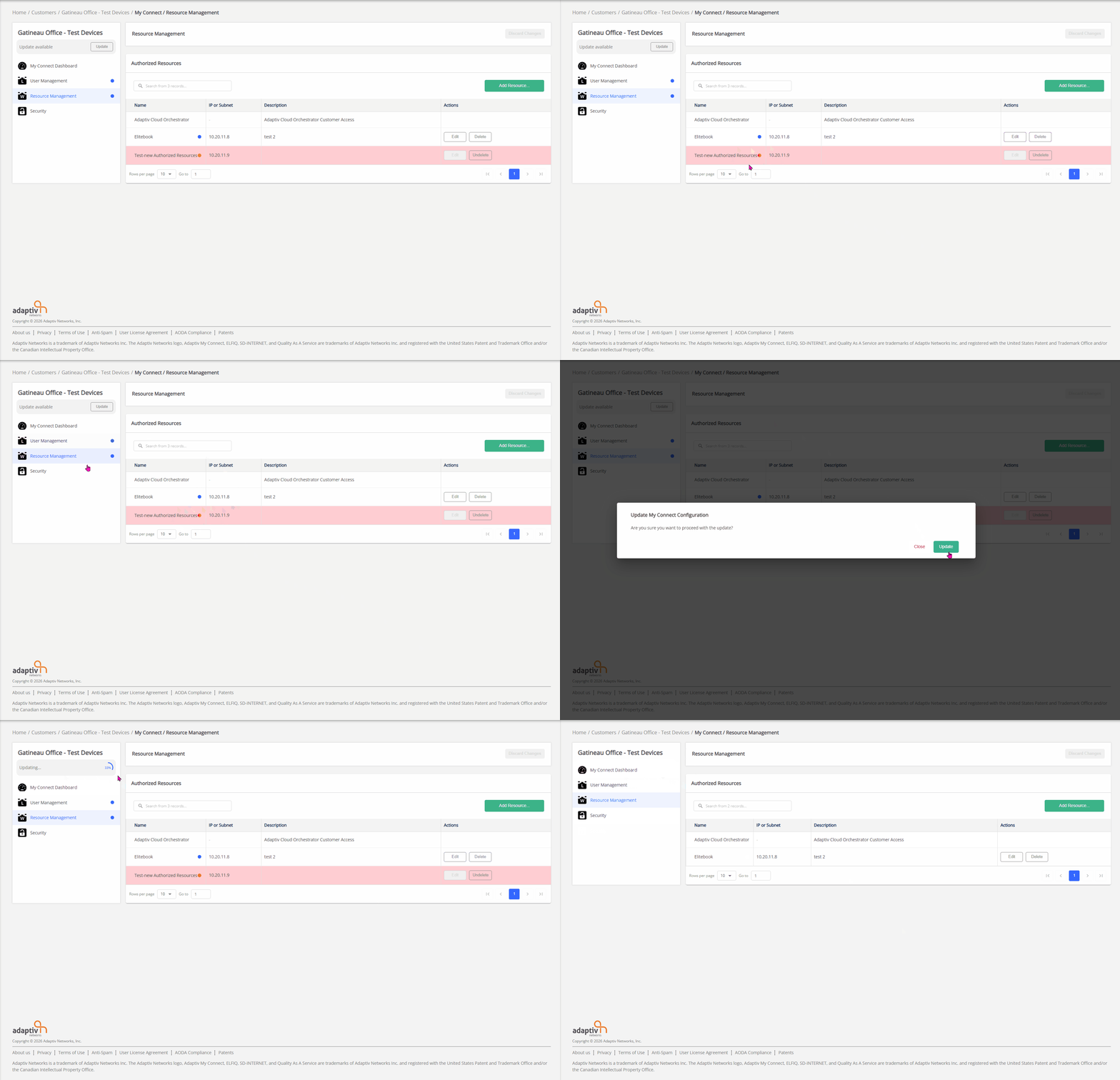
TERMS OF USE | PRIVACY POLICY | USER LICENSE AGREEMENT