Deleting Service Orders
Deleting service orders helps prevent confusion and errors in service order data. Partner users can delete service orders from the Service Orders table in several scenarios, such as:
- Accidentally creating a duplicate service order
- Entering the wrong information.
- A customer withdrawing or changing their mind before deployment.Changes in customer requirements (for example, adding or removing parameters), where deleting the existing order and creating a new one is more appropriate.

|
Deleted Service Orders cannot be retrieved. |
Service Orders Deletion Criteria
A service order can be deleted only if it meets the criteria described below, depending on deployment status.
| # | Service Orders Status | Scenario/ Description | Deployment State | Deletion |
|---|---|---|---|---|
| 1 | New | Only regions and sites added; no sites configured Only My Connect licenses added; no licenses configured | No | Yes |
| 2.1 | In Progress | Sites and/or My Connect licenses configured and/or Sites and/or My Connect licenses are Added To Purchase | No | Yes |
| 2.2 | In Progress | One or more sites and/or My Connect licenses are deployed | Deployed | No |
| 3 | Complete | All sites and My Connect licenses are deployed. | Fully deployed | No |
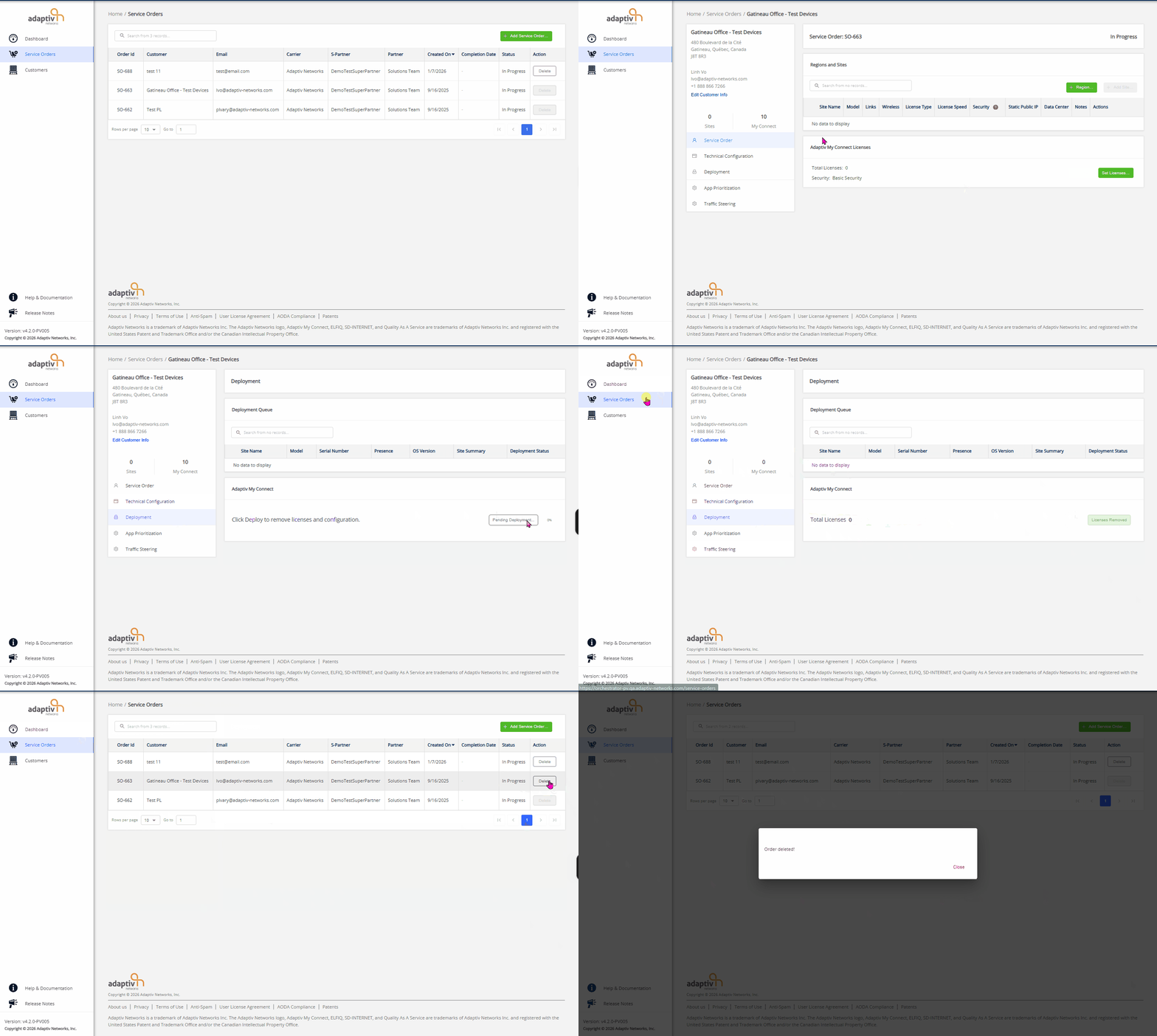
| 4 | Complete → In Progress | All deployed sites and My Connect licenses are removed. | No deployed Sites or Licenses remain | Yes |
Examples and Delete Button Behaviour
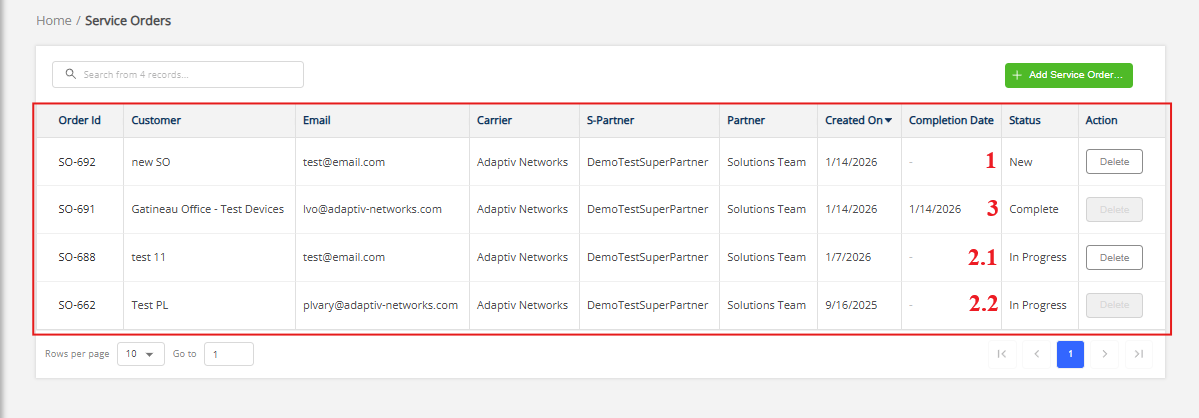
- Scenario #1, #2.1, #2.2 and #3 — Refer to the numbered table above for the corresponding service order status.
For each scenario, the Delete button behaviour is determined by the Deletion value:- When Deletion = No, the Delete button is disabled, and a tooltip explains why deletion is not allowed.
- When Deletion = Yes, the Delete button is enabled. Users can follow the next section To Delete Service Order for instructions on how to delete a service order.
- For Scenario #4 — When a service order transitions from Complete → In Progress (Deletion changes from No → Yes)

|
|
To delete a service order
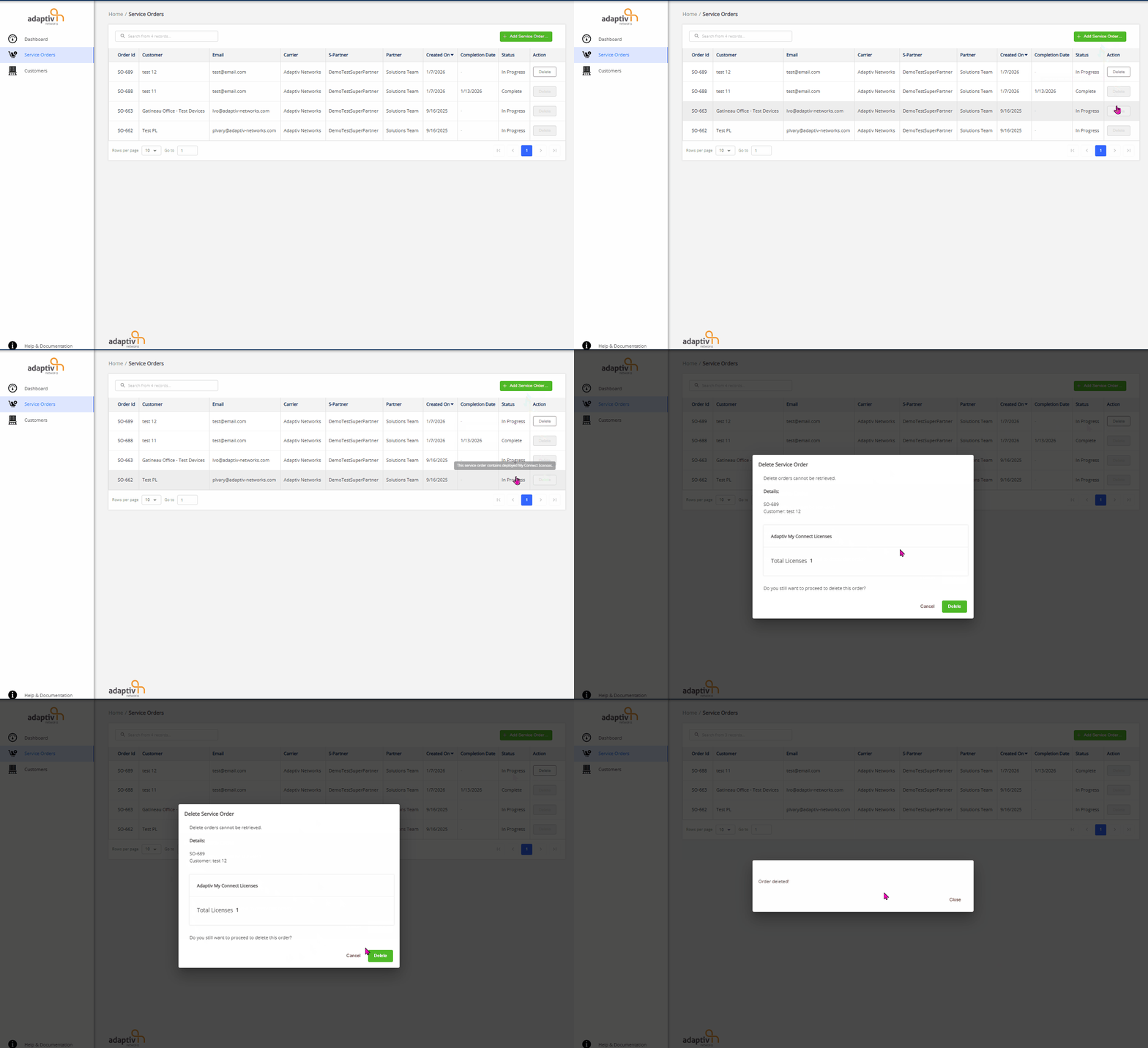
- In the Service Orders table, locate the order you want to delete.
- In the Action column, click Delete.
- In the Delete Service Order dialogue box, click Delete to confirm, or Cancel to close the form.
TERMS OF USE | PRIVACY POLICY | USER LICENSE AGREEMENT
Copyright © 2026 Adaptiv Networks, Inc. Send Feedback