Using OneLogin as an identity provider
You can use OneLogin as an identity provider to access SC//Reliant™ Platform Manager. To do this, you create a SAML Custom Connector on the OneLogin platform.
Create the OneLogin SAML Custom Connector
The OneLogin documentation provides the steps for creating a SAML app integration on their platform. For more information, see Advanced SAML Custom Connector in the OneLogin documentation.
- Choose the Applications menu.
- From the Applications page, choose Add App.
- From the Find Applications page, search for
SAML Custom Connectorand locate the SAML Custom Connector (Advanced) application. - From the Add SAML Custom Connector (Advanced) page, use the following configuration and then choose Save.
- For Display Name, enter
SC//Reliant Platform Manager. - For the Rectangular Icon, upload the SC//Reliant Platform Manager logo.
- For Display Name, enter
- Once the basic application is created, navigate to the Configuration menu and use the following settings when creating the SAML app integration.
| Parameter | Value |
|---|---|
| RelayState | leave blank |
| Audience (Entity ID) | https://platform.reliant.io |
| Recipient | https://platform.reliant.io/saml/consume |
| ACS (Consumer) URL Validator | https://platform.reliant.io/saml/consume |
| ACS (Consumer) URL | https://platform.reliant.io/saml/consume |
| Single Logout URL | https://platform.reliant.io/saml/logout |
| SAML not valid before | 3 |
| SAML not valid on or after | 3 |
| SAML initiator | OneLogin |
| SAML nameID format | |
| SAML issuer type | Specific |
| SAML signature element | Both |
| SAML encryption method | AES-256-CBC |
Retrieve the Identity Provider metadata
Once you have your OneLogin app integration created, you need to retrieve the OneLogin IdP metadata and provide it to your SC//Reliant Account Manager to complete the setup.
- In the OneLogin Admin console, access the settings for the SC//Reliant Platform Manager custom connector you created.
- From the More Actions drop down menu, select SAML Metadata to download the IdP metadata file.
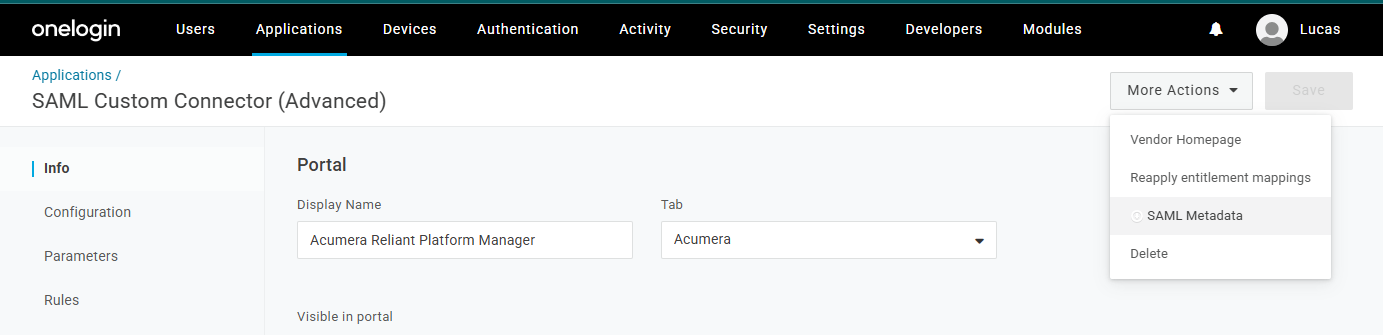
- Copy that metadata and provide it to your SC//Reliant Account Manager. This metadata is then associated with your SC//Reliant Platform Manager tenant by our engineering team.
IMPORTANT: Ensure that the user's email in OneLogin matches the user's SC//Reliant Platform Manager account email address. It must be in all lowercase, otherwise an error will be received when logging in to SC//Reliant Platform Manager.