Using Okta as an identity provider
You can use Okta as an identity provider to access SC//Reliant™ Platform Manager. To do this, you create a SAML app integration on the Okta platform.
Step 1: Create the Okta SAML app integration
The Okta documentation provides the steps for creating a SAML app integration on their platform. For more information, see Create SAML app integrations in the Okta documentation.
- Access and log in to your Okta Admin Dashboard.
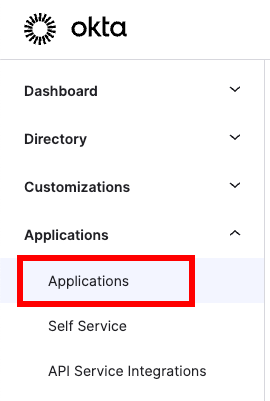
- From the left navigation, choose Applications, Applications.
- Choose Create New App.
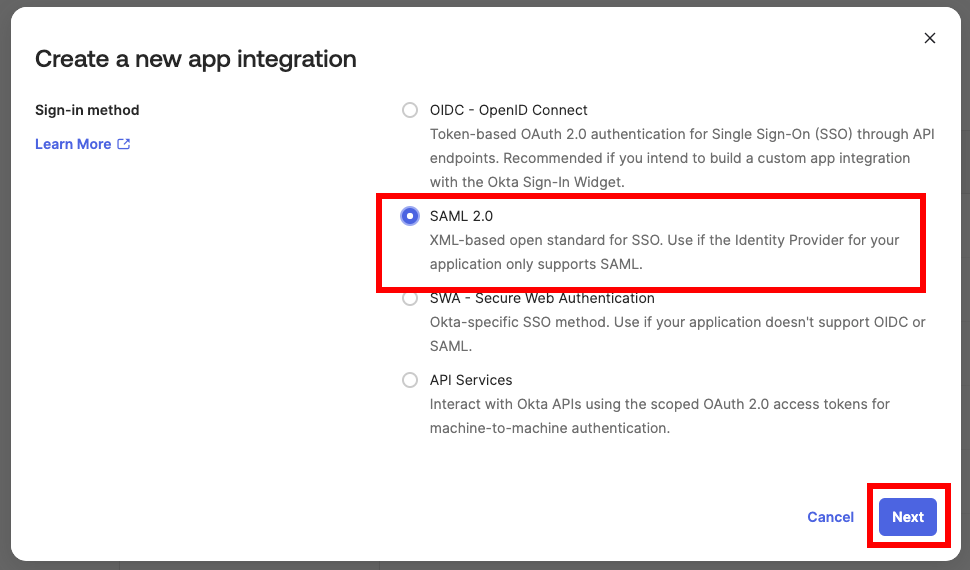
- From the Create a new app integration pop-up, choose SAML 2.0, Next.
- On the Create SAML Integration page, do the following.
- On the General Settings step, for App name, specify
SC//Reliant Platform Managerand then choose Next.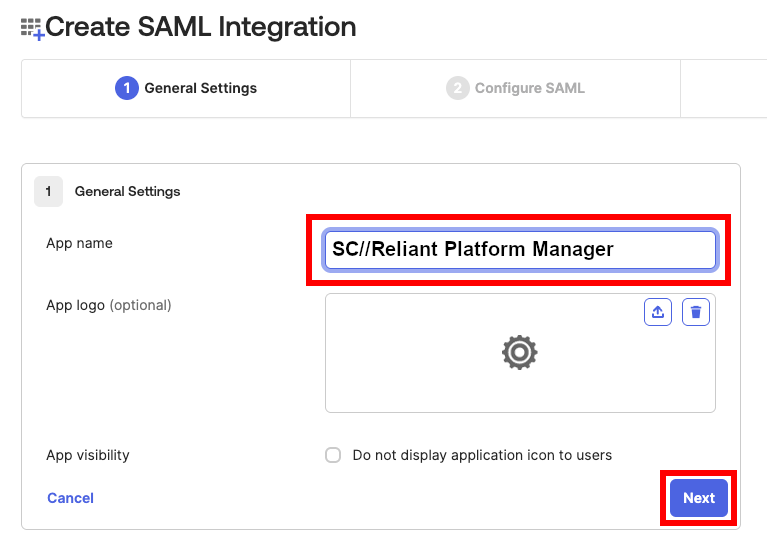
- On the Configure SAML step, use the following settings. Ensure you choose the Show Advanced Settings to see the complete list of application settings.
- On the General Settings step, for App name, specify
| Setting | Value |
|---|---|
| Single sign-on URL | https://platform.reliant.io/saml/consume |
| Audience URI (SP Entity ID) | https://platform.reliant.io |
| Default RelayState | blank |
| Name ID format | EmailAddress |
| Application username | |
| Update application username on | Create and update |
| Response | Signed |
| Assertion Signature | Signed |
| Signature Algorithm | RSA-SHA256 |
| Digest Algorithm | SHA256 |
| Assertion Encryption | Unencrypted |
| Signature Certificate | Download the following cert.pem file. |
Step 2: Retrieve the Okta Identity Provider metadata
Once you have your Okta SAML app integration created, you need to retrieve the Okta IdP metadata and provide it to your Scale Computing Account Manager to complete the setup.
- In the Okta Admin console, access the settings for the SC//Reliant Platform Manager application you created.
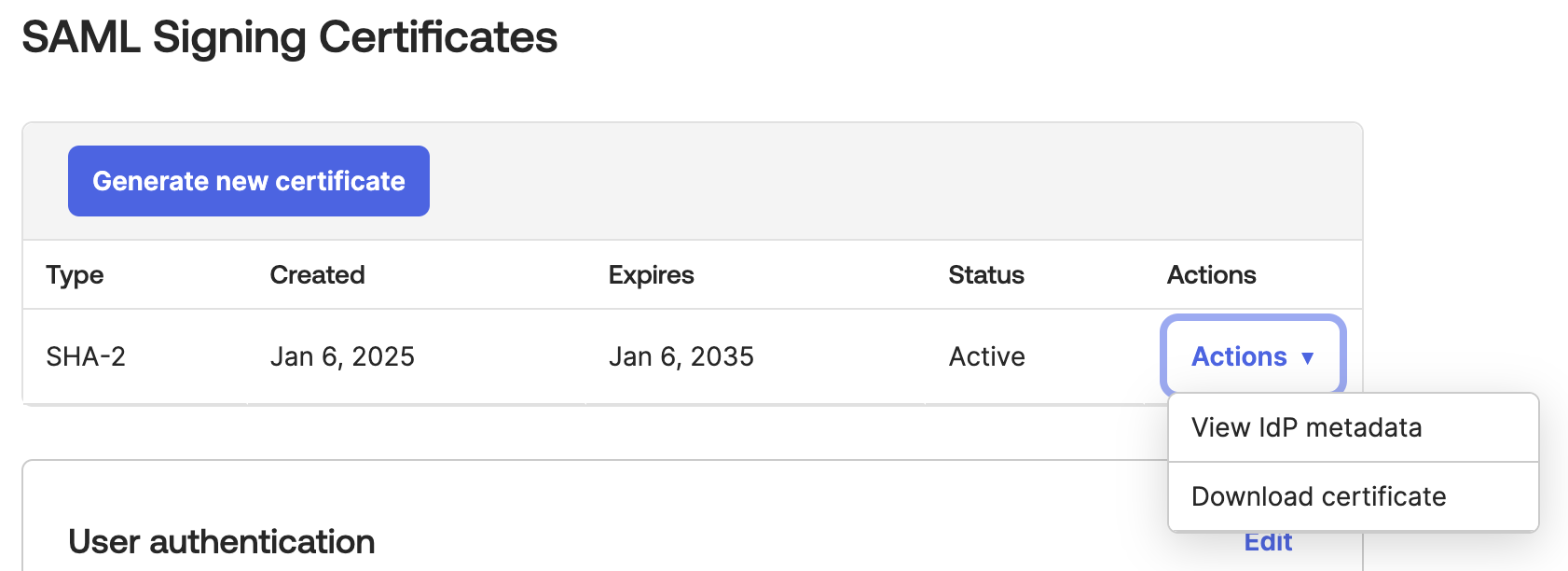
- On the Sign On tab, locate the SAML Signing Certificates section.
- From the Actions menu of the signing certificate, choose View IdP metadata. Ensure you are doing this with the Active certificate.
- Copy that metadata and provide it to your Scale Computing Account Manager. This metadata is then associated with your SC//Reliant Platform Manager tenant by our engineering team.
Step 3: Create and assign people to the SAML application
To complete the authentication workflow in the Okta SAML app integration, you need to create user accounts in Okta (referred to as People in the Okta Dashboard) for each SC//Reliant Platform Manager user and assign them to your Okta SC//Reliant Platform Manager application. For more information on creating users, see User management in the Okta Documentation.
IMPORTANT: Ensure that the Username field in Okta matches the user's SC//Reliant Platform Manager account email address. It must be in all lowercase, otherwise an error will be received when logging in to SC//Reliant Platform Manager.
For more information on assigning users to an application, see Assign applications to users in the Okta Documentation.
Troubleshooting login issues when using Okta as an Identity Provider
Issue: Receiving error "Invalid Email or password" when logging in to SC//Reliant Platform Manager
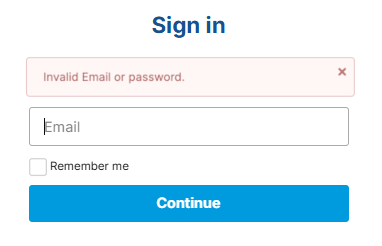
Possible causes: If you receive an Invalid Email or password error when logging in to SC//Reliant Platform Manager, ensure that your Okta username is the same as the email address for your SC//Reliant Platform Manager account. They must match the case as well, so ensure your email address is all lowercase in the Okta application. If you need to transform the Okta username to use lowercase letters, you can use the toLowerCase(user.email) syntax to override the format. For more information, see Override a username format in the Okta Documentation.