Using Microsoft Entra as an identity provider
You can use Microsoft Entra as an identity provider to access SC//Reliant™ Platform Manager. To do this, you create an enterprise application in the Microsoft Entra admin center.
Considerations
The following should be considered when using Microsoft Entra as an Identity Provider to access SC//Reliant Platform Manager.
- When configuring your Microsoft Entra application, there is an optional field for Sign on URL. The application behavior when accessing SC//Reliant Platform Manager depends on whether you specify a valid value for this field or not.
- If you specify
https://platform.reliant.iofor the Sign on URL value, then when you access SC//Reliant Platform Manager and login you are redirected to your Microsoft Entra application and SC//Reliant Platform Manager access is granted according to your Entra application settings. - If you leave the value for Sign on URL empty, then you are only able to access SC//Reliant Platform Manager from the Entra application. If you attempt to access SC//Reliant Platform Manager directly then you will be prompted for a username and password.
- If you specify
Create the Microsoft Entra app integration
The Microsoft documentation provides the steps for creating an enterprise application for SAML integration on their platform. For more information, see Quickstart: Add an enterprise application in the Microsoft documentation.
Prerequisites
The Microsoft Entra enterprise application integration allows you to upload a Service Provider metadata file to assist with the integration. You should download the SC//Reliant Platform Manager metadata XML file before creating your Entra application. The SC//Reliant Platform Manager metadata XML file can be downloaded from the following URL after you have authenticated to SC//Reliant Platform Manager.
https://platform.reliant.io/saml/metadata.xmlCreating the Microsoft Entra enterprise application
- Access and sign in to the Microsoft Entra admin center.
-
Use the left navigation and choose Identity, Applications, and Enterprise applications.
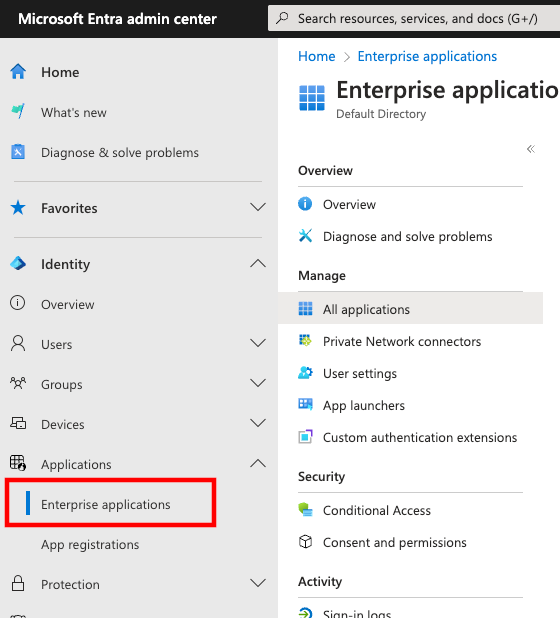 3. On the Enterprise applications page, choose + New application.
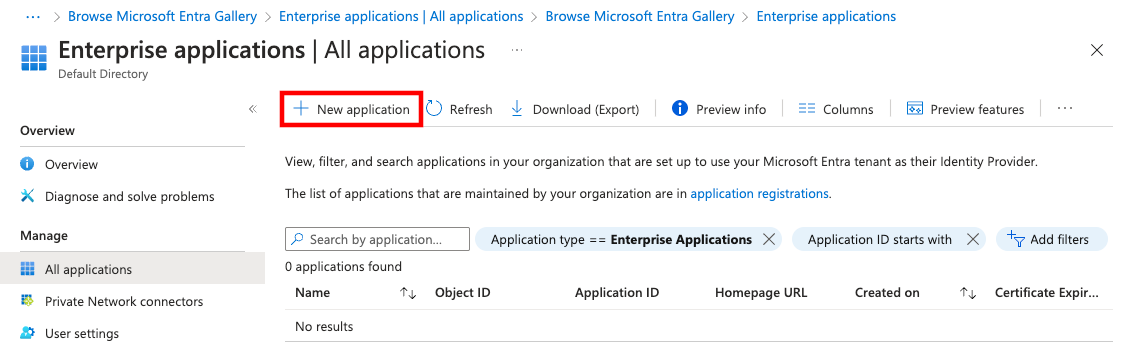 4. On the Browse Microsoft Entra Gallery page, choose + Create your own application.
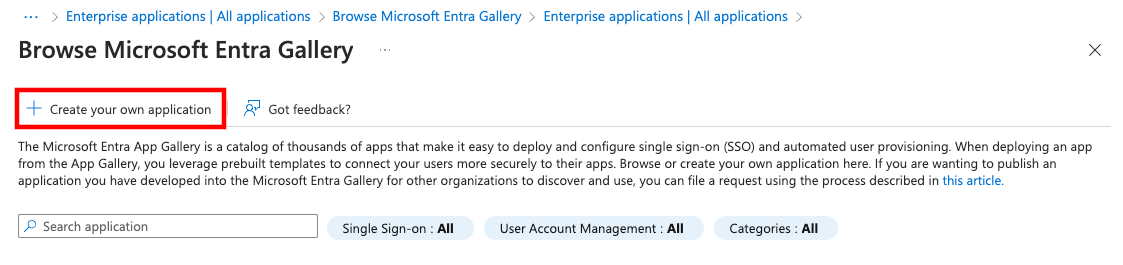 5. On the Create your own application page, do the following.
1. Specify a name for the application. We suggest using
5. On the Create your own application page, do the following.
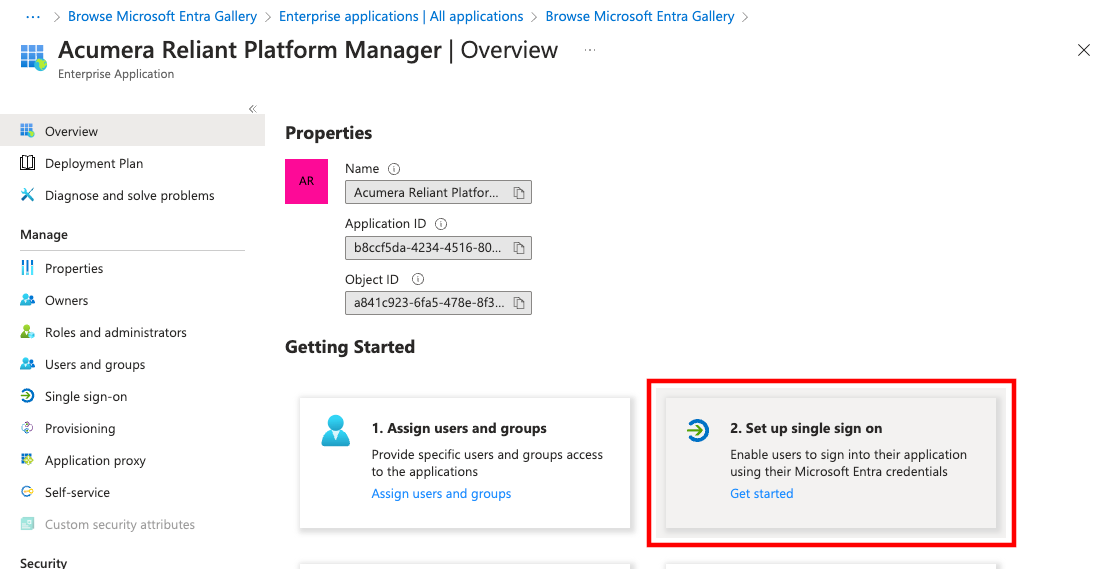
1. Specify a name for the application. We suggest using Reliant Platform Manageras the name. 2. Ensure that Integrate any other application you don't find in the gallery (Non-gallery) is selected. 3. Choose Create.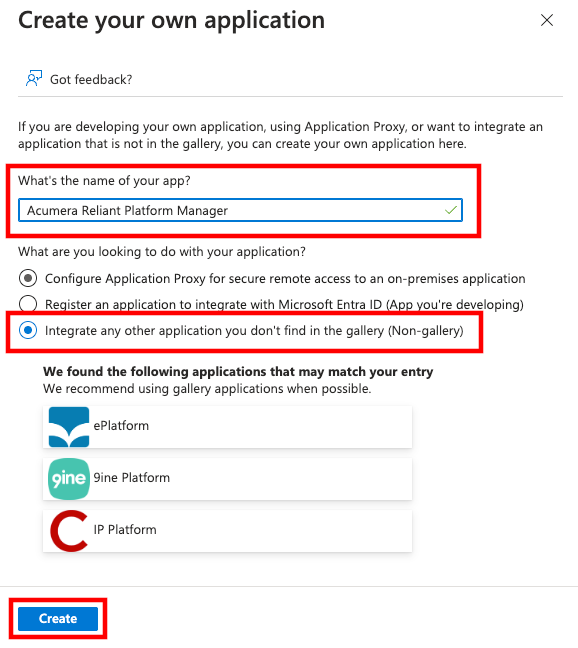 6. Once the new application is created, on the Overview page, choose Set up single sign on.
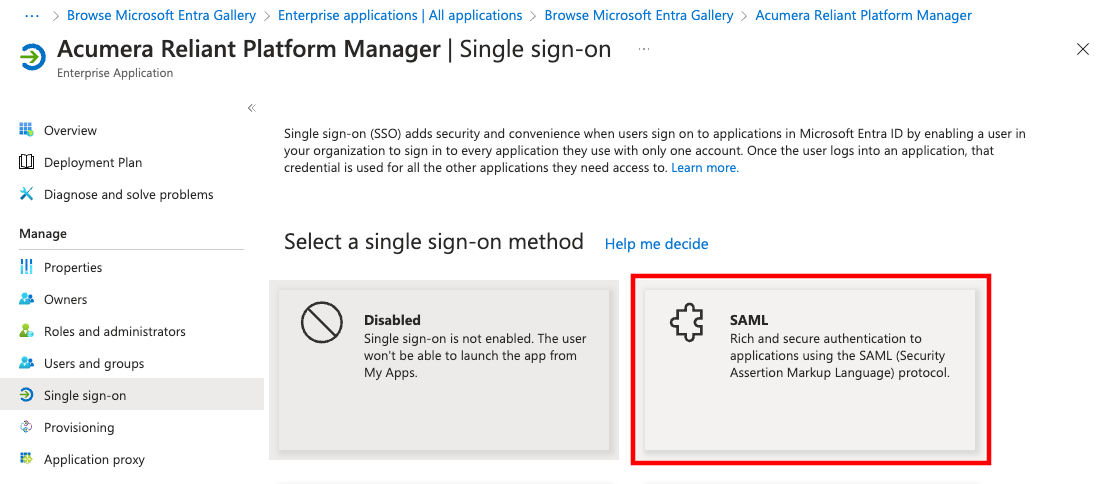
 7. On the Single sign-on page, choose SAML.
 8. On the SAML-based Sign-on page, do the following.
1. Choose Upload metadata file.
8. On the SAML-based Sign-on page, do the following.
1. Choose Upload metadata file.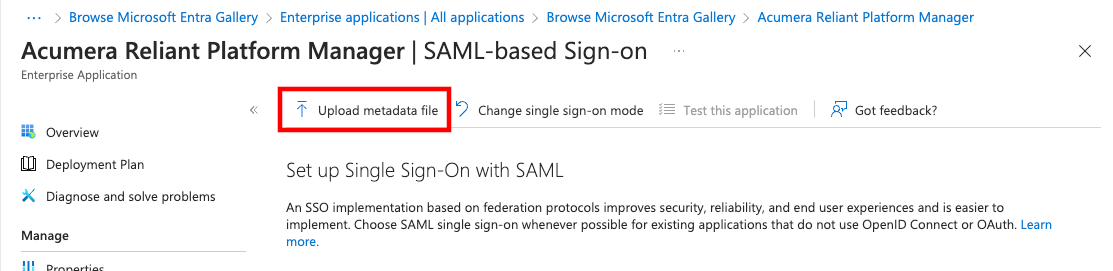 2. On the Upload metadata file pop-up, choose the file browser and locate the SC//Reliant Platform Manager metadata XML file you downloaded earlier and then choose Add. This populates the basic SAML configuration for the Microsoft Entra application.
3. For the Sign on URL (Optional) setting, specify
2. On the Upload metadata file pop-up, choose the file browser and locate the SC//Reliant Platform Manager metadata XML file you downloaded earlier and then choose Add. This populates the basic SAML configuration for the Microsoft Entra application.
3. For the Sign on URL (Optional) setting, specify https://platform.reliant.io/. 4. Choose Save, then close the pop-up window to view the application settings. 5. Verify all of the settings are correct.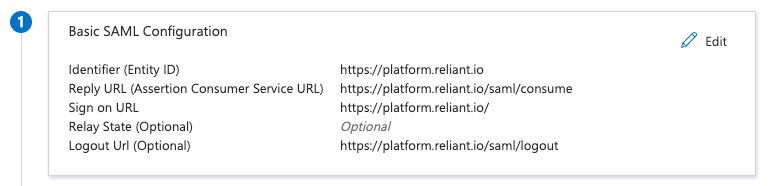 9. On the SAML-based Sign-on page, under the Attributes & Claims section, choose Edit.
1. Under Required claim, select the
9. On the SAML-based Sign-on page, under the Attributes & Claims section, choose Edit.
1. Under Required claim, select the Unique User Identifier (Name ID)line. For Source attribute, select theuser.mailattribute and then choose Save.
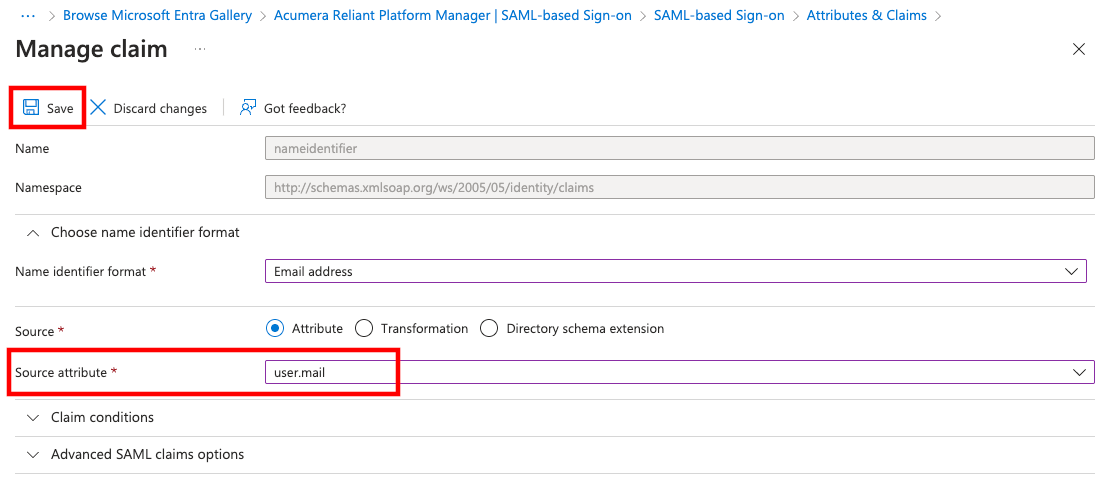 2. Under Additional claims, you only want to have
 user.mail. So use the three dots to select and delete all of the claims, ensuring the only one remaining is the user.mail claim.

Retrieve the Identity Provider metadata
Once you have your Microsoft Entra enterprise application created, you need to retrieve the Identity Provider metadata to provide back to SC//Reliant Platform Manager to complete the setup.
- In the Microsoft Entra admin console, access the settings for the SC//Reliant Platform Manager application you created.
-
On the SAML-based Sign-on page, under SAML Certificates, select and download the
Federation Metadata XMLfile.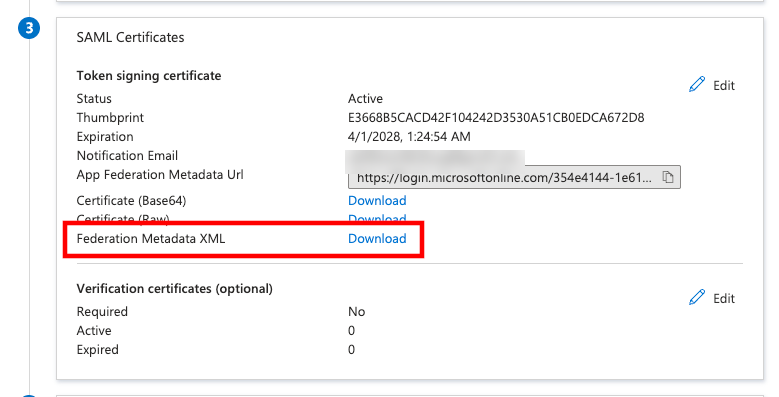 3. Provide the Federation Metadata XML file to your Scale Computing SC//Reliant Account Manager. This metadata is then associated with your SC//Reliant Platform Manager tenant by our engineering team.
IMPORTANT: Ensure that the user's user.mail value in Microsoft Entra matches the user's SC//Reliant Platform Manager account email address. It must be in all lowercase, otherwise an error will be received when logging in to SC//Reliant Platform Manager.
Troubleshooting SC//Reliant Platform Manager login issues when using Microsoft Entra
The following are common issues when using Microsoft Entra as an Identity Provider for SC//Reliant Platform Manager access.
Issue: When logging in to SC//Reliant Platform Manager, I am prompted for a username and password.
Resolution: This may be caused by a few different issues. Your SC//Reliant Platform Manager tenant may not be configured properly to use Microsoft Entra as an Identity Provider. If your SC//Reliant Platform Manager tenant is configured properly, you should also check your Microsoft Entra enterprise application settings and ensure that the Sign on URL value is set to https://platform.reliant.io/. If the Sign on URL value is not specified, then SC//Reliant Platform Manager access should work when initiated from the Microsoft Entra application but not when SC//Reliant Platform Manager is accessed directly.