Using the Managed Files Utility
The Managed Files Utility feature allows you to create and manage files within the /opt/reliant/managed_files directory path on your nodes. This utility provides powerful capabilities for configuration and automation.
Use cases
The following are common use cases for the Managed Files Utility.
- Utility & Diagnostic Scripts - Creation and management of utility scripts directly on the nodes, such as Diagnostic scripts for troubleshooting.
- Container Configuration - Building and defining configuration files that can be optionally mounted for Docker containers. This enables advanced use cases, such as leveraging SC//Reliant™ Platform Manager Hash properties as files.
- Template Management - Looking up Estate Management templates and creating reusable Liquid templates directly within the Managed Files structure.
SC//Reliant Platform Manager hash property names and descriptions
The following details each of the high-level properties in the Managed Files Utility hash in SC//Reliant Platform Manager. Then we will take a deeper dive into each of them.
| Property | Description |
|---|---|
Filename | The name of the file to create and manage. The file is created in the /opt/reliant/managed_files/ directory on the node. |
Content | The content of the file. This may be specified as raw data or you can specify an SC//Reliant Platform Manager property as a lookup key. |
File Permission / Access Modes | The three-digit Unix permission code assigned to the managed file. This setting defines which users (owner, group, or everyone) have the ability to read, write, or execute the file on the node. For example, 755 is often used for scripts as it adds the ability for others to execute the file. Specifying 644 allows the system owner (root) to read and write the file but other users can only read it. |
Executable Configurations | Additional properties that allow you to specify parameters that assist with executing the managed file. You can optionally have the managed file added to $PATH on the node which creates a symlink to /usr/local/bin, you can schedule the file trigger at specific times and dates using cron syntax, and you can add additional arguments that get appended to the cron execution. |
Directory creation and file structure
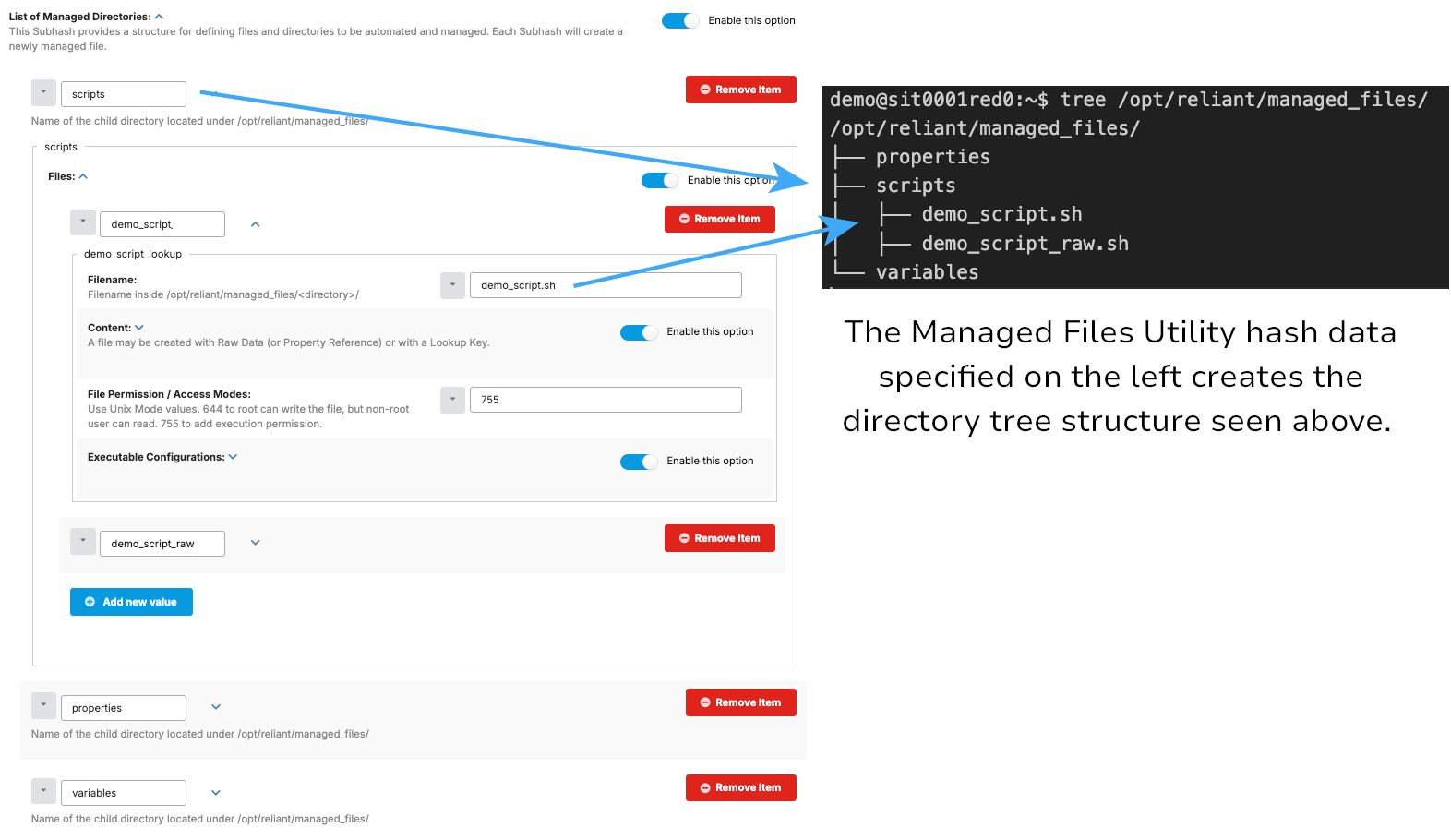
The first level of the Managed Files Utility hash is the property for the managed directory name. The property name specified here is what gets created in the /opt/reliant/managed_files/ directory on each node using the hash.
The following images illustrate how the directory structure is created.
Filename
Each directory will have at least one file. For each file, the user will define its name, content and access permissions. The Filename will have the name of the file to be created on the chosen directory. The image below shows the files created after puppet runs on a node with the hash defined on the previous section.
Content
You can specify the content of the file as either Raw data or by specifying a Lookup key.
Raw Data
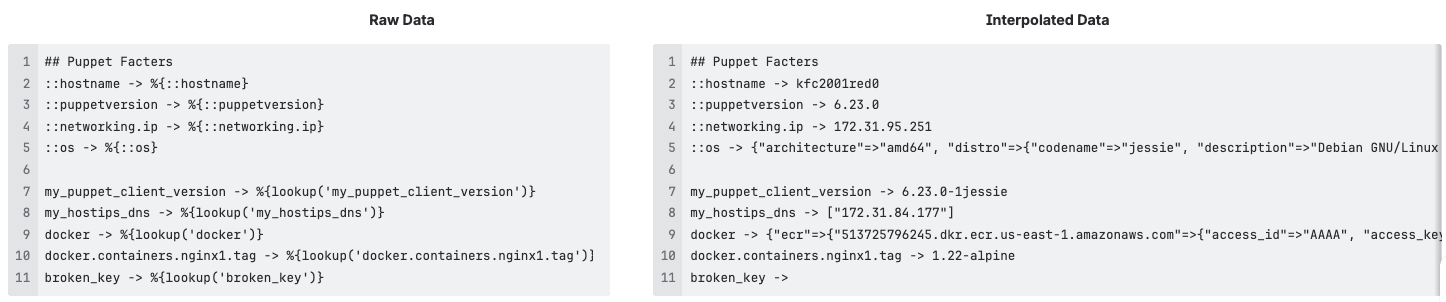
The Raw Data field is used to specify the contents of the file. The field supports adding an entire script which may leverage Puppet Facters and other Property interpolations.
The following images display examples of syntax for data lookups at different scopes.
You can specify subkeys using dotted notation. For example, %{lookup('docker')} returns the Docker hash, whereas %{lookup('docker.containers.nginx1.tag')} returns the tag for the nginx1 container in the Docker hash.
Lookup Key
Use this field to specify a Hiera lookup key that retrieves the file's content from available data sources. This allows the file's content to be dynamically generated by Puppet using Hiera.
When referencing Dynamic Properties, the lookup key generally begins with my_, and any spaces in the Property name are replaced by underscores. For instance, a Property Reference called Demo Script would correspond to the Hiera lookup key my_demo_script.
Only lookup keys available to the respective node can be retrieved. This feature strictly respects the existing data scoping rules (Hiera/Puppet hierarchies):
- You can retrieve data from the node's direct scope or from a Parent Group.
- You cannot retrieve data from other nodes or from Sibling Groups.
File Permission / Access Modes
The three-digit Unix permission code assigned to the managed file. This setting defines which users (owner, group, or everyone) have the ability to read, write, or execute the file on the node. For example, 755 is often used for scripts as it adds the ability for others to execute the file. Specifying 644 allows the system owner (root) to read and write the file but other users can only read it.
Here is a reference table of common permission codes.
| Mode | Root Read | Root Write | Root Execute | Non-Root Read | Non-Root Write | Non-Root Execute |
|---|---|---|---|---|---|---|
| 777 | YES | YES | YES | YES | YES | YES |
| 750 | YES | YES | YES | NO | NO | NO |
| 644 | YES | YES | NO | YES | NO | NO |
| 640 | YES | YES | NO | NO | NO | NO |
Executable Configurations
Configure how your managed files operate outside of the application. Settings here control whether the file is callable as a system command via $PATH and define its automated execution schedule using cron syntax.
| Property | Type | Description |
|---|---|---|
| Add to $PATH | Boolean | When Enabled, a command shortcut is created in /usr/local/bin, making the file executable from any directory. |
| Schedule (cron) | Text | The five-field cron syntax that dictates the precise schedule (minute, hour, day of month, month, day of week) for the automated execution of the managed file. The file will run only when the current system time matches this pattern. |
| Arguments (cron) | Text | Optional command-line arguments that will be appended to the execution command. These arguments are processed by the managed file itself, not the scheduler. For example, if the managed file is backup.sh, adding --verbose here will execute it as: backup.sh --verbose. |