Using Saved Filters
Saved filters let you store a search query under a friendly name and re-apply it later instead of rebuilding the same search every time. Each saved filter pairs a query, written in RQL (Reliant Query Language), with a title and an optional description. Saved filters behave much like Jira filters: you apply one filter at a time, and selecting a different filter replaces the current one.
What saved filters are
A saved filter is a reusable, named search. When you run a search on the Nodes list, you can save the query so it is available again later from the Saved Filters page. RQL is backed by Elasticsearch, which is what makes flexible field-level matching, partial matches, and array searches possible.
Saved filters are available only on the Nodes page in RPM. You can run RQL-style searches on other resource pages such as Locations and Stores, but those pages do not support creating, saving, or applying saved filters. The Save Filter and saved filters features apply to nodes only.
Why use saved filters
Operators and analysts often run the same searches repeatedly: locating a specific class of payment server, checking which nodes carry a given Docker tag during a rollout, or pulling every node in a particular hierarchy. Saving these queries means you can:
- Re-run a complex query in one click instead of retyping it.
- Share a consistent, well-named query with your team so everyone is looking at the same population.
- Reduce errors, since a validated filter always runs the same way.
- Build a small library of filters for routine operations, validation, and incident response.
A practical habit: build and validate the RQL query first, confirm the result set looks correct, and only then save it. That way, if a saved filter ever returns unexpected results, you know to look at the data rather than the query definition.
Access and visibility
Saved filters are scoped to a tenant. A filter created in one tenant is visible only within that tenant; saved filters are not shared across tenants. Within a tenant, every user whose role grants the appropriate capabilities can see and use the same saved filters, so a filter saved by one user is available to the others who have access.
Access is controlled by three capabilities, assigned through user roles:
- List saved filters: see the saved filters page and the filters it contains.
- Create and update a saved filter: save a new filter and edit an existing filter's name and description.
- Delete a saved filter: remove a filter.
A user who lacks a capability does not get the corresponding action. For example, a user with only List saved filters can view and apply filters but cannot create, edit, or delete them. For how capabilities are grouped into roles and assigned to users, see Managing user roles and Managing user permissions.
Creating a saved filter
You create saved filters from a searchable list page such as the Nodes list, not from the saved filters page itself.
- Log in to SC//Reliant Platform Manager at https://platform.reliant.io/.
- From the left navigation menu, under Inventory, choose Nodes.
- In the search box, enter a valid RQL query, for example
hostname = sit0001red0, and choose Search. - Confirm the results are what you expect. The results count (for example, Showing 1 to 1 of 1 entries) helps you validate the query before saving.
-
Choose Save Filter.
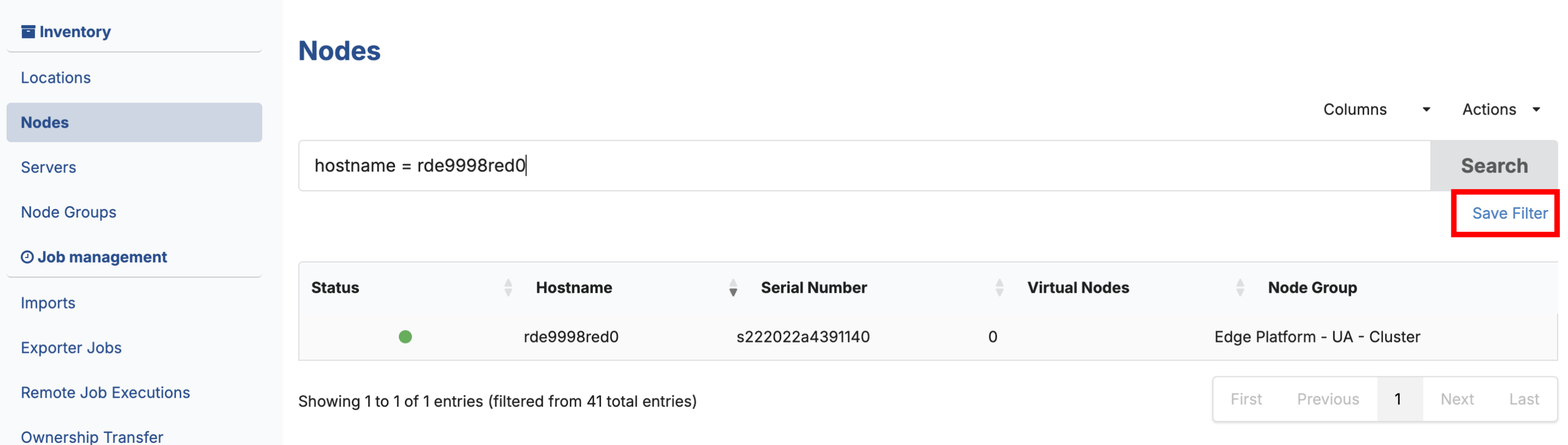
-
In the Create Filter dialog, enter a Name (required) and an optional Description.
-
Choose Save.
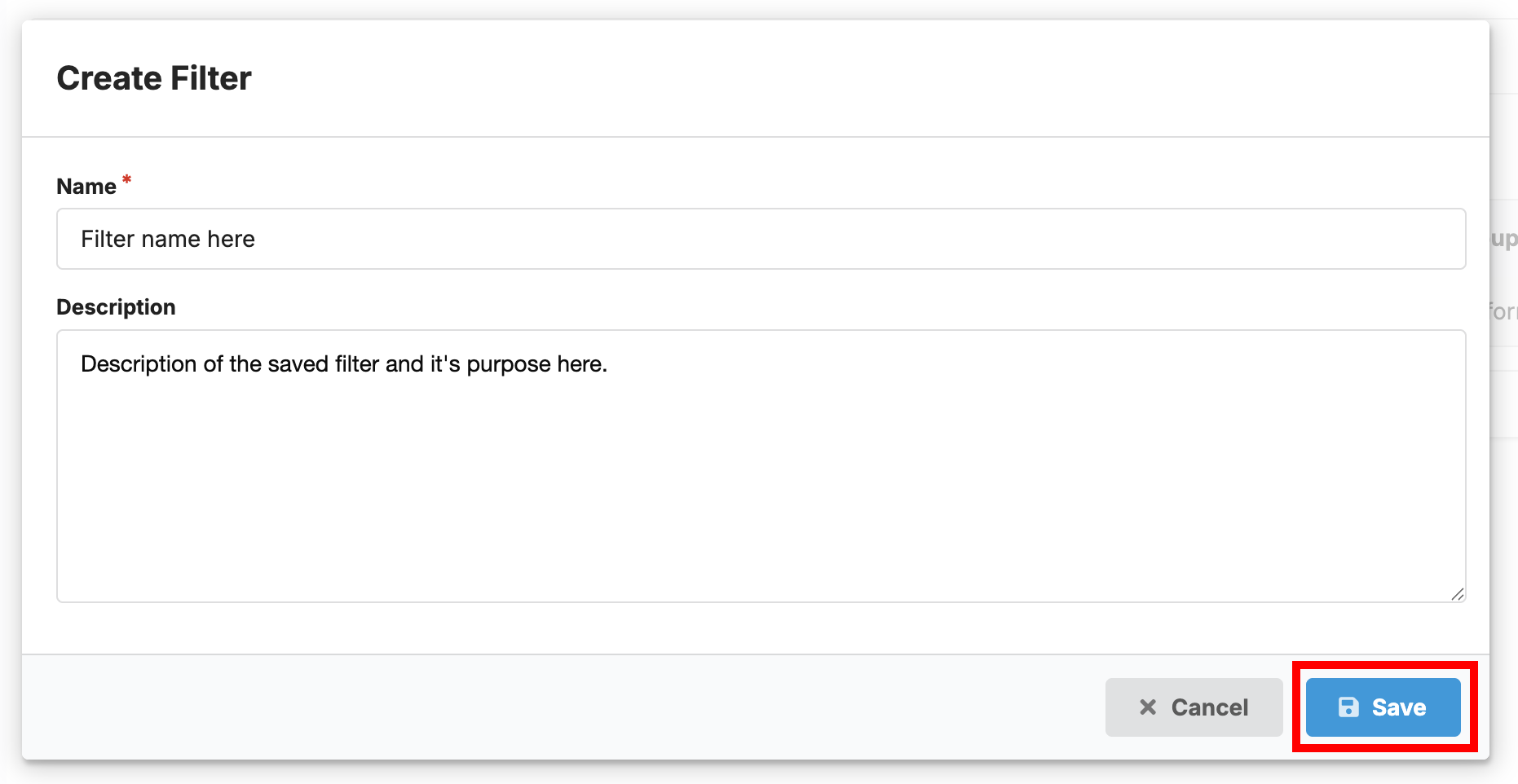
The new filter now appears on the Saved Filters page and can be re-applied at any time.
Applying a saved filter
- From the left navigation menu, under Services, choose Saved Filters.
- Locate the filter you want in the List of Saved Filters.
- Click anywhere on the filter's row to apply it. The Nodes list opens with the saved query already in the search box and the results displayed.
Recently used filters may also be available directly from the nodes list. Remember that only one filter applies at a time; choosing another filter replaces the current one.
Editing a saved filter
You can edit a filter's name and description from the Saved Filters page.
- From the left navigation menu, under Services, choose Saved Filters.
- Find the filter you want to change.
- Choose the menu icon (☰) on the right side of the filter's row.
- Choose Edit Name/Description.
- Update the Name and/or Description, then save your changes.
To change the underlying query itself, re-run the corrected RQL on the source list page and save it as a filter again.
Deleting a saved filter
- From the left navigation menu, under Services, choose Saved Filters.
- Find the filter you want to remove.
- Choose the menu icon (☰) on the right side of the filter's row.
- Choose Delete.
You can delete filters where you have the appropriate access.
Writing RQL queries
An RQL query is built from one or more arguments, where each argument is a field, an operator, and a value, for example hostname = sit0001red0. You can combine arguments with logical operators and group them with parentheses to control how they are evaluated.
Simple (plain-text) search
If you type a plain term without an operator, the application expands it into a broader query across multiple fields joined by or. For example, typing sit0001red0 is checked against fields such as hostname, serialno, status, node_number, hierarchy, group_name, and parent. This is convenient for quick discovery when you do not know which field holds the value.
Autocomplete and type-ahead
As you type, the search box offers autocomplete suggestions for system variables, dynamic variables, and operators to help you write valid expressions. Type-ahead does not cover every structure; nested hash keys in particular are not fully supported, so enter those field paths manually using dot notation.
Supported operators
| Category | Operator | Accepted syntax | Typical use |
|---|---|---|---|
| Comparison | Equals | equals or = | Exact value match |
| Comparison | Not equals | is not equal or != | Exclude an exact value |
| Membership | In | in | Match any value from a list |
| Membership | Not in | not in | Exclude values from a list |
| Membership | Contains | contains | Partial match, or match an element in an array |
| Membership | Does not contain | does not contain | Exclude partial matches |
| Logical | And | and or && | Require all conditions |
| Logical | Or | or or \|\| | Allow any condition |
Operator precedence
Operators are evaluated in this order:
- Grouping with parentheses.
- Comparison operators such as equals and not equals.
- Membership operators such as in and contains.
- Logical operators such as and and or.
Use parentheses whenever a query could be read more than one way. Explicit grouping makes a filter easier to review and safer to reuse.
A note on arrays
Because of Elasticsearch/Lucene behavior, equals and contains can match against any element in an array-backed field. This matters when filtering multi-value properties such as environment variables, profile names, or container lists.
Matching and excluding values in numeric multi-value properties
Some node group properties are typed as a number with Multiple Values enabled, which means the property is stored as an array of integers. The Cron Puppet Client Hours property (my_cron_puppet_client_hours) is one example, holding a list of hours such as 0, 4, 8, 12, 16, 20.
To include or exclude a specific value in this kind of property, use the list operators in and not in with the integer value, not contains or does not contain. For example, to find nodes whose puppet client hours do not include hour 4:
group_id in ('0001','0002') and hostname contains "red1" and my_cron_puppet_client_hours not in ("4")You can exclude more than one value by listing them, for example my_cron_puppet_client_hours not in ("4","6").
in is the inclusive counterpart of not in. The same query with in returns the nodes that do have one of the listed hours:
group_id in ('0001','0002') and hostname contains "red1" and my_cron_puppet_client_hours in ("4")in and not in are complements: in keeps the matching nodes and not in drops them. Both evaluate per node across all of the property's values, so a node matches in ("4","6") if any one of its hours is 4 or 6, and not in ("4","6") returns the rest. Note that nodes with no value set for the property fall on the not in side, since they have nothing that equals a listed value.
Avoid does not contain "4" for this purpose. contains and does not contain are substring tests, which behave two ways that you usually do not want. On a numeric field, the substring test does not match the stored integer at all, so does not contain "4" evaluates as true for every node and fails to exclude anything. On a text field, the same substring test over-matches, so excluding "4" would also remove values such as 14, 24, and 40 through 49. Use not in (...) when you need to match or exclude a whole value rather than a fragment of one.
Query examples and permutations
The following examples show the range of queries you can save. Values in quotation marks are required when a value contains spaces.
| Use case | Example RQL | What it does |
|---|---|---|
| Exact hostname match | hostname = sit0001red0 | Finds the node with that exact hostname |
| Partial group match | group_name contains single | Finds nodes whose group name includes the term |
| Exact group match | group_name equals "Single Debian 6 D2B" | Finds nodes in one specific named group |
| Intersection of group criteria | group_name equals "Single Debian 6 D2B" and group_name = "Production Cluster 2.0" | Returns results matching both conditions |
| Server type | type_of_server = "Payment Servers - Fipayeps" | Filters by server type |
| Node name | node_name = "sit0001" | Matches an exact node name |
| Partial serial search | serialno contains s147 | Finds serial numbers containing the token |
| Exact serial search | serialno equals 1474617a30553 | Matches one exact serial number |
| IP address search | my_lan1_ip = "10.52.9.2" | Matches a dynamic property holding an IP |
| Docker tag search | my_docker_archiver_tag = "3.2.0-1" | Finds nodes with a specific Docker tag value |
| Hash sub-field search | my_docker_containers.logstash.tag = "3.2.0-1" | Traverses a nested hash field using dot notation |
| Virtual node app version | my_ajbfipay_version = "20180223132412.1" | Finds nodes by application version data |
| Hierarchy exact search | hierarchy equals "Single-Store Single Node > USA > Eastern (EST) > ORF > 0001" | Matches an exact hierarchy path |
| Array membership | my_docker_containers.logstash.env_vars in ("ES_ID=elastic") | Matches when any array element is the listed value |
| Numeric array exclusion | my_cron_puppet_client_hours not in ("4","6") | Excludes nodes whose multi-value number property includes 4 or 6 |
Patterns worth reusing
- Exact lookup: use
=orequalsfor stable identifiers such as serial numbers, node names, and precise group names. - Broad discovery: use
containswhen you do not know the exact value or when values share a naming pattern. - List matching: use
in (...)when a field may match any value from an allowed list. - Exclusion: use
not into remove a whole value from a list or multi-value property, including numeric properties. Usedoes not containonly for partial text matches, since it is a substring test and does not reliably exclude whole values from numeric fields. - Nested traversal: use dot notation for hash sub-fields, for example
my_docker_containers.logstash.tag. - Combination: join criteria with
andoror, adding parentheses where there is any ambiguity.
Compound query examples
These compositions combine the patterns above:
type_of_server = "Payment Servers - Fipayeps" and my_docker_archiver_tag = "3.2.0-1"narrows a server class to a specific deployed tag.group_name contains single and serialno contains s147combines a broad group pattern with a partial hardware identifier.(group_name equals "Single Debian 6 D2B" or group_name = "Production Cluster 2.0") and hostname contains sit0001combines grouped alternatives with an additional hostname condition.my_docker_containers.logstash.tag = "3.2.0-1" and my_docker_containers.logstash.env_vars in ("ES_ID=elastic")checks multiple properties under the same nested structure.hierarchy equals "Single-Store Single Node > USA > Eastern (EST) > ORF > 0001" and type_of_server = "Payment Servers - Fipayeps"targets a precise location in the hierarchy and a server role at once.
Searchable fields
Because saved filters apply only to the Nodes page, the fields you can use in a saved filter are the node fields below, including both built-in system fields and dynamic properties (the my_* variables).
| Field type | Examples of searchable fields |
|---|---|
| Node system fields | status, hierarchy, hostname, serialno, virtual_nodes, type_of_server, group_name, group_id, rje_environment, instance_number, node_number, virtual, hypervisor, puppet_profile_names, node_name |
| Dynamic node properties | dynamic_properties, plus dynamic variables such as my_lan1_ip, my_docker_archiver_tag, and my_docker_containers.<name>.tag |
Note: Other RPM resource pages, such as Locations and Stores, support RQL-style searching with their own fields (for example, locations can be searched with city, state, addressline1, and similar), but those pages do not support saved filters. You can run the search there, but you cannot save or re-apply it as a filter.
Searching virtual node data
RQL can search virtual node data while still returning the corresponding regular (physical) node in the results. Behind the scenes, virtual node fields are indexed into the regular node document with a virtual prefix, and a query against a property may be expanded internally so both the regular field and its virtual-node variant are checked. In most cases you do not need separate syntax for virtual-node lookups, but the result always points to the regular node record.
Known limitations
| Limitation | What it means | Guidance |
|---|---|---|
| Incomplete type-ahead for hash keys | Autocomplete may not help with all nested structures | Enter known field paths with dot notation carefully |
| Field references not allowed as values | A field name on the right side is treated as a literal, not another field | Compare fields to explicit values only |
| No nil/null searches | Comparing to null is not supported | Design filters around known populated values |
| Hash values on virtual nodes not searchable | Some nested virtual-node data cannot be queried | Validate the field before relying on it in a filter |
| Limited operator-suggestion selection | Clicking a suggestion may not work reliably | Use keyboard navigation when building queries |
| Property labels not supported | Display labels are not valid in queries | Use canonical variable names, not display labels |
contains is a substring test | On numeric fields it does not match, and on text it over-matches (excluding "4" also catches 14, 24, 40-49) | Use in and not in to match or exclude whole values, especially for numeric multi-value properties |
If a filter looks syntactically correct but returns unexpected results, confirm the exact field name, whether the target data is nested or virtual-node-backed, and whether the value should be an exact match, a partial match, or an array membership.
Recommended practices
- Prefer exact matching (
=/equals) for stable identifiers such as serial numbers, exact group names, and specific node names. - Use
containsfor exploratory searches, broad rollouts, and partial identifiers. - Use dot notation consistently for nested hash fields.
- Use parentheses to make compound logic explicit.
- Confirm whether a field belongs to the regular node or its virtual node before saving a filter for others to reuse.
- Name filters clearly so readers understand both the target population and the intent. Because filters are visible to everyone in the tenant who has the List saved filters capability, a clear name helps the whole team, not just you.
Suggested naming patterns for tenant-wide filters
- Population + condition:
Single Debian Nodes - Serial contains s147 - Role + version:
Payment Servers - Archiver tag 3.2.0-1 - Hierarchy + purpose:
ORF 0001 - Fipayeps validation - Location + exclusion:
Austin TX - Address excluding 123