Using the Edge Install Monitor
The Edge Install Monitor lets an on-site installer track the progress of an edge install from a mobile-friendly status page. Each node is assigned a unique installation URL in the form https://platform.reliant.io/<customer_code>/edge_install/<uuid>, which can be distributed as a QR code. The URL's UUID identifies the node and the URL's expiration time, and it also authenticates the API calls the node's install script makes back to SC//Reliant Platform Manager during installation.
Background
Each node's page has an Edge Install Monitoring section, located below the serial number field, with the following information:
| Field | Description |
|---|---|
| Installation URL state | Enabled or Disabled. |
| Last accessed by | The IP address that last accessed the URL or the Edge Install Monitor API endpoints, and the timestamp of that access. |
| Time remaining | The calculated time remaining before the URL expires. |
| Expiration timestamp | The date and time the URL will expire. |
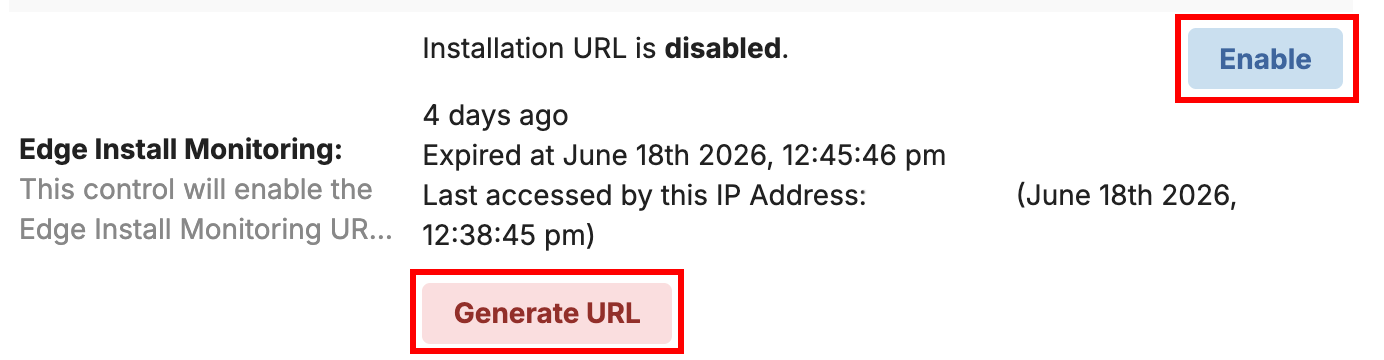
The default, read-only view of the node's page shows only the URL state and the last-accessed information. To manage the URL, select Edit on the node's page. This reveals an Enable/Disable toggle and a Generate URL button.
The expiration timer doesn't start when the URL is created. It starts the first time the URL is accessed, either by opening the status page or by a request to the Edge Install Monitor API. Disabling a URL removes its expiration time and makes it inaccessible until it's re-enabled. Choosing Generate URL issues a brand-new UUID; the previous URL is no longer valid once a new one is generated.
How an edge install runs
Puppet's profiles::edge_install_monitor profile scaffolds the pieces the install depends on: it writes the node's current token to /opt/edge-install/token.file, installs edge-install.sh and its configuration, and registers the edge-install systemd service.
When the service runs, edge-install.sh authenticates with that token and does the following:
- Requests a presigned download URL for
install_script.tar.gzfrom your S3 bucket. - Downloads and extracts the tarball, and runs the
install_script/start.shscript inside it. - Posts status updates (
in_progress,completed,error) back to SC//Reliant Platform Manager as the script runs, which is what populates the Edge Install Monitoring fields and the mobile status page.
Steps 1 and 3 are performed using the Edge install API. For more information, see Edge install.
The deployment script itself is specific to your environment: it's written and maintained to run your validations and workload setup, and it's the piece that gets customized when you're onboarded to the automated install flow. The Edge Install Monitor service isn't a deployment script; it's the layer that fetches, runs, and reports on whichever script is staged in your S3 bucket.
Generating QR codes for new builds
Installation URLs can be distributed as QR codes and printed in bulk at the build bench, so an installer can scan straight to a node's status page. For more information, see Generating QR codes for new builds.
Edge install API
The node's install script uses a set of API endpoints, authenticated with its installation UUID token, to report status and retrieve its deployment script. You generally don't call these directly except when troubleshooting a stalled or failed install. For more information, see Edge install.
Logging
Edge install activity is logged locally on the node through the edge-install systemd service and can be followed with journalctl -u edge-install. The deployment script tags each line it writes (for example, [MESSAGE], [ERROR], [SUCCESS]) in addition to posting the same status update to SC//Reliant Platform Manager over the API, so the local log and the monitoring page stay in sync.
This log stream is intentionally structured so it can be forwarded to a SIEM, using the platform's log forwarding profile. For more information, see Configuring log forwarding.
When to reset the monitor
In the field, appliances are set up to run the edge install correctly on the first attempt, so resetting the monitor is rarely needed. It mainly comes up in labs used to test the edge install process, where a token from a prior test has already expired.
The field case where a reset is needed is when an install was attempted on a server, then rolled back, and isn't retried until a later attempt (for example, the next night). Because the original token has already been used, you need to generate a new token, re-enable the URL, and run Puppet before retrying.
Resetting the monitor
-
In the SC//Reliant Platform Manager, navigate to the node you want to run the edge install on and select Edit. In the Edge Install Monitoring section, choose Enable to re-enable the installation URL, then choose Generate URL to issue a new token.
-
On the server where you want to run the edge install, run Puppet. This applies the
profiles::edge_install_monitorprofile, which writes the new token to the node and ensures theedge-installservice is installed. - Restart the edge install service.
sudo systemctl restart edge-install - Monitor the install's progress using either the Edge Install Monitoring webpage or the
journalctllogs for theedge-installservice on the node.journalctl -u edge-install -f