This page covers how to install a new system for SC//HyperCore™ HyperVisor. It runs from safety and networking prep through node configuration, troubleshooting and system initialization.
Important Safety & Usage Information
- Disconnect ALL power and network cords before servicing or moving the unit.
- Note all chassis manufacturers’ safety instructions for proper node lifting and transport.
- This product is intended for installation in a restricted access location or equivalent area. Ensure appropriate precautions are taken, as confidential and/or sensitive data may be stored on this product after installation.
- This product’s BIOS configuration may use replaceable batteries as a backup power source in the event of a power outage. If you suspect the batteries have failed, do NOT attempt to replace them yourself due to risk of injury if an improper replacement is used. Contact your hardware support provider for proper replacement steps.
- Elevated Operating Ambient — If installed in a closed or multi-unit rack assembly, the operating ambient temperature of the rack environment may be greater than room ambient. Consideration should be given to installing the equipment in an environment compatible with the maximum ambient temperature (Tma) specified by the manufacturer.
- Reduced Air Flow — Installation of the equipment in a rack should be such that the amount of air flow required for safe operation of the equipment is not compromised.
- Mechanical Loading — Mounting of the equipment in the rack should be such that a hazardous condition is not achieved due to uneven mechanical loading.
- Circuit Overloading — Consideration should be given to the connection of the equipment to the supply circuit and the effect that overloading the circuits might have on overcurrent protection and supply wiring. Appropriate consideration of equipment nameplate ratings should be used when addressing this concern.
- Reliable Earthing — Reliable earthing of rack-mounted equipment should be maintained. Particular attention should be given to supply connections other than direct connections to the branch circuit (e.g., use of power strips).
All SC//HyperCore, Edge, and BRS systems accept an input voltage of 100–240V at 50 or 60Hz, with the exception of the HC5250DFG which requires an input voltage of 220V.
Networking Preparations
Use the Networking Guidelines and Recommendations guides below for the latest networking best practices and recommended configurations. They also cover port requirements, physical NIC layouts, and more:
System Preparation & Configuration
Check the SC//HyperCore Software Support Guide for the latest details. It lists supported node configurations, system limits and best practices, virtual drivers, supported web browsers, and more.
Rack Installation
For step-by-step help racking the node, watch the 2-minute video for your model.
If you bought a Software Only node model from a Scale Computing Partner, see your hardware maker’s documentation or resources. They explain how to mount, rack, and install your hardware.
How to Schedule Your Services
When you’re ready to schedule your services in the User Community, use the Services Scheduling Guide. It shows you how to use the scheduling tool.
Installation Checklist
What to Expect After Purchase
A Scale Computing Customer Success Coordinator will contact you to plan the new SC//HyperCore deployment. They can walk you through the User Community and answer general non-technical questions. They also give you the documents you need and make sure you have every tool for a successful install.
To schedule the installation with the Services team, follow the instructions in the Customer Portal.
If this is your first SC//HyperCore system install, Scale Computing highly recommends that you schedule one. Then a trained Scale Computing Engineer can take you through the proper install process.
If you schedule the installation, a Services engineer will call the contact number you gave at the scheduled date and time. They will walk you through the services you bought.
If you install the system yourself, contact Scale Computing Support once the system is initialized. Support will run a system health check, cover any applicable software updates, and make sure the system is properly registered to the account.
Have the following equipment and information ready, and configured where needed, before the scheduled installation time:
- Review the Networking Guidelines and Recommendations for all your networking requirements.
- 1 LAN IP address for each node
- 1 Backplane IP address for each node
- Network subnet mask for the LAN IP
- LAN network gateway IP address
- All applicable cables for your node series (1 GbE, 10GBase-T, 10GbE SFP+)
- Any other VLAN information or networking information unique to your environment
- Check the SC//HyperCore Software Support Guide as you plan. It lists supported configurations, operating systems, drivers, and more.
- Know how to rack your new nodes safely and properly.
- Schedule your purchased services in the Customer Portal.
- Hardware installation tools:
- A Phillips-head screwdriver for installing the rail kit if needed.
- A standard VGA monitor and USB keyboard to connect to the nodes for configuration.
- You can use a KVM, but Scale Computing doesn’t recommend it for initial configuration.
- A machine local to the SC//HyperCore network, so you can reach the web interface after configuration. In the field, VPNs, port forwarding, and similar setups have been seen to block web interface access.
If you decide to install the SC//HyperCore system yourself, contact Scale Computing Support once the system is initialized. Support will run a system health check, cover any applicable software updates, and make sure the system is properly registered to your account.
If issues come up, a self-install may delay your deployment. After a self-install, Scale Computing Support reserves the right to take any needed corrective actions on the system. Support does this on a first-come, first-served basis, and previously scheduled services come first.
Node Configuration
Before you configure the individual nodes, check that the network and cabling setup is complete. During IP configuration, the node configuration process confirms that the nodes can reach each other. It also checks that they can reach a gateway before it lets node configuration continue.
To configure your nodes, you must have serial or graphical console access to the physical nodes. Serial access is VT100 at 115,200 baud. Any standard VGA monitor and USB keyboard will work as a graphical console, and Scale Computing recommends them.
Configure the Nodes
Schedule all installations at least 24 hours in advance. During the scheduled installation time, the Scale Computing engineer helping you will give you the credentials for command line access.
You do all node configuration from the command line, with a monitor and keyboard. Systems are configured from top to bottom, and the top node in the rack is the designated “first” node. The “first node” label has no effect on system operations outside of the installation configuration.
Hook the monitor and keyboard to the top node in the system.
Log in to the node command line with the provided credentials. If you have not received the credentials from Scale Computing, contact Scale Computing Support at https://www.scalecomputing.com/support.
::: note If the login prompt is not shown, press SHIFT to disable console blanking. If the login prompt is still not shown, press CTRL+ALT+F1 to ensure the correct console session is active. :::
Run the command below to begin node configuration.
sudo scnodeinitIf you’re prompted for a password, use the same password as the node login.
At each prompt, enter the IP and network information: the LAN IP, LAN Netmask, LAN Gateway, Backplane IP of this node, and Backplane IP of the first node in the cluster. On the first node, the last two are the same. The image below shows an example of the first node’s IP configuration.

Enter the unique software serial number for the appliance. Node initialization requires this unique 16-digit serial number. It should have shipped with the appliance hardware.
::: note Lenovo OEM hardware may place the Scale Computing software serial number on the underside of the slide-out tag if XClarity was purchased. The XClarity licensing information will be placed on the top of the slide-out tag.
If you enter an invalid software serial number, node initialization will not proceed. If you enter a valid but non-unique software serial number, cluster initialization will fail. You will then need to reinitialize the node with a unique software serial number. You should find the software serial numbers in the paperwork that came in your nodes’ shipping box.
If you need help finding your unique software serial number, contact Scale Computing Support. :::
Nodes utilizing Backplane-over-VLAN (HE100 series) — Enter the Backplane VLAN number on the extra input line that this configuration asks for. This VLAN should be unique to the SC//HyperCore system. The image below is only an example, so use a VLAN that suits the local network environment.

::: note When you use a dedicated switch, each NUC (HE100 series) should have its own trunk port on the switch. That port carries the native untagged VLAN, which is used for the LAN side. Then you tag an additional VLAN for the backplane. During initialization, you enter all the IPs as usual, and then the process asks for the Backplane VLAN ID. Enter the tagged VLAN that you assigned on the switch.
If you use an unmanaged switch, pick a VLAN ID that is not in use.
999is usually free, but you should check that your organization does not use it.When initializing a Single Node System NUC (HE100 series), type
nowhen asked for a VLAN. :::The node configuration process is complete when it returns to the command line or the output says
Entering forwarding state. The process generally takes 3–5 minutes.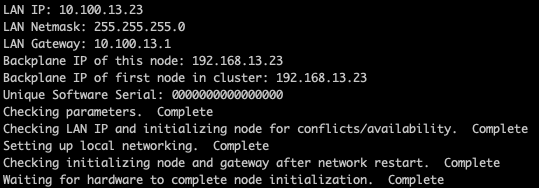
Common Node Configuration Troubleshooting
Try these common steps for node configuration issues:
- Check that the node IPs were typed correctly.
- Check that the LAN and Backplane IP you chose for the node are not already in use elsewhere on the network.
- The LAN and Backplane IPs must be on separate networks. The Backplane IP cannot be a publicly routable IP and cannot be in the assigned LAN IP network.
- Check that each node in the cluster has a unique serial number. If not, the output shows the message “Software Serial Numbers are not unique”.
Bypass & Reinitialization Commands
If a test environment needs it, you can use the following commands to re-initialize a node, bypass some network checks, or both.
Scale Computing Support advises against bypassing the built-in network checks. The only exceptions are a test or lab environment, or a case where Scale Computing Support has specifically advised it as part of troubleshooting.
Using the bypass command outside of these cases can lead to networking issues within the initialized nodes. Fixing them may require Scale Computing Support to step in, a system wipe and reset, or both.
Node Initialization Failure
If node initialization fails for any reason, use this command to re-configure the node.
REINITIALIZE=yes sudo scnodeinitNetwork Inaccessible
If a LAN gateway can’t be reached or does not respond to ICMP requests, use this command.
BYPASS_NETWORK_CHECK=yes sudo scnodeinitCombine Remedial Commands
You can combine the options to re-configure a node and bypass LAN network checks.
BYPASS_NETWORK_CHECK=yes REINITIALIZE=yes sudo scnodeinitSystem Initialization
Before you initialize the system, make sure all nodes are configured (see Node Configuration).
Initialize the System
Schedule all installations at least 24 hours in advance. During the scheduled installation time, the Scale Computing engineer helping you will give you the credentials. The commands below apply to a single node or multiple node installation. Choose the right option for your configuration.
You do all system initialization from the command line, with a monitor and keyboard. Systems are configured from top to bottom, and the top node in the rack is the designated “first” node. The “first node” label has no effect on system operations outside of the installation configuration.
Hook the monitor and keyboard to the top node in the system.
Log in to the node using the provided credentials.
Run the command for your configuration.
- If you use the SNS (Single Node System) configuration, run this command to initialize the single node.
sudo singleNodeCluster=1 scclusterinit- If you use the cluster configuration, run this command. It initializes a system made up of all the nodes you configured earlier.
sudo scclusterinitIf you’re prompted for a password, use the same password as the node login.
Check that the list on the screen shows every node you configured, as in the image below. With the SNS configuration, the list shows only the single node.

When all nodes are shown, follow the prompt and press CTRL+C to proceed.
Enter
yesto complete the system initialization, as in the example below.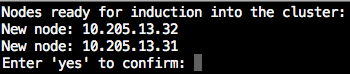
Wait for the nodes to initialize. This takes about 15–20 minutes in a cluster configuration, and about 10–15 minutes for a node in a SNS. When it’s done, you can reach the SC//HyperCore web interface at the configured LAN IP of the node(s).
What Next?
Videos
Technical Resources
- User Community — Customer focused, including the online Forum.
- Contact Scale Computing Support
- SC//HyperCore Software Support Guide