Business-Critical Profiles
Business-critical profiles are a part of Internet Breakout configuration. A business-critical profile contains a set of rules that help an Edge device identify traffic belonging to that profile. These profiles are created through Adaptiv | Cloud Portal either during provisioning or post-installation. Users can create and associate up to 32 different profiles to the Edge device at any given time. Examples of applications that can be added to the profile list include UCaaS, VoIP services, real-time communication applications such as Zoom, Google Meet, Microsoft Teams, and company-based private applications.
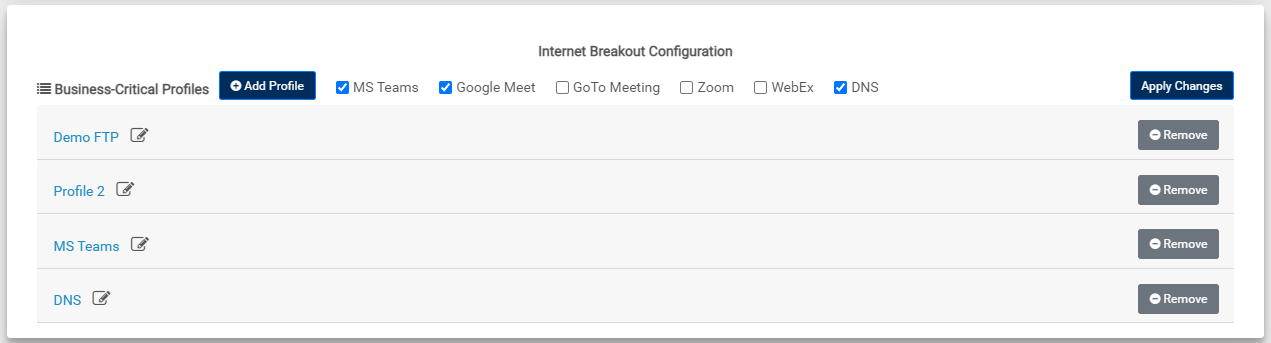
Each profile contains rule(s) in the form of IP addresses and port numbers that identify the source and/or destination of an application. When a profile is enabled, the Edge device will constantly try to identify data matching the rules defined in that profile. If any data (incoming/outgoing depending on profile definition) matches a rule, it is identified as critical and then routed to the gateway. However, if a profile is disabled, the Edge device will no longer match the data to profile rules and it will be delivered to the Internet via ISP connection.
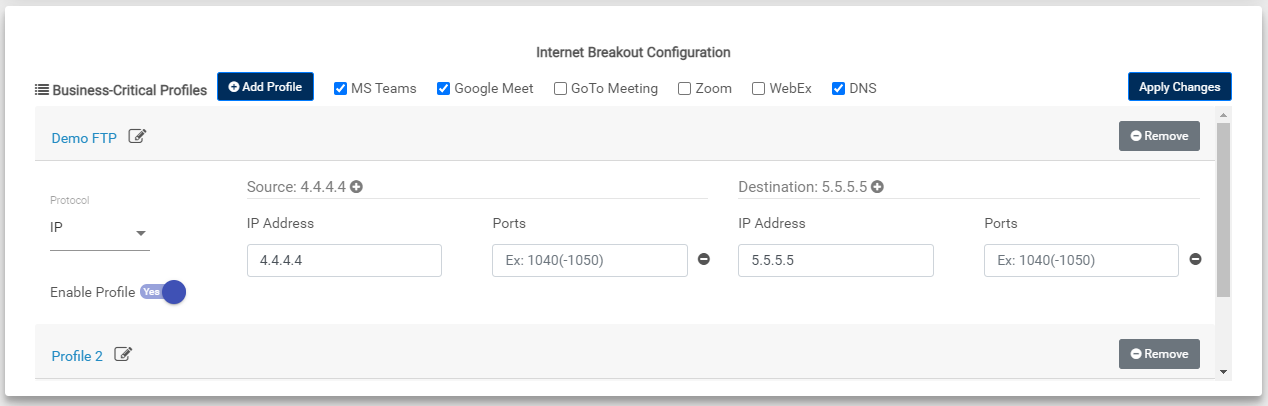
Users can use the following combinations to create rules for identifying business-critical traffic. At any given time, a profile can contain only 15 IP addresses (source and destination combined).
| Rule | Description |
Source: IP address/IP with subnet and/or port number Destination: IP address/IP with subnet and/or port number | In this rule, users can specify both, the source and destination of application traffic. As a result, any traffic matching the configured details is identified and sent to the gateway. |
Source: Any Destination: IP address/IP with subnet and/or port number | In this rule, an Edge device will identify data going to the specified IP address(es) and/or port number(s). The data can be from any source. |
Source: IP address/IP with subnet and/or port number Destination: Any | Here, an Edge device will use the source information to identify and prioritize data. As a result, any traffic matching the configured details is identified and sent to the gateway. |
Source: Any Destination: Any | An Edge device needs either source or destination for an application to be defined for data prioritization. If this information is not provided, the Portal will not have a profile to match any data and the data is sent to the gateway. |
| Pre-defined templates | Adaptiv Networks provides pre-defined templates for popular web-conferencing applications. For example:
|
| DNS template | DNS template is automatically created and enabled only for Edge devices with a private DHCP server configuration. It automatically pulls the primary and secondary DNS server IP addresses and adds them to the template. By default, the DNS traffic is protected with the tunnel over Gateway. Users can disable or remove this template. However, we recommend using this template to avoid a temporary outage while the breakout traffic fails over the backup link during the event where the primary Internet breakout link fails. |
Managing Business-Critical Profiles
This section explains how users can create and manage business-critical profiles for the Internet Breakout feature. See Processing Orders to create profiles during installation. To create and manage profiles on installed devices, open the CPE Management tab and navigate to the Configuration page > Internet Breakout Configuration section. To apply and save changes, first, click Apply Changes and click Save Configuration.
| Task | Procedure |
| Create a new profile | Click Add Profile and enter the following information.
|
| Add a pre-defined template | To add a default profile to the profile list, simply select the checkbox next to its name. |
| Manage DNS template |
|
| Update a profile | Click the name of a profile to be updated, update information and click Apply Changes. |
| Disable a profile | Click the name of a profile to be disabled and toggle the Enable Profile button to No. |
| Remove a profile | Click Remove next to the profile to be removed. |
TERMS OF USE | ANTI SPAM | PRIVACY POLICY | USER LICENSE AGREEMENT | PATENTS