With the introduction of the new ClusterSpec details in SC//HyperCore™ HyperVisor version 9.6, there are new tools and interface elements in the SC//HyperCore system to help you take advantage of these Node Lifecycle Management improvements. It’s now easier than ever to add a node, delete a node, or update the networking configuration of your cluster — all within the SC//HyperCore web interface.
Adding a Node
Before adding a node, confirm it is actually compatible with the existing cluster — storage type, networking type, and capacity all have combination rules. See Hardware Combination and Node Compatibility.
Adding a node through the SC//HyperCore 9.6 web interface is simple. In order to add a node, follow these steps.
- Open the SC//HyperCore Control Center, then click the Control section.
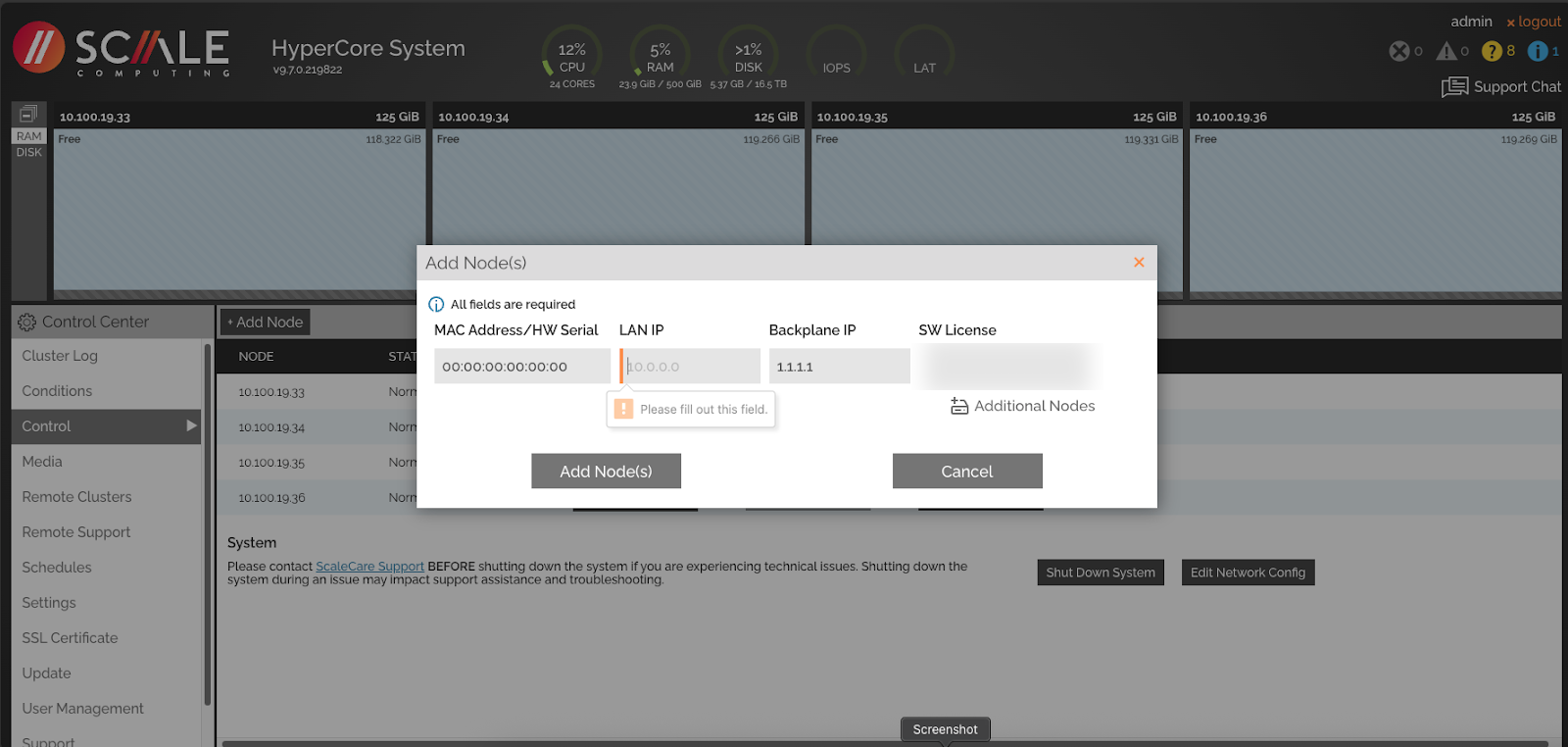
- Click the + Add Node button.
- Specify your node’s configuration and click Add. An example of the required info is shown below.
- Once submitted, the cluster will automatically add a new node with the entered specifications. This is totally non-disruptive to the cluster and will not interrupt any running applications.
In SC//HyperCore v9.6 you will also need to have access to the command line of the incoming node once it has been physically cabled up to the existing cluster AND clusterspec has been updated. Once connected and clusterspec reflects the new node, you will run the following command:

- It may prompt for a password. Please contact Scale Computing support to confirm the login credentials.
- It will prompt for each piece of IP and network information: LAN IP, LAN Netmask, LAN Gateway, Backplane IP of this node, Backplane IP of first node in system (which will be the same as Backplane IP of this node on the first node), and Unique Software Serial. See an example below.

This extra step will be eliminated in an upcoming release.
Deleting a Node
Deleting a node through the SC//HyperCore 9.6 web interface is simple. In order to delete a node, follow these steps.
- Open the SC//HyperCore Control Center, then click the Control section.
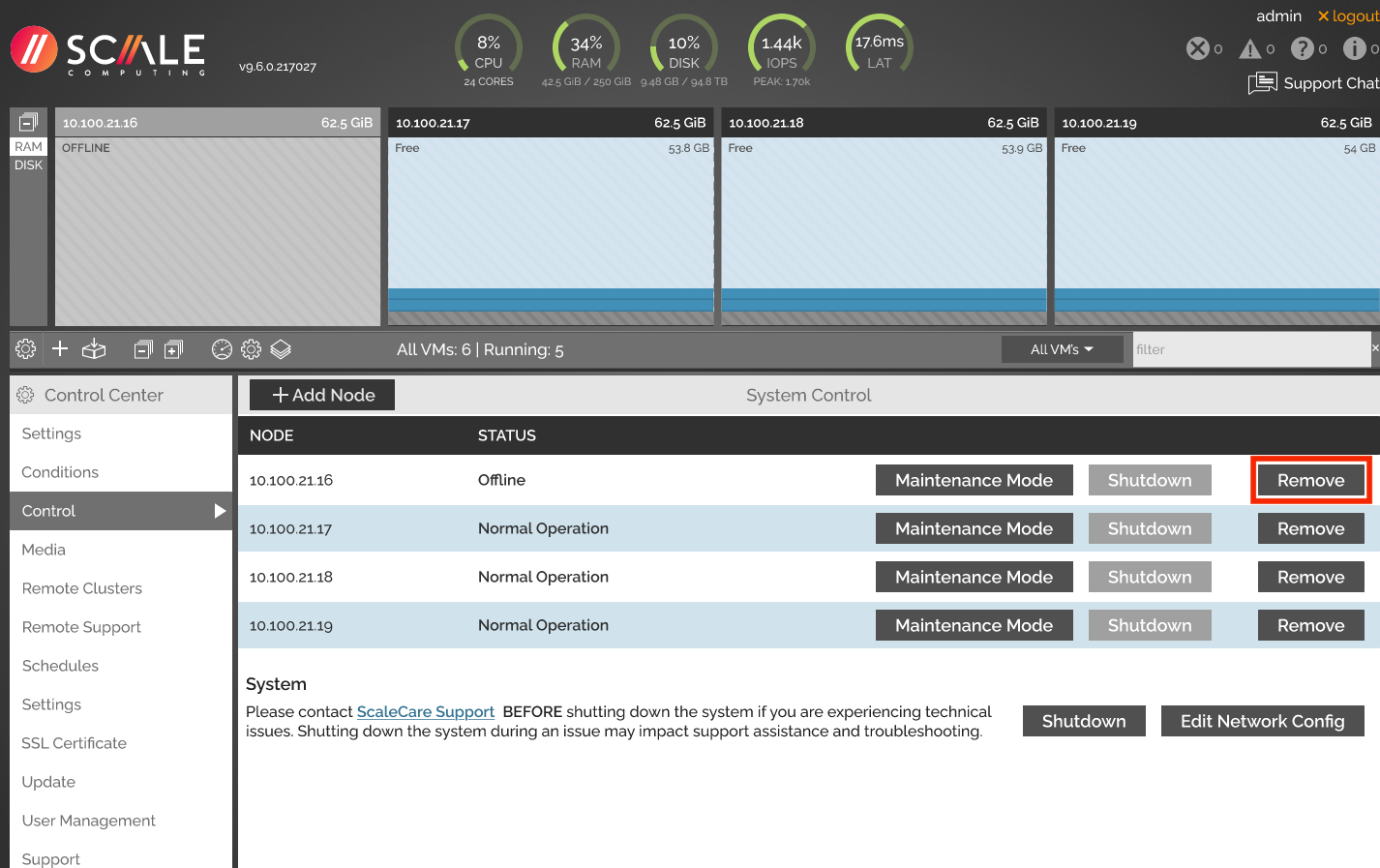
- Identify the node you want to remove from the cluster and click the Remove button. In this case, it is the node with LAN IP
10.100.21.16.
- Confirm the node removal by clicking Remove on the pop-out modal.
- The node will be automatically removed from the cluster (assuming it is safe to do so).
If you delete the cluster leader node or the node you are viewing the web interface through, you may get a temporary 504 error page. If this occurs your cluster is not down and your applications are not impacted. Simply wait until this resolves on its own (can take minutes to hours due to DNS caching) or sign in to the SC//HyperCore web interface through a different node in the cluster.
Updating the Cluster Network Configuration
The ClusterSpec file also allows you to seamlessly update your cluster network configuration. This makes actions like updating the LAN IP addresses of nodes radically easy.
- Navigate to the Control section of the SC//HyperCore Control Center.
- Click Edit Network Config.
- Make any networking changes in the pop-out modal. In SC//HyperCore 9.6, only the node LAN IP, Gateway, and Subnet Mask are editable.
- Click Update and your networking configuration will automatically be updated without requiring node reboots.
The SC//HyperCore system will test the health and availability of the new, desired network configuration before transitioning. It deems a network to be healthy if:
- A new LAN IP address doesn’t already exist on the network.
- The gateway can be pinged.