Microsoft Secure Boot certificates originally issued in 2011 begin expiring in June 2026. Virtual machines (VMs) with Secure Boot enabled on a cluster running SC//HyperCore™ HyperVisor may be affected. Without updated certificates, VMs will continue to operate normally but will no longer receive new boot-level security protections, including fixes for newly discovered vulnerabilities in the boot chain.
SC//HyperCore software version 9.6.30 includes a fix and a built-in workflow to update Secure Boot certificates and keys on affected VMs directly from the Control Center.
Applies To
- SC//HyperCore 9.6.30 and later
- Virtual machines with Secure Boot enabled (Windows and Linux)
Resolution
Update your cluster to SC//HyperCore software version 9.6.30 or later, then follow the steps below to update Secure Boot certificates and keys on affected VMs.
If any VMs use third-party disk encryption such as BitLocker, suspend encryption before proceeding. Applying the update without suspending encryption may prevent the VM from booting after the update.
If you clone a VM that was created before applying this update, you must run this process again on the new clone. The fix is not inherited by clones made from pre-update snapshots.
Step 1: Identify VMs that need the update
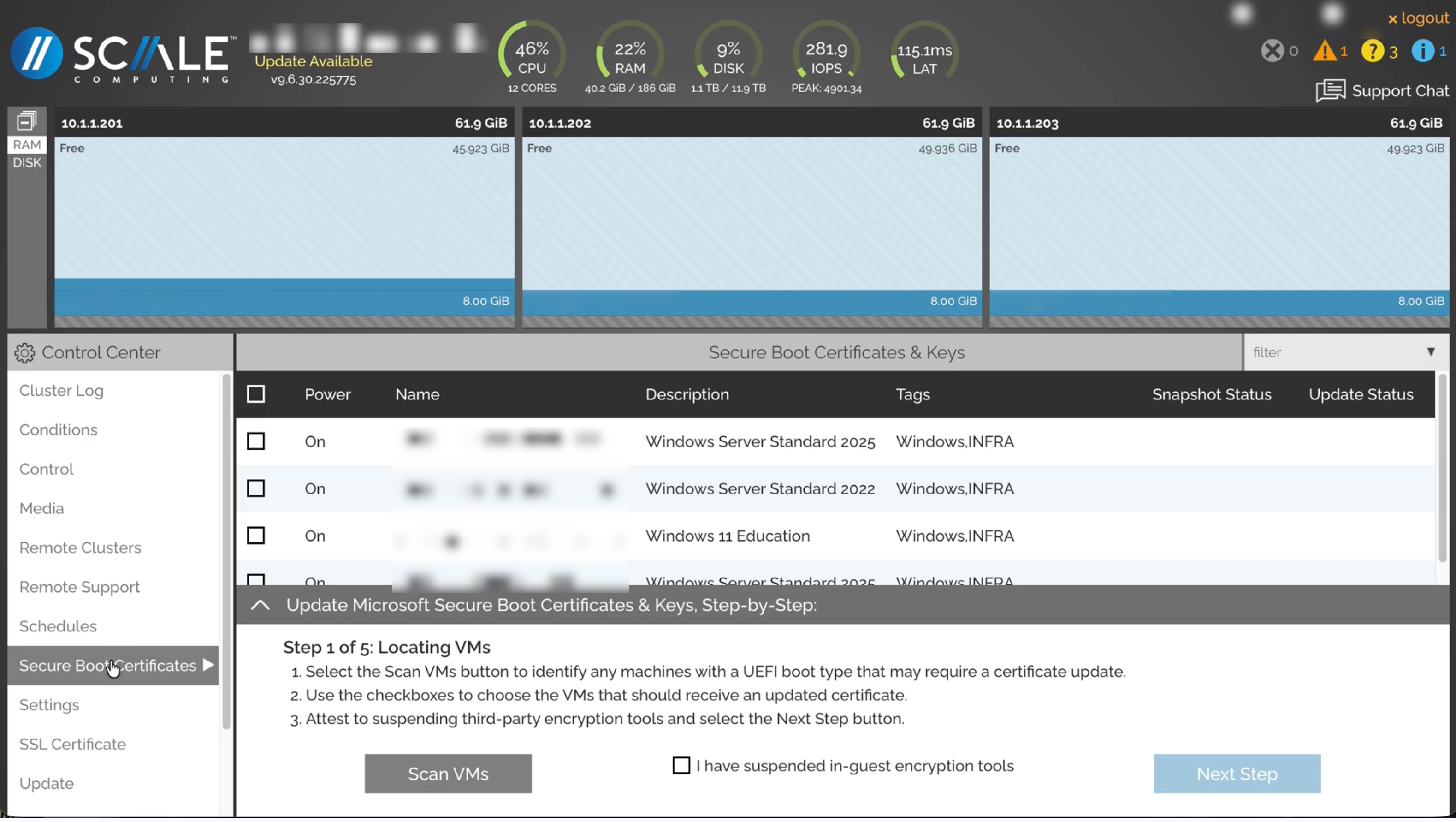
In the SC//HyperCore web interface, open the Control Center and select Secure Boot Certificates. Initiate a scan to identify VMs that require the certificate update. Review the results and select the VMs you want to update using the checkboxes.
Step 2: Snapshot the selected VMs
The workflow requires a snapshot of all selected VMs before the update can proceed. The Control Center will prompt you to complete this step before continuing.

Step 3: Shut down the VMs
VMs must be powered off before the update can be applied. Initiate a graceful shutdown from the Control Center. If a graceful shutdown does not complete, use the power off option to force the VM off.

Step 4: Apply the update
With the VMs powered off, apply the Secure Boot certificate update. This step completes quickly for most VMs.

Step 5: Power the VMs back on
Power on the updated VMs from the Control Center. The VMs will start normally with updated Secure Boot certificates and keys in place.
After all VMs have been updated, run the scan again to confirm that no additional VMs are flagged as needing the update.

Additional Information
For background on the Microsoft Secure Boot certificate expiration and its impact on Windows devices, see Microsoft’s support article: When Secure Boot certificates expire on Windows devices (KB5079373).