Setting up Multifactor Authentication
Adaptiv My Connect uses multifactor authentication (MFA) to ensure secure access to application. It requires users to provide two verification factors to gain access to the application. This approach not only enhances security but also avoids unauthorized access to the application. When logging in, new users are required to set up a multifactor authentication whereas the existing users are prompted to use multifactor authentication for subsequent logins.
When a user receives an email invite to join My Connect application, clicking Sign In will redirect the user to My Connect self-service portal to complete the setup of multifactor authentication.
Setting up multifactor authentication
To access the application, new users must first set up multifactor authentication. Use these instructions to set up multifactor authentication.
- To begin, open the email inviting you to join the Adaptiv My Connect and click Sign In in the email. This action will redirect you to the browser and prompt you to reset the password.
- Follow the instructions to create or reset the password.
After successfully resetting the password, click Back to Adaptiv My Connect to continue the login process. - Enter the username and password and click Continue.
- Use one of the following method to get the one-time verification code:

Please note that initial registration for multifactor authentication requires use of authenticator apps. Alternative methods are available for subsequent logins after registration. - Getting the one-time code on desktop: Scan the QR code shown on the login screen with your preferred authentication app on your phone. Completing this step will register the orchestrator on your authenticator. Once the registration process is complete, enter the one-time code that appears on the authenticator into the orchestrator login screen.
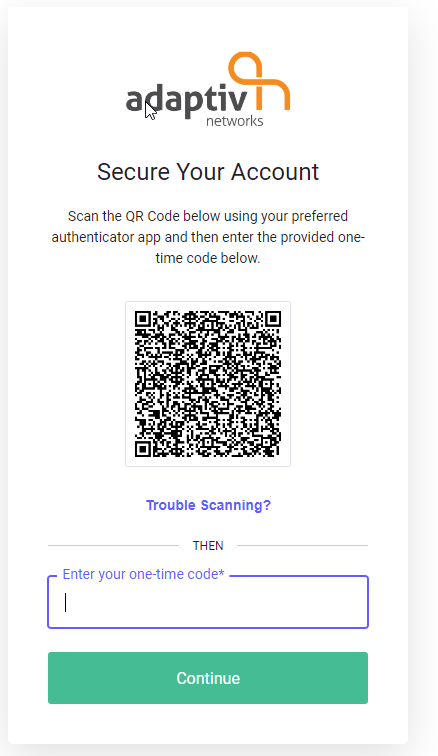
- Getting a one-time code on your phone: On the QR code page, click Trouble Scanning and copy the one-time key displayed on the screen. Open your preferred authenticator application and manually enter the key into the app. This action will register the orchestrator on your authenticator. Once the registration process is complete, enter the one-time code that appears on the authenticator into the orchestrator login screen.
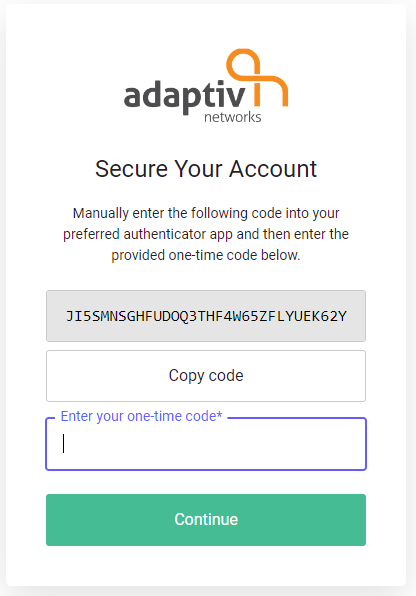
- Getting the one-time code on desktop: Scan the QR code shown on the login screen with your preferred authentication app on your phone. Completing this step will register the orchestrator on your authenticator. Once the registration process is complete, enter the one-time code that appears on the authenticator into the orchestrator login screen.
- After entering the one-time code, click Continue.
- Copy the recovery code displayed on the screen and check the "I have safely recorded this code" checkbox.
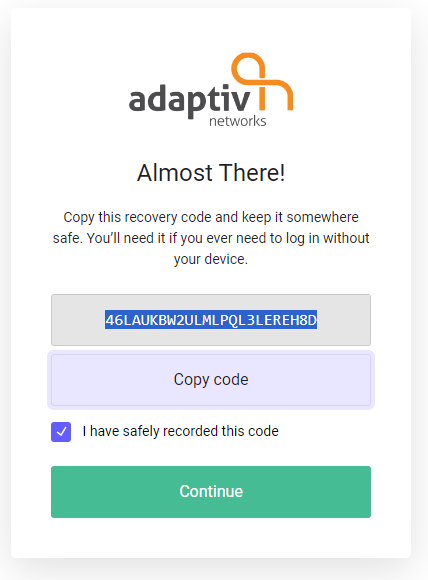
- Click Continue to complete the multifactor authentication setup and gain access to the My Connect application.
TERMS OF USE | ANTI SPAM | PRIVACY POLICY | USER LICENSE AGREEMENT | PATENTS