Manage Certificates
The Certificates are used to display notifications when a page is blocked by the URL filtering engine. The certificates are retrieved from the following locations and then used by the application.
- Windows: Certificates are stored in Cert:\\LocalMachine\\ROOT\\store
- macOS: Certificates are located in /Library/Keychains/System.keychain
To install a certificate
- Open Configuration panel and in Options section, click Manage next to Trusted Certificate Authorities. If no certificates have been installed yet, the Trusted Certificate Authorities window shows the following message:
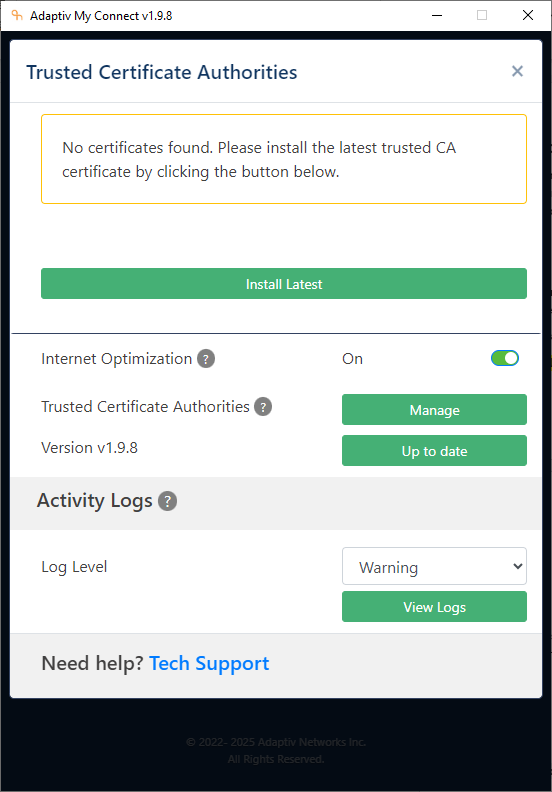
- To proceed with certificate installation, click Install Latest. Once the certificate is installed, the window will display certificate information including the certificate expiry date, identification, and thumbprint. This will grey out the Install Latest button.

Note that clicking the X icon in the certificate window will uninstall the certificate. To exit this view, click outside the Trusted Certificate Authorities section, press Escape from the keyboard, or click the X icon next to Trusted Certificate Authorities. 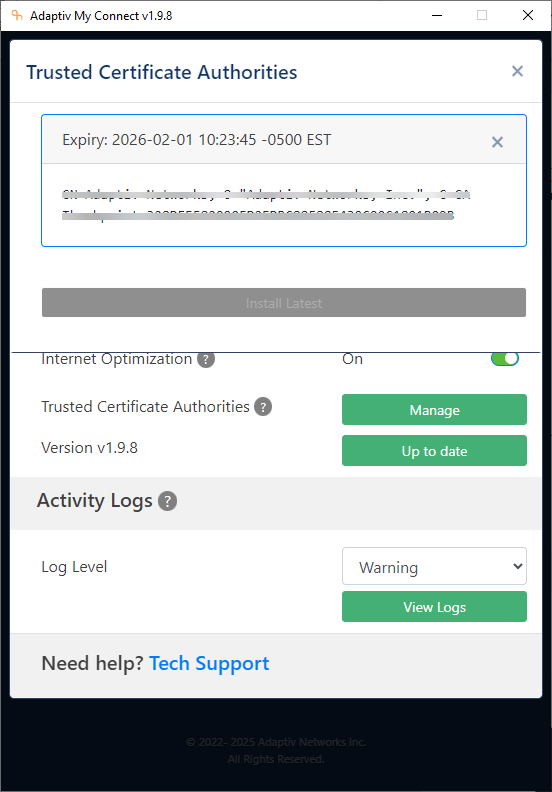
A certificate thumbprint is a unique identifier created by hashing a digital certificate’s data. Like a fingerprint, it ensures authenticity and helps verify the certificate in applications or configurations. This thumbprint is a unique alphanumerical string of 40 characters.
- When a new certificate becomes available, the Install Latest button will become green again, thus, allowing users to download and install the latest certificate.
TERMS OF USE | ANTI SPAM | PRIVACY POLICY | USER LICENSE AGREEMENT | PATENTS
Copyright © 2025 Adaptiv Networks, Inc. Send Feedback