Manage Network Interfaces
In the Configuration panel, the Network Interfaces section enables you to manage network interfaces. My Connect automatically detects and displays all available network interfaces connected to the internet. By default, all interfaces are enabled.
In the example shown in the image below, the user is connected using two different network interfaces: Wi-Fi and Ethernet. The first connection is their home network, while the second connection is delivered by using his iPhone’s USB tethering function. The result is that both networks can be used simultaneously. In this example, the main network is the Wi-Fi, which is set to Enabled. Ethernet 3 (i.e. iPhone) is set to Backup to avoid an expensive bill from their provider. It will only be used actively if all Enabled networks are unavailable.
Network Interfaces in Configuration Panel
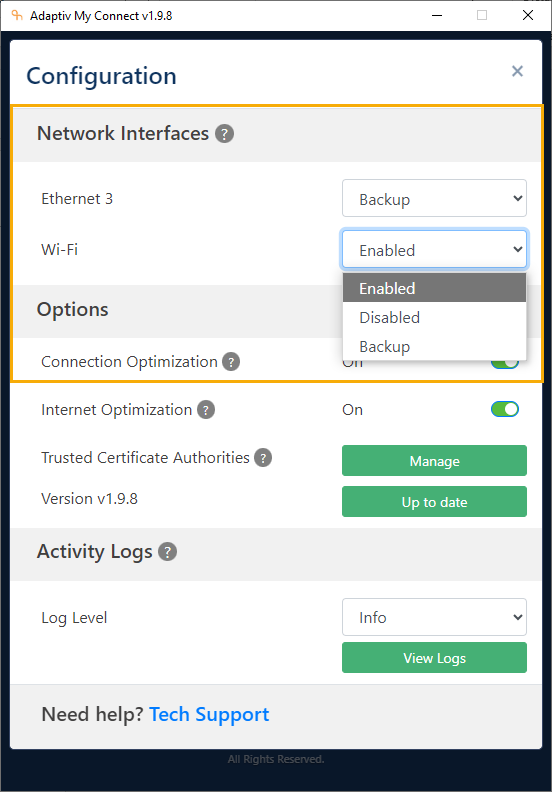
To manage the status of network interface
- Open the Configuration panel.
- In the Network Interfaces section, select a status for the network interface from the following options provided in the drop-down menu.
- Enabled – Default status for all interfaces. Selecting this status will enable the interface to be used to manage corporate network traffic.
- Disabled – Selecting this status will disabled an interface and not use it for traffic
- Backup – If a network interface is assigned a Backup status, it is used to carry traffic only if all enabled interfaces become unavailable.
TERMS OF USE | ANTI SPAM | PRIVACY POLICY | USER LICENSE AGREEMENT | PATENTS