Upgrading to EOS 4.5.0
The ELFIQ EOS version 4.5.0 brings major improvements to the OS. Built on Debian 12, it ensures faster, more dependable operation for ELFIQ devices by improving partition management and memory utilization. The upgrade to EOS 4.5.0 is carried out in two stages:
Before you begin
- Flashing this unit will erase all existing configurations. Before proceeding, make sure the latest configuration has been saved and updated to use the new interface naming scheme (changed from ethX to pX).
Refer to Back Up Current Configuration for more details. - Additionally, ensure that your device supports the EOS version 4.5.0 before attempting the upgrade.
- Please make sure that the following system requirements are met:
- Installer image – usb-installer.img.gz (provided by Adaptiv Support)
- USB key – 8 GB minimum, blank or expandable (note that all data will be erased).
- Host PC – Windows 10 or 11 or any Linux distribution system
- Flashing tools – Rufus for Windows installation
Create a USB Installer
This section describes the procedure to create a USB installer for Windows and Linux.
To create a USB Installer for Windows:
- Download and install Rufus.
- Copy usb-installer.img.gz to a local drive.
- Extract the file to obtain usb-installer.img (use 7-Zip, NanaZip, or Windows built-in extractor).
- Insert the USB key.
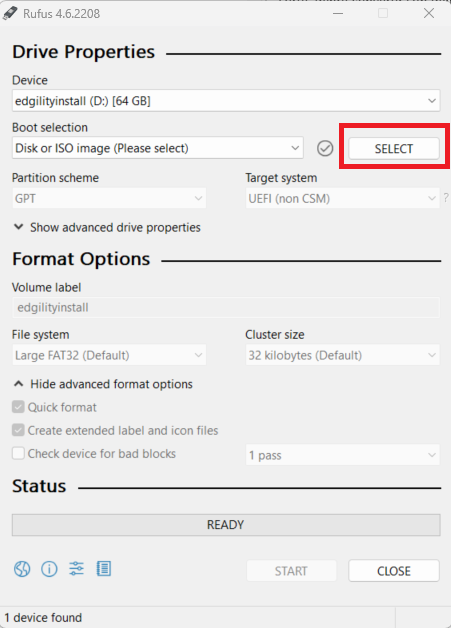
- Open Rufus and click Select; choose Disk or ISO image.
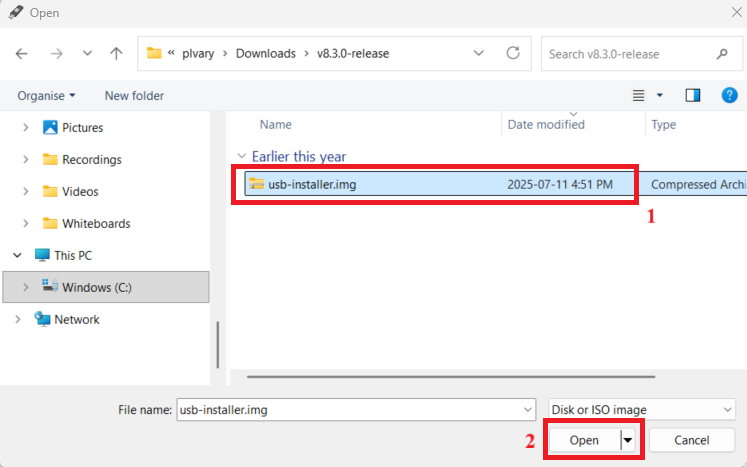
- Browse to usb-installer.img and confirm it appears under Boot Selection.
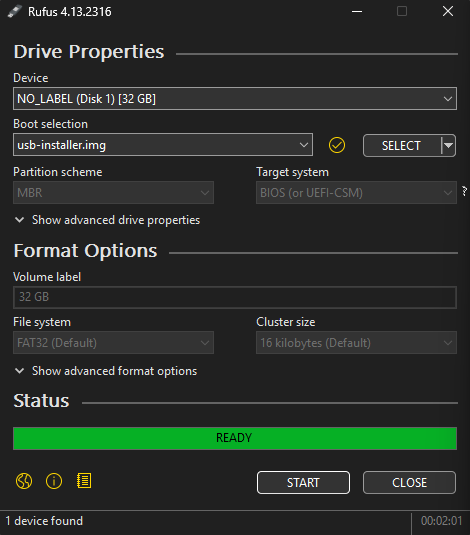
- Click Start and wait until Rufus reports READY.
- Safely eject the USB key.
- To create a USB Installer for Linux:
Warning:/dev/sdX must be the USB device. A wrong target will wipe your system disk.- Option A – single step:
gzip -dc usb-installer.img.gz | sudo dd of=/dev/sdX bs=256K status=progress - Option B:
gzip -d usb-installer.img.gz
sudo dd if=usb-installer.img of=/dev/sdX bs=256K status=progress - When the prompt returns, eject the USB key.
- Option A – single step:
Flash the unit
- Power off the unit.
- Insert the prepared USB installer into any USB port.
- Power on the unit.
- Boot Priority Changes — Core model only.
Note: This step applies only to Core models. Skip this step if your devices are E-40, E-60, or E-80.- Enter BIOS setup.
- Change the Boot Priority so the USB key is first.
- Switch Boot Mode from Legacy to UEFI.
- Save changes and reboot.
- At the prompt, log in with your username and password. (If you do not have credentials, request them from Support.)
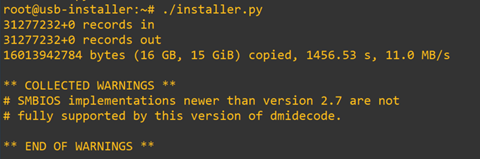
- Execute ./installer.py
- Remove the USB key.
- Issue a soft reboot: reboot ( important not to remove the power cable)
- The unit will start on firmware 4.5.
TERMS OF USE | ANTI SPAM | PRIVACY POLICY | USER LICENSE AGREEMENT | PATENTS
Copyright © 2026 Adaptiv Networks, Inc. Send Feedback