Backing up and restoring your virtual machines
The SC//Reliant™ platform provides tools that allow you to back up your KVM virtual machines (VMs), either manually for specific VMs or programmatically on a schedule, and to restore them when needed.
Understanding the difference between a snapshot and a full backup
A snapshot is a point-in-time copy of a KVM virtual machine's state, including its virtual disk and, optionally, its memory. It's not a complete, standalone copy. Instead, it works by making the original virtual disk file read-only and then saving all new changes to a new, smaller "delta" file locally.
A full backup is a complete and independent copy of the entire VM's data. RVC creates one by copying the VM's disk to a working directory, optionally optimizing it, and packaging it into a single archive alongside the VM's snapshot definitions and a metadata file recording details like the RVC version, VM name, and creation time.
Full backups are the mechanism you should use to protect your VMs. Because a full backup is a complete, independent, and portable copy, it can be restored on its own to recover a VM, replacing the VM's disk entirely with the backup's contents. A snapshot, by contrast, is only a local delta against a read-only base disk on the same node, so it does not provide an independent recovery point and offers no practical use case on the SC//Reliant platform. Always use full backups to protect VM data.
Firmware and vTPM state in a full backup
A virtual machine with UEFI Support enabled keeps its firmware variables — boot entries and Secure Boot state — in an NVRAM store, and a virtual machine with an emulated Trusted Platform Module (TPM) keeps its TPM state in a separate state directory. Neither of these lives on the virtual disk, and both are as much a part of the VM's identity as the disk is.
What a full backup captures depends on the RVC version that created the archive, not on the version that restores it.
| RVC version that created the backup | Archive contents | Result of a restore |
|---|---|---|
3.13.0 or later | The disk, the UEFI NVRAM store, and the vTPM state | The VM comes back with the same firmware and TPM identity it had when the backup was taken. No manual intervention is needed. |
Earlier than 3.13.0 | The disk only | The restore succeeds, but the archive carries no firmware or TPM state, so the VM's configuration may need to be repaired by hand afterwards. |
Restoring an archive created before RVC 3.13.0 completes normally, and RVC reports that the archive predates NVRAM and vTPM support. Because the archive supplies neither, any firmware or TPM state the VM ends up with is whatever the node already holds. Where that state is not present — after a node rebuild, or when the VM is being recreated — libvirt generates both fresh, which means:
- Boot entries and Secure Boot settings held in NVRAM are gone, so the VM's boot order may need to be set again.
- Anything sealed to the old TPM cannot be unsealed by the new one. A Windows VM protected by BitLocker stops at the recovery screen and needs its recovery key, and certificates provisioned into the TPM have to be re-issued.
A VM that uses neither UEFI nor a vTPM is unaffected. Its archive and its restore are the same on every RVC version.
To find out which RVC version created an existing archive, and whether it carries the NVRAM store and vTPM state, use kvm.full_backup_info. It describes the archive without extracting it.
Upgrading RVC does not change archives that already exist. Once a node is running RVC 3.13.0 or later, take a fresh full backup of each UEFI or vTPM virtual machine so that its current recovery point carries the firmware and TPM state.
Backing up a Virtual Machine
The following sections show you how to either perform manual backups or use tooling to perform automated backups.
Manually backing up a VM using the SC//Reliant Virtual Controller
You can use the SC//Reliant Virtual Controller (RVC) to back up a VM when you connect to the node via a terminal or SSH.
| RVC Method | Description | Command | More info |
|---|---|---|---|
kvm.full_backup | Create a full backup of a KVM virtual machine. | rvc kvm full-backup --hostname <kvm_hostname> --filename <path_to_file.tar.gz> --optimize --compress | kvm.full_backup |
Using the Managed Files Utility
You can automate KVM Virtual Machine backups by creating a script that utilizes the SC//Reliant Virtual Controller command-line tool. You then add this script as a managed file using the Managed Files Utility. With the utility's configuration settings, you can easily enable execution privileges and, crucially, define a cron schedule to ensure the backup runs reliably and hands-free on a recurring schedule.
For more information, see Managed Files Utility.
Manually backing up a VM using the SC//Reliant Local Status Indicator (RLSI)
You can use the SC//Reliant Local Status Indicator (RLSI) web console to perform KVM Virtual Machine backups manually, from the BACKUPS tab.
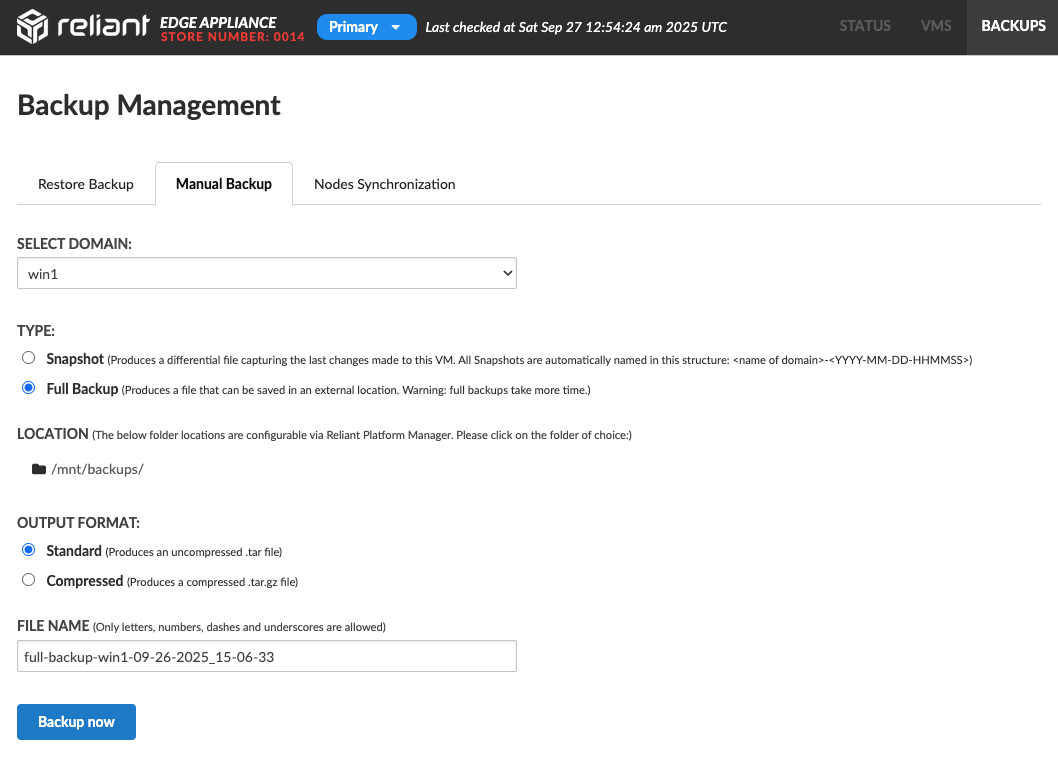
A full backup taken this way shuts the VM down for the duration of the operation, and enables cluster maintenance mode first so that the clustering software does not treat the deliberate shutdown as a resource failure. Plan a manual full backup of a running VM as planned maintenance rather than a background task.
For the full procedure, the options on the form, and how to read the progress it reports, see Managing virtual machines in RLSI.
Configuring SC//Reliant Platform Manager to back up all Virtual Machines
If you want to back up all KVM Virtual Machines (VMs) on a node, you can use the Reliant Virtual Controller Configurations hash which includes properties to configure the backup of all KVM VMs. The Reliant Virtual Controller Configurations hash is usually added to a node group, but may also be added to an individual node or server.
The following are the properties within the Reliant Virtual Controller Configurations hash related to VM backups.
| Property | Type | Description | Required | Default value |
|---|---|---|---|---|
Full Backup Target Location | Text | The local filepath on the node to save VM backups to. A subdirectory is created for each VM when a backup is started. | Yes | /mnt/ |
Scheduling | Text | This setting triggers the VM full backup at specific times and dates using cron syntax. | No | null |
Command Max Attempts | Text | The maximum number of attempts that RVC should make when executing a VM state change (Start, Shutdown, Restart, Reset, Hard Reset, and Hard Shutdown) before stopping. | No | 3 |
Command Timeout | Text | The maximum duration, in seconds, an RVC action is allowed to run before it is stopped. This prevents actions from executing indefinitely. | No | 30 |
Restoring a Virtual Machine
Restoring a VM is always a manual, deliberate action; even when the source is a scheduled automatic backup, an operator has to initiate the restore itself.
Manually restoring a VM using the SC//Reliant Virtual Controller
You can use the SC//Reliant Virtual Controller (RVC) to restore a VM when you connect to the node via a terminal or SSH.
| RVC Method | Description | Command | More info |
|---|---|---|---|
kvm.restore | Restore a full backup for a KVM virtual machine. | rvc kvm restore --hostname <kvm_hostname> --filename <path_to_file.tar.gz> | kvm.restore |
Before overwriting the VM's disk, RVC sets aside a rescue copy of the current disk when a location has room for one, so a failed restore can be rolled back and the VM left as it was. The unsafe parameter skips that rescue copy when no location has room for it: the disk is then overwritten in place, and a failed restore can't be rolled back.
Manually restoring a VM using the SC//Reliant Local Status Indicator (RLSI)
You can use the SC//Reliant Local Status Indicator (RLSI) web console to restore a KVM Virtual Machine manually, from the BACKUPS tab's Restore Backup screen.
A restore replaces the VM's current disk, and the VM is unavailable while it runs. Anything written to the VM since the backup was taken is lost, so confirm you have the right VM and the right backup before starting. You can restore from either a scheduled automatic backup or a specific backup file in the node's backup folder.
For the full procedure and the options on the form, see Managing virtual machines in RLSI.