Reading the Status tab in RLSI
The STATUS tab is the home page of the SC//Reliant™ Local Status Indicator (RLSI). It reports a set of checks describing the node you are connected to — its connectivity, its addresses, its disk usage, and the KVM domains it hosts. This page describes each row, how to read the indicators, and which rows appear on a given node.
STATUS is read-only. Nothing on this tab changes the node's state.
The Status page
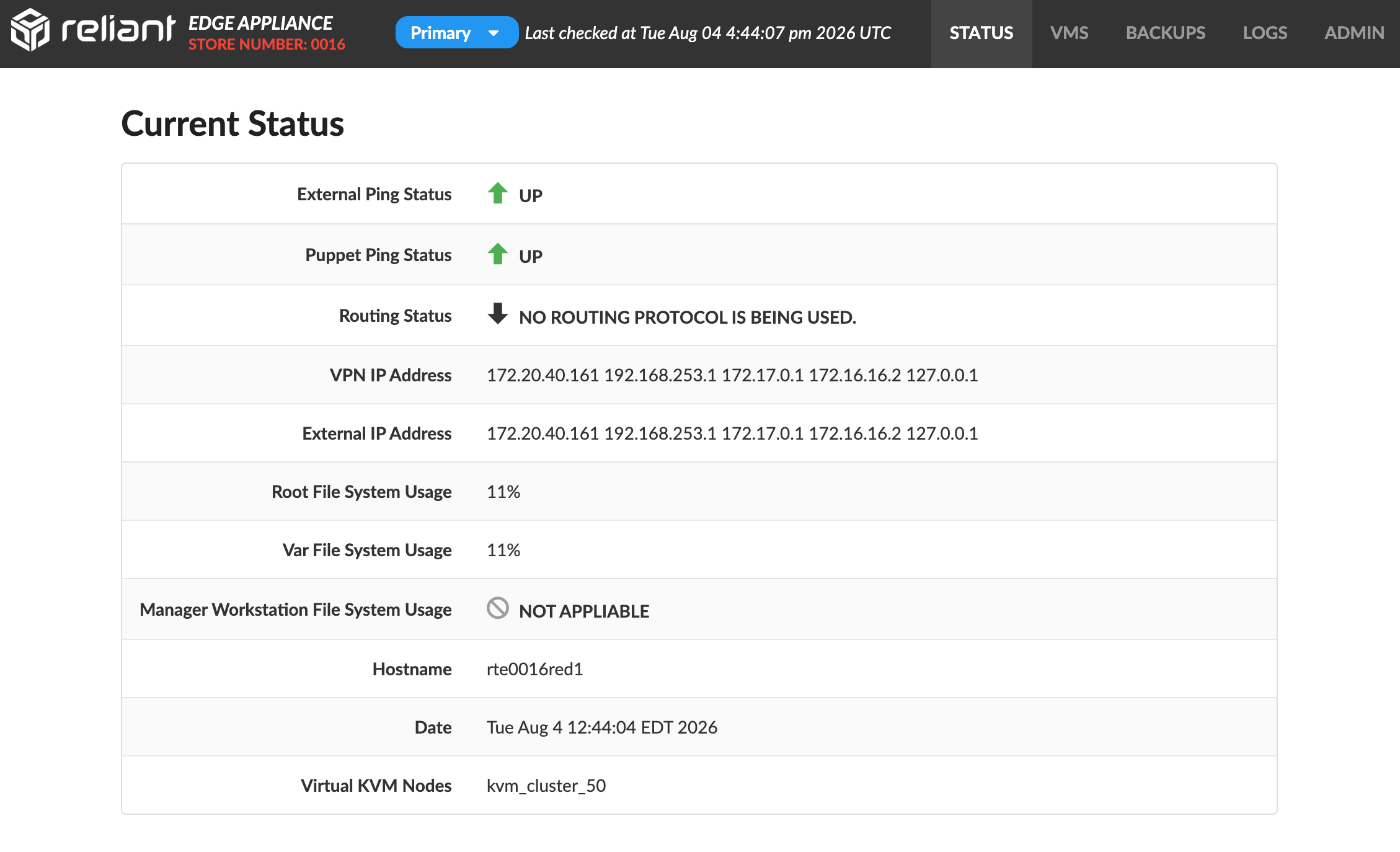
Which rows you see is not fixed. Each row corresponds to a check named in the Rlsi Enabled Checks property for the node or node group, so a node configured with a different set of checks shows a different set of rows. The order the rows appear in is RLSI's own, not the order the checks are listed in the property.
At least one check must be enabled. If none are, RLSI errors rather than showing an empty page.
Reading the indicators
Three indicators appear in the value column.
| Indicator | Meaning |
|---|---|
| Green up arrow | The check returned a healthy result. |
| Black down arrow | The check did not return a healthy result. This is not always a fault — read the accompanying text. |
Grey circle, NOT APPLIABLE | The check ran but does not apply to this node, typically because the filesystem or service it inspects is not present. The interface's spelling is reproduced here as it appears on screen. |
NOT AVAILABLE | The check did not return a usable value at all. Distinct from NOT APPLIABLE: the check is expected to apply here but produced nothing. |
A down arrow needs its text read before you act on it. In the screenshot above, Routing Status reports a down arrow with NO ROUTING PROTOCOL IS BEING USED. — that is the expected result on a node with no dynamic routing configured, not a failure. By contrast, a down arrow on External Ping Status does indicate a connectivity problem worth investigating.
NOT APPLIABLE is likewise not an error. Manager Workstation File System Usage reports it on the node above because that node has no manager workstation filesystem to measure.
The indicator is chosen from the check's result code, and for some checks a non-healthy code is a normal operating condition rather than a fault. Routing Status is the clearest case, and Internet Gateway Failover Status is another: running on the backup connection is reported as a non-healthy state because it is worth knowing about, not because the node is broken. Read the message, not the arrow.
What each row reports
The rows below are those shown in the screenshot. The check name is the value you add to the Rlsi Enabled Checks property to make the row appear.
| Row | Check name | What it reports |
|---|---|---|
| External Ping Status | exthost_ping_status | Whether the node can reach an external host. A down arrow here points at general internet connectivity. |
| Puppet Ping Status | puppet_ping_status | Whether the node can reach the Puppet server. A down arrow means the node cannot check in for configuration, so it will drift from its intended state. |
| Routing Status | routing_status | The state of dynamic routing. NO ROUTING PROTOCOL IS BEING USED. is normal where the node uses static routing. |
| VPN IP Address | vpn_tun_ip | The IP address of the node's VPN tunnel interface. |
| External IP Address | interface_address | The node's network interface addresses. Despite the label, this is not limited to the externally routable address. |
| Root File System Usage | root_file_system_usage | Current disk usage of /. |
| Var File System Usage | var_file_system_usage | Current disk usage of /var. A rising value here is often the rsyslog spool. See Reading logs on a node. |
| Manager Workstation File System Usage | mgrwork_system_usage | Current disk usage of /kvm/mgrwork. Reports NOT APPLIABLE on nodes without that filesystem. |
| Hostname | hostname | The node's hostname, for example sit0016red1. This is the authoritative answer to which node you are connected to — the header bar gives the store and the cluster role, but the hostname identifies the individual node. |
| Date | date | The node's system date and time. |
| Virtual KVM Nodes | virtual_nodes | The KVM domains defined on this node. For power controls on these VMs, see Managing virtual machines in RLSI. |
Reading the two address rows
VPN IP Address and External IP Address can list several addresses, and on some nodes the two rows report overlapping or identical sets, as they do in the screenshot above. Read them as "the addresses present on this node" rather than as two cleanly separated values.
The list includes addresses held by bridges and by the container and Docker interfaces, not just the node's LAN address, which is why it is longer than expected. Physical ports on this platform are typically enslaved to a bridge and hold no address of their own, so the address you are looking for usually belongs to a bridge rather than to eth0. To see which interface holds which address, use Network Configuration on the ADMIN tab.
Reading the Date row
Date is the node's own system clock, shown in the node's local time zone. The Last checked at timestamp in the header bar is in UTC, so the two normally differ by the node's offset — a node on EDT reads four hours behind the header.
A disagreement larger than that offset points at a clock problem on the node. Out-of-sync clocks also produce false monitoring alerts, so confirm Network Time Protocol (NTP) is synchronized before treating an alert as a real outage.
All available checks
The following checks can be enabled. Those marked in the last column are the ones shown in the screenshot above.
| Check name | Row label it produces | What it reports | Shown above |
|---|---|---|---|
exthost_ping_status | External Ping Status | External connectivity. | Yes |
puppet_ping_status | Puppet Ping Status | Puppet server connectivity. | Yes |
routing_status | Routing Status | Which dynamic routing protocol is in use, if any. | Yes |
failover_status | Internet Gateway Failover Status | Whether the node is running on its primary or backup internet connection. | No |
vpn_tun_ip | VPN IP Address | VPN tunnel IP address. | Yes |
vpn_gateway_ping_status | VPN Gateway Ping Status | Whether the far side of the VPN tunnel answers. | No |
interface_address | External IP Address | Network interface IP addresses. | Yes |
interface_gateway | External Gateway IP | Network interface gateway address. | No |
root_file_system_usage | Root File System Usage | Disk usage of /, as a percentage. | Yes |
var_file_system_usage | Var File System Usage | Disk usage of /var, as a percentage. | Yes |
aloha_system_usage | Aloha File System Usage | Disk usage of /kvm/aloha, as a percentage. | No |
mgrwork_system_usage | Manager Workstation File System Usage | Disk usage of /kvm/mgrwork, as a percentage. | Yes |
store_number | Store Number | The store number. | No |
hostname | Hostname | The node's hostname. | Yes |
date | Date | System date and time, in the node's local time zone. | Yes |
virtual_nodes | Virtual KVM Nodes | The KVM domains on the node. | Yes |
keepalived_status | Keepalived Status | Keepalived status. | No |
The messages each check can report
Most checks report a value. Five report one of a fixed set of messages, and the message is more informative than the indicator beside it.
| Check | Message | What it means |
|---|---|---|
exthost_ping_status | Up | The node can reach the external host. |
Down | It cannot. Investigate the node's internet connectivity. | |
puppet_ping_status | Up | The node can reach the Puppet server. |
Down | It cannot, so the node will drift from its intended configuration until this is resolved. | |
vpn_gateway_ping_status | Up | The far side of the VPN tunnel answers. |
Down | The tunnel is up locally but the gateway does not answer. | |
routing_status | OSPF is being used over MPLS. | Dynamic routing via OSPF. |
BGP is being used over VPN. | Dynamic routing via BGP. | |
No routing protocol is being used. | No dynamic routing. Normal on a node using static routes. | |
failover_status | We are running on our primary connection. | The expected steady state. |
We are running on our backup connection. | The node has failed over. The store is working, but on its backup link, and the primary needs attention. | |
The backup connection is down. | Running on primary, but with no backup available — the next failure has nowhere to go. | |
Both primary and backup connections are unavailable. | No internet connectivity. | |
The status file is stale. Please check later. | The check could not read a current result. Re-check before treating it as an outage. | |
The connection status check script has failed to give a valid response. Please try again later. | The check itself failed, so the connection state is unknown rather than bad. |
The two failover_status messages worth reacting to but easy to skim past are The backup connection is down. and the two "try again later" results. The first means the store is running with no redundancy. The others mean you do not yet know the state, so do not record the store as healthy on the strength of them.
What the Status tab does not tell you
The checks are a per-node surface view. Several things a first responder needs are deliberately not here.
- Cluster health. The cluster fields are behind the role indicator in the header bar, not in the check list. See Before you act, and for quorum and fencing state, Verifying cluster health.
- Replication state. RLSI does not report DRBD status. See DRBD replication status reference.
- The other node. Every check describes the node serving this session, so nothing here tells you about the other node at the site.
Related documentation
- Using the SC//Reliant Local Status Indicator (RLSI): reaching the console, and what to check before acting.
- Troubleshooting RLSI issues: what to do when a check reports a problem, or the values look stale.
- Configuring RLSI: setting which checks appear, and the values the property accepts.
- Managing virtual machines in RLSI: the VMS tab and the VM power controls.
- Using the Admin tab in RLSI: the diagnostic and maintenance actions.
- Verifying cluster health: the checks RLSI does not cover.
- Node diagnostic command reference: the read-only network and storage commands available on a node.