This topic provides information on how users can customize the gateway selection process performed by the Customer Premises Equipment (CPE) during endpoint registration.
To perform this action, an Admin login is required.
Overview
Gateway Selection is the process that allows users to decide which data center gateway a CPE (Customer Premises Equipment) should connect to for sending and receiving traffic. The selection process is created to make sure that the CPE remains connected to an available and optimal gateway. This feature is nested under the Network section. The purpose of this feature is to make sure that the CPE is always connected to a reachable gateway. It facilitates the selection of low-latency gateways, therefore increasing overall network connectivity and performance. Gateway selection offers resiliency by offering users a choice to switch to faster gateways.
This feature offers two methods of selecting gateways:
-
Automatic – By default, gateway selection is set to automatic. When selected, the Preferred Datacenter is set to any. The system will automatically select the available and reachable Gateways based on the CPE’s Geolocation (from the underlay's public IP or configured site location) and the current load of SC//Connect™ datacenters. If the current gateway remains online, the CPE will continue to connect from there. If the current gateway is unreachable, the CPE triggers a re-registration to connect to another reachable gateway.
-
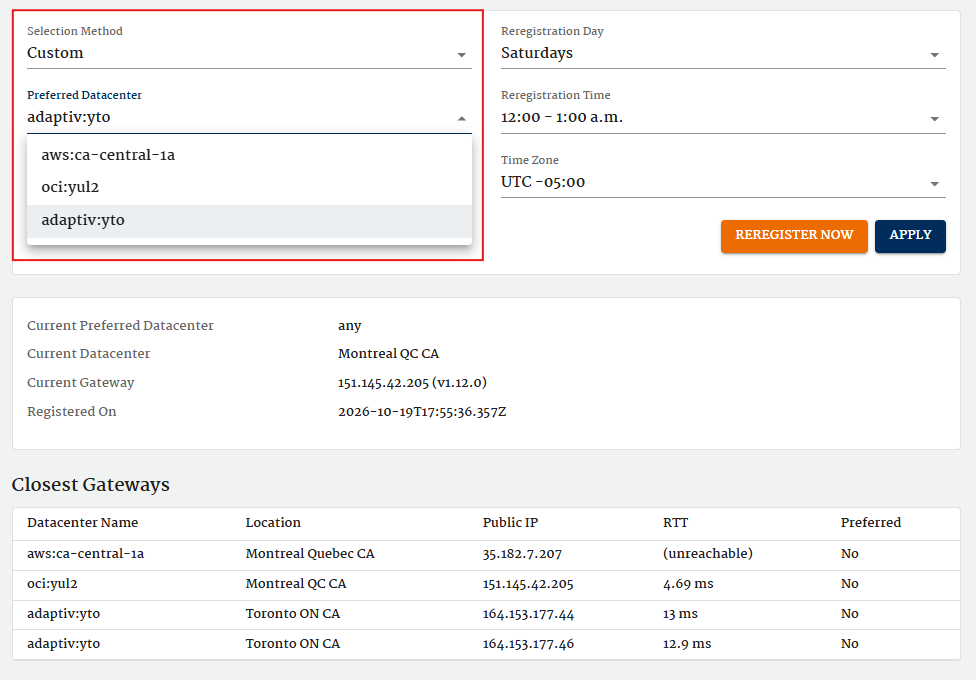
Custom – Allows users to choose the specific data center as the preferred gateway. When selected, Preferred Datacenter is not set to any. Instead of that, users must manually select their Preferred Datacenter from a list of available gateways. The selected option for this field is taken from the closest gateways table. This option can be helpful when geo-location does not accurately reflect the CPE’s real-world location, or when a specific datacenter provides lower latency.
While Automatic Selection is recommended for most deployments, Custom Selection allows users to select a preferred datacenter location that will be used if available.
To select a gateway
Automatic Gateway Selection
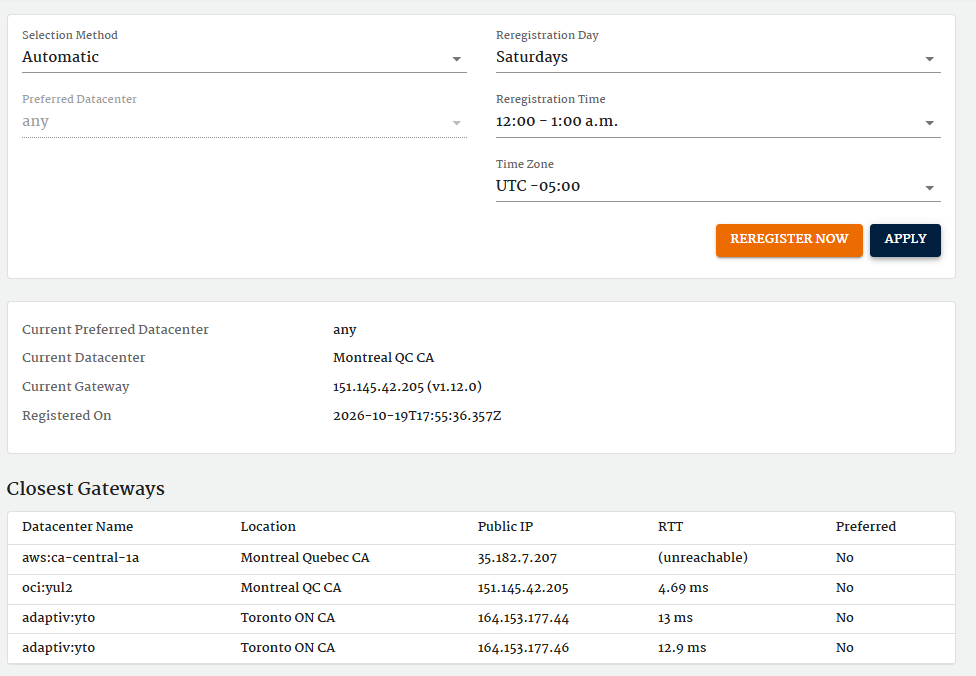
- In the Selection Method drop-down, Automatic value is already set up as the default.
-
In the Preferred Datacenter drop-down, Any is already set as the default.
-
Continue to schedule a day for the CPE to attempt re-registering with the gateway in Reregistration.
There is a default schedule setup (default is seven days) for reregistration. This step can be skipped if users wish to continue with the default setup. -
Click Apply to apply the settings.
Custom Gateway Selection
- In the Selection Method drop-down, select Custom.
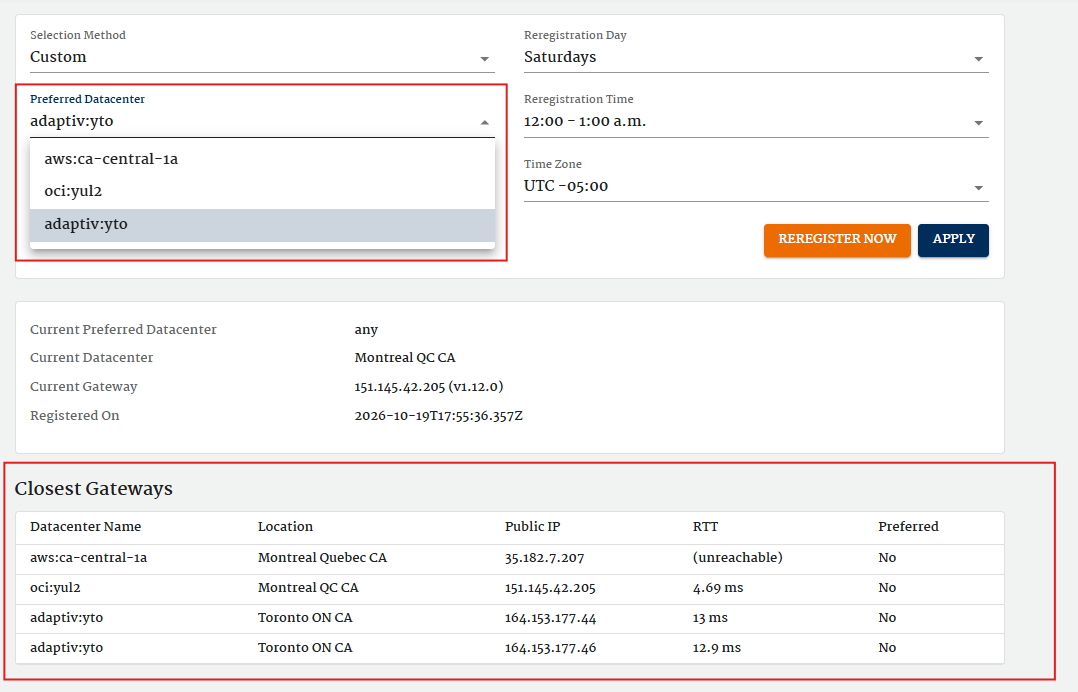
- In the Preferred Datacenter drop-down, select from the option displayed in the list.
-
Continue to schedule a day for the CPE to attempt re-registering with the gateway in Reregistration.
There is a default schedule setup (default seven days) for reregistration. This step could be skipped if users want to continue with the default setup. -
Click Apply to apply the settings.
Reregistration
The Reregistration functionality allows customers to schedule when a CPE attempts to re-register with its Gateway. This can be used to refresh registration or recover from a failover when the Automatic Selection Method is enabled.
During CPE re-registration, the system may assign the device to a different gateway to optimize resource utilization. This transition typically takes approximately 15 seconds.
The system continuously monitors capacity and adjusts assignments as needed — not only at initial endpoint creation — to ensure optimal performance and stability.
Available options
-
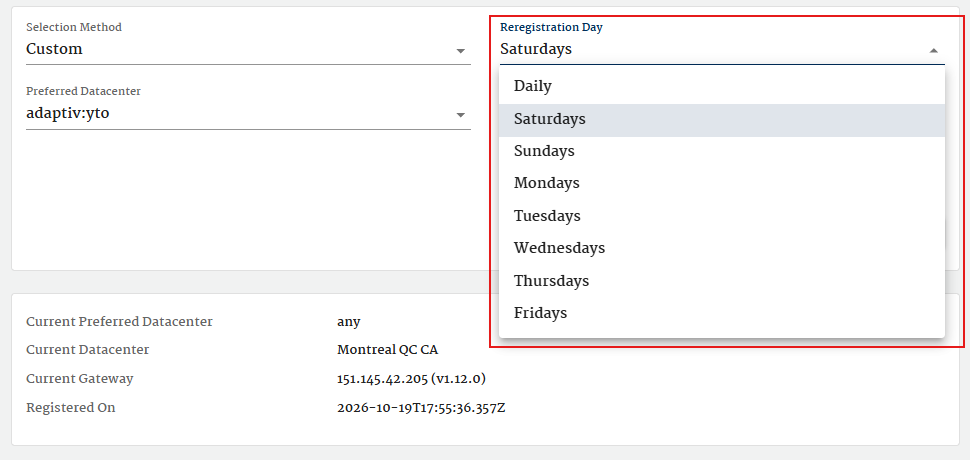
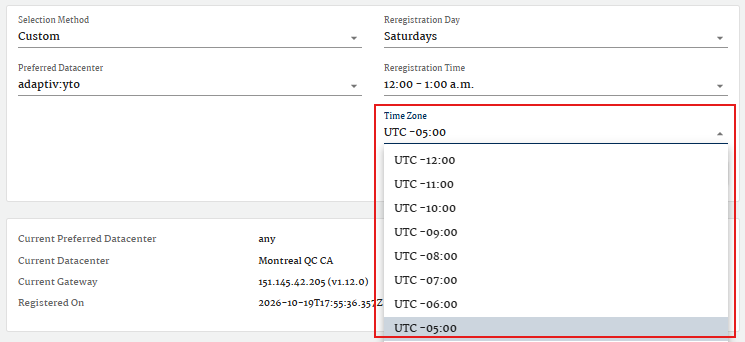
Reregistration Day – The scheduled day for the CPE to attempt re-registering with the gateway (to refresh registration or recover from a failover when the Automatic Selection Method is selected). Users have the option to schedule for a specific day or schedule it daily.
-
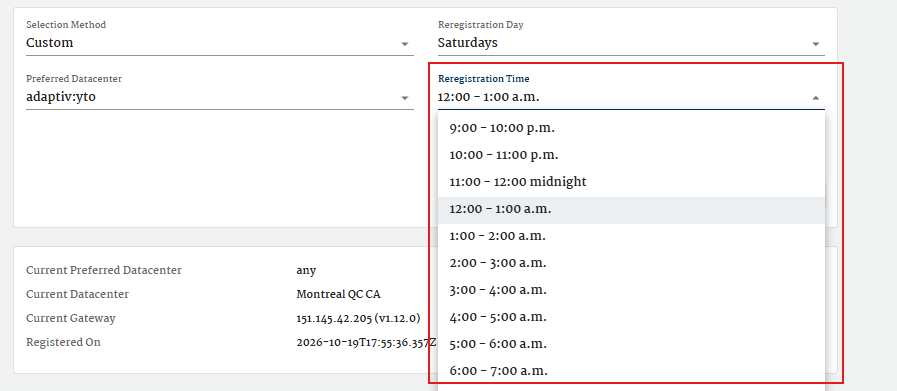
Reregistration Time – The scheduled time range option (within the chosen day) for automatic re-registration.
-
Time Zone – The time zone in which re-registration schedules are applied.
Gateway Information
This section provides information about the current gateway to which the CPE is connected. The following information is available:

-
Current Preferred Datacenter: Display the current preferred Datacenter setting.
Example: When the Selection Method is set to Automatic, then this value will be set to "any". -
Current Datacenter: Displays the actual site where the CPE is connected to. This field will display the Datacenter Name and its location.
Example: adaptiv:yto @ Toronto ON CA -
Current Gateway: Displays the current public IP address and version of the gateway currently in use.
Example: 164.153.177.46 -
Registered on: Display the timestamp of the latest configuration for the CPE.
Example:
Registered On: 2025-08-25T18:24:13.484Z will be translated as below (based on ISO 8601 timestamps)
2025-08-25 --> Date = August 25, 2025
T → Separating between date and time data
18:24:13.484 --> Time = 18:24:13 + 484 milliseconds
Z → Time is in UTC (Coordinated Universal Time)
It means that the latest configuration of this CPE was applied on August 25, 2025, at 18:24:13.484 PM UTC.
When to Use Reregister Now
Reregister Now is for manual recovery/optimization when the system is connected to a suboptimal gateway. Reregistration helps to reduce the latency.
Unlike Reregistration schedules (which automatically switch to reachable gateway at a set time), the Reregister Now button allows the CPE to immediately disconnect from its current gateway and then re-register with the new configured gateways. This action will ignore the scheduled re-registration time/date and force the device to re-connect to the new configured gateway immediately.
Recommended Usage Scenarios
The Reregister Now button is helpful, especially when the gateway selection method is automatic. It forces the CPE to disconnect immediately and re-register with the configured gateway, instead of waiting until the next scheduled re-registration.
Example Use Case (Brazil–Johannesburg–São Paulo failover)
CPE located in Brazil (under São Paulo datacenter). Gateway selection is automatic, and with the scheduled re-registration (next Sunday). On Friday morning, there is a failure at the gateway in São Paulo, Brazil. Based on the settings, the automatic mode moves the connection to Johannesburg (high latency, but gateway connectivity is maintained).
Then, later on Friday night, São Paulo comes back online. In this scenario, the CPE will, however, remain connected to the Johannesburg gateway until the next scheduled re-registration (next Sunday). By using Reregister Now, a user is able to force the CPE to re-check for its optimal gateway immediately In this case, it forces the CPE to disconnect from the gateway in Johannesburg AND then reconnect to the gateway in Sao Paulo, reducing its latency.
Closest Gateways Table
The Closest Gateways table shows a list of the closest gateways. The following are the details of this table.
- Datacenter Name - Identifier of the gateway/datacenter name. Example: adaptiv:yto
- Location - City name, State name and Country name where the Datacenter is located. Example: Montreal, Quebec, CA.
- Public IP - Indicates the public IP address of the gateway that the CPE can connect to. Example: 164.153.177.44
- RTT (Round Trip Time) - Indicates the Round-trip latency (calculated in ms) between the CPE and the gateway. Example: Data center (adaptiv:yto) in Toronto, ON, having RTT = 38.5ms
-
Preferred - Indicates whether this gateway is currently set as the preferred DataCenter or not.
"True" means that this is the DataCenter selected by the user from the Preferred Datacenter list.
"False" means that this is NOT the DataCenter selected by the user from the Preferred Datacenter list.
For the Automatic Selection method, this Preferred column will be displayed as "False" by default.
If the Preferred Datacenter location is not available, CPE will default back to Automatic Selection.
The Closest Gateways list will display all gateways, including multiple options for different public IPs. The Preferred Datacenter field is only displaying their unique datacenter name. For this reason, if one data center has a different public IP address, it will only display once in the Preferred Datacenter field and will not be repeated.
In summary
- Use Automatic selection when you want the system to always select the closest available gateway, but may face latency in extreme cases.
- Use Custom selection if you need to force the network traffic to go through a specific custom datacenter.
- Reregistration schedules help devices automatically switch to reachable gateways when the current gateway is unreachable at a set schedule.
- Reregister Now is for manual recovery/optimization when the system continues to connect to a suboptimal gateway.