The Endpoint Details section provides an in-depth view of the network's configuration, including connected subnets, routing information, and traffic policies. This section is essential for monitoring, managing, and troubleshooting the network infrastructure.
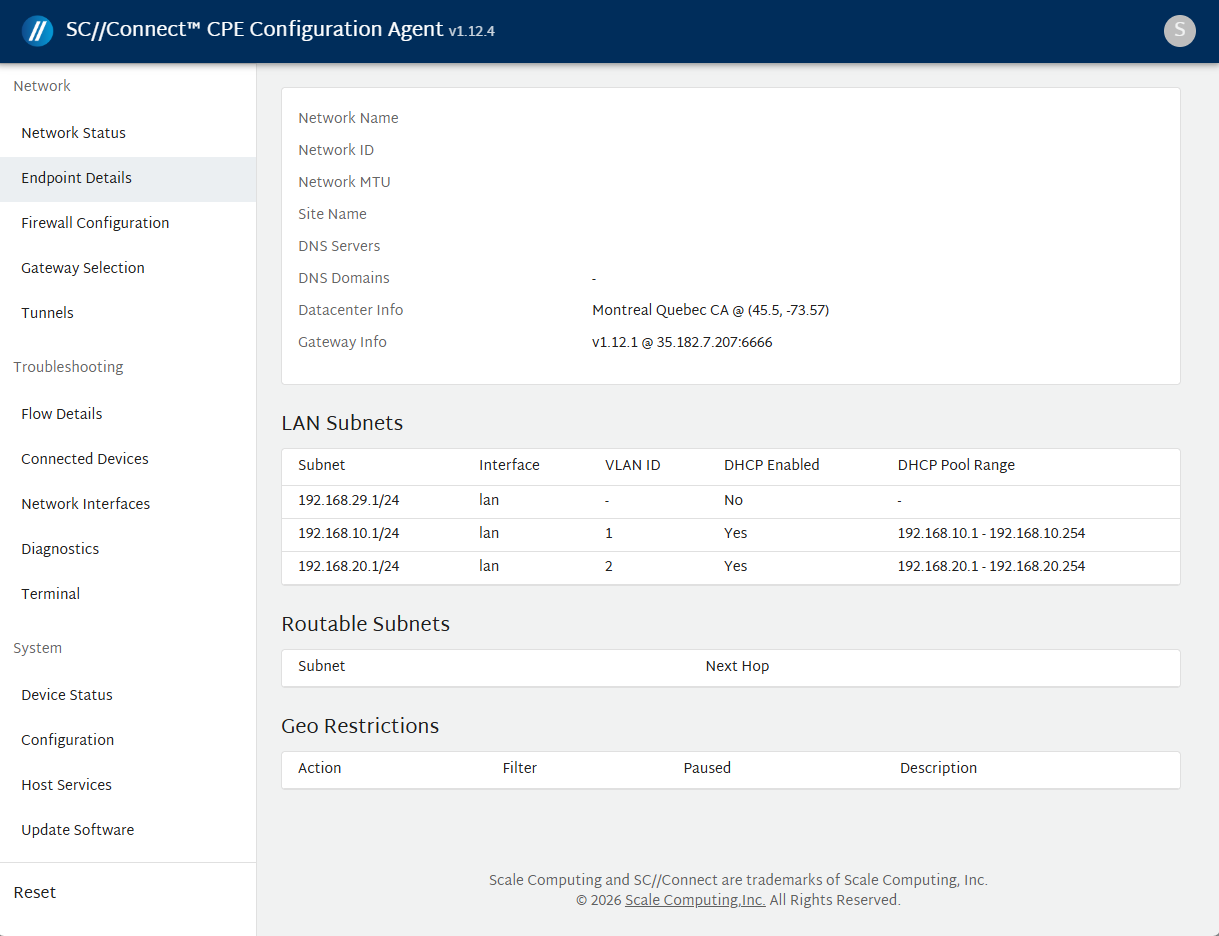
The Endpoint Details section is divided into three main sections as described below.
Network Information
The Network Information section provides different details of the network.
- Site Name – Displays the unique identifier for the site.
- Network MTU – The Edge device is configured with a tunnel MTU of 1410. Because the tunnel adds an overhead of 90 bytes for encapsulation with a UDP header, MTU of 1410 guarantees that packets can be encapsulated within the tunnel without surpassing the WAN interface's MTU of 1500 bytes.
Although this is not an ideal scenario, it is possible that the hosts on the LAN have an MTU of 1500 bytes. To prevent this situation, the following measures are implemented:
- Advertising the MTU option in the DHCP server and setting it to 1410 bytes.
- Requesting the customer to configure the MTU of their firewall interface to 1410 bytes when necessary.
- Additionally, TCP MSS Clamping is applied to ensure that the packets from LAN do not exceed the tunnel's MTU.
- Network DNS – Shows the configured DNS servers (e.g., 1.1.1.1, 8.8.8.8).
- Datacenter Info – Provides the name of the gateway to which the site is connected and it's geolocation.
- Gateway Info – Provides the firmware version, the public IP address and the port number of UDP overlay tunnel of the gateway. For example, in the image above, v1.9.23 represents the gateway version, 164.153.177.44 is the public IP address of the Toronto gateway and the port number of the UDP overlay tunnel is 6666.
LAN Subnets
The LAN Subnets section lists the local subnets configured on the device, the interface and DHCP details.
LAN Subnets table
- Subnet – The local subnet range (e.g., 10.10.252.1/24).
- Interface – The associated network interface.
- VLAN ID – The identifier to check whether subnets is associated with VLAN or not. ( the "-" symbol means there is no VLAN tagging is applied)
- DHCP Enabled – Indicates whether DHCP server configured on the interface is active or not.
- DHCP Pool Range – Shows the range of IPs available for dynamic allocation.
Routable Subnets
The Routable Subnets table displays the subnets with routing information for internal or external connectivity.
Routable Subnets table
- Subnet – The subnet's range.
- Next Hop – The gateway or route for the subnet.

These are subnets on the LAN side that are not directly connected to the CPE. Routable subnets tell the CPE where to send packets (i.e., the next hop) to reach the specified subnet. The next hop is typically a firewall or a layer 3 core switch. Since the CPE does not inherently know these subnets, routable subnets must be added so the CPE can forward traffic accordingly.
Geo Restrictions
The Geo Restrictions section controls which gateways a CPE can connect to during registration or reregistration. Unlike firewall policy configuration, they do not block IP traffic. Instead, they ALLOW or DENY connectivity to specific datacenter names, gateway IP Addresses, or organizations. This is useful for restricting CPE connections to certain regions or infrastructure providers.
Use Case Examples
This screenshot describes:
-
Action line 1: Allow CPE to a specific datacenter (
adaptiv:yto). -
Action line 2: Allow CPE to a gateway with a specific IP (
164.153.177.44). -
Action line 3: Deny CPE connections to all gateways managed by the
AdaptivQA organization.
These settings are typically for Support use only and not configurable via ACO.
For client configurations, use Gateway Selection to choose a preferred datacenter or set the site’s geo-coordinates instead..
Geo Restrictions table
- Action : Determines what happens to the gateway connection(allow or deny) if the filter conditions are matched.
- Allow – Permit the connection.
- Deny – Block the connection.
- Filter : Specifies what the restriction applies to.
- Datacenter Names
- Gateway IP Addresses
- Organization
- Pause: Temporarily disables the restriction without deleting it.
- True – Geo Restriction is inactive.
- False – Geo Restriction is active.
- Description – An optional text field where users can add notes or context about the restriction.