The SC//AcuVigil™ dashboard locks a user account after six failed sign-in attempts. When this happens, a user in your company with the Admin or Support Manager role must unlock the account. If your administrator can't unlock your account, contact Scale Computing™ Support: open a ticket in the SC//AcuVigil dashboard, email team@scalecomputing.com, or call (512) 687-7401.
Unlocking an SC//AcuVigil user account
A user with the Admin or Support Manager role follows these steps to unlock a user account.
- Sign in to the SC//AcuVigil dashboard with an account that has the Admin or Support Manager role.
-
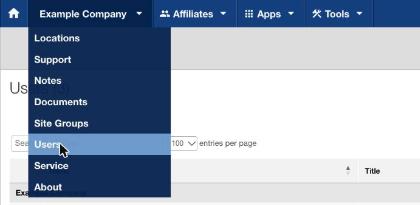
In the company menu, select Users.
-
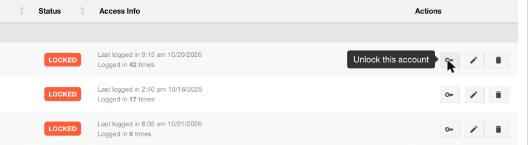
In the user list, find the locked user account. Locked accounts show a red LOCKED badge in the Status column.
-
In the Actions column of the user's row, select the key icon (Unlock this account). It's to the left of the edit (pencil) and delete (trash) icons.
-
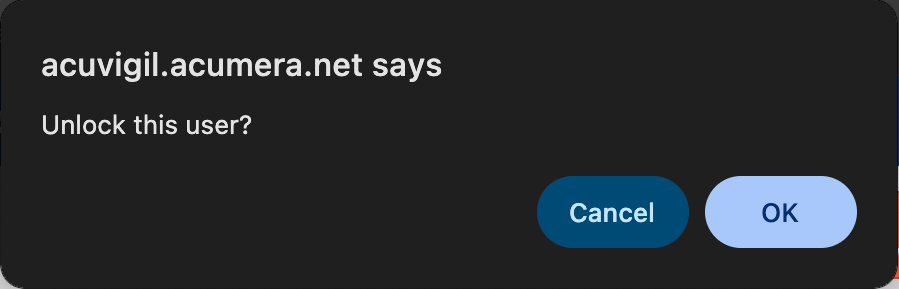
In the confirmation prompt that asks Unlock this user?, select OK.
-
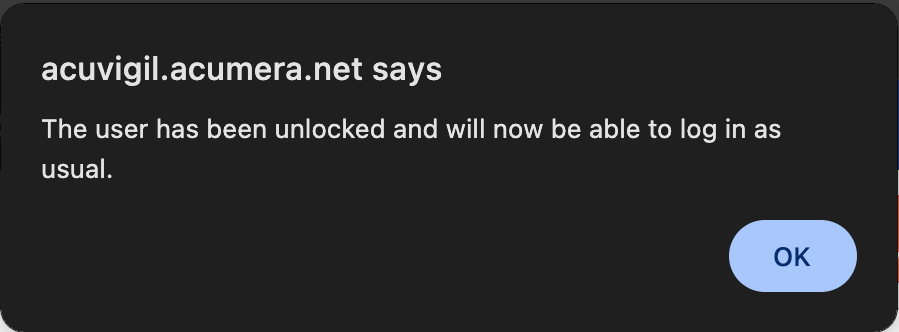
A second prompt confirms that the user has been unlocked and can now sign in as usual. Select OK.