The SmartSwitch application lets you control Power over Ethernet (PoE) on each port of a supported, Scale Computing™ managed switch directly from the SC//AcuVigil™ dashboard. The most common use is to remotely power cycle a PoE-powered device, such as a ceiling-mounted wireless access point (WAP) or an IP camera, without anyone needing to be on site to unplug it.
When you disable PoE on a port, the switch stops supplying power to whatever is plugged into that port. Re-enabling PoE supplies power again. Toggling PoE off and back on is the equivalent of unplugging the device and plugging it back in, done remotely.
Keep in mind that because PoE travels over the existing Ethernet cable, this will not resolve the issue if the cable is loose or not plugged in all the way. A physical connection problem still has to be corrected on site.
What is PoE?
Power over Ethernet delivers electrical power to a device over the same Ethernet cable that carries its network data, so the device needs only one cable rather than a separate power supply and outlet. The switch (the Power Sourcing Equipment, or PSE) supplies the power, and the connected endpoint (the Powered Device, or PD) receives it.
PoE is commonly used to power devices that are hard to reach or far from a power outlet, including:
- Wireless access points (WAPs)
- IP security cameras
- VoIP phones
Because these devices are often mounted on ceilings or walls, physically power cycling them is inconvenient. With PoE control in SmartSwitch, you can restart an unresponsive access point or camera remotely in seconds.
Requirements
PoE control is available when all of the following are true:
- The site is running SmartSwitch version R41000 or later. PoE control is not available on earlier versions. The SmartSwitch version is shown beneath the application title (for example,
Ver.R63Cb5). - The site has a Scale Computing Managed switch that supports PoE (for example, the NETGEAR GS110TPv3) and reports PoE over SNMP. Non-PoE switches don't show the PoE controls.
- The device you want to power cycle is PoE-powered; it draws its power from the switch port rather than from a separate power adapter.
- The port is enabled and the device is connected to it.
- Your role can modify switch port security settings: Admin, Support Manager, Customer Help Desk, Staff, or Vendor CSR.
Important: Disabling PoE on a port cuts power to everything drawing power from that port. Make sure you are toggling the correct port before you apply changes, and be aware that the device will be offline for several seconds while it restarts. |
Where to find the PoE setting
The PoE control lives in the SmartSwitch application on the Devices tab of a site.
- Log in to the SC//AcuVigil dashboard and open the site.
- Open the Site Status page for the site.
- Click the Devices tab. On a site with managed switches, this opens the SmartSwitch application.
- In the SmartSwitch sub-navigation at the top right (Devices, Policies, Switches, Settings), click Switches. Devices is the default sub-view; the Switches view lists every managed switch at the site, each shown with a diagram of its ports.
- Under the switch you want, click View Switch Details. This opens the port table for that switch, including the PoE Enabled column.
On this view, the PoE Enabled column is read-only and shows Yes for each port that is currently powered. To change PoE, click Edit Switch Port Security (bottom-right), which turns the PoE Enabled column into a checkbox for each port. A checked box means PoE is supplied to that port; an unchecked box means PoE is off.
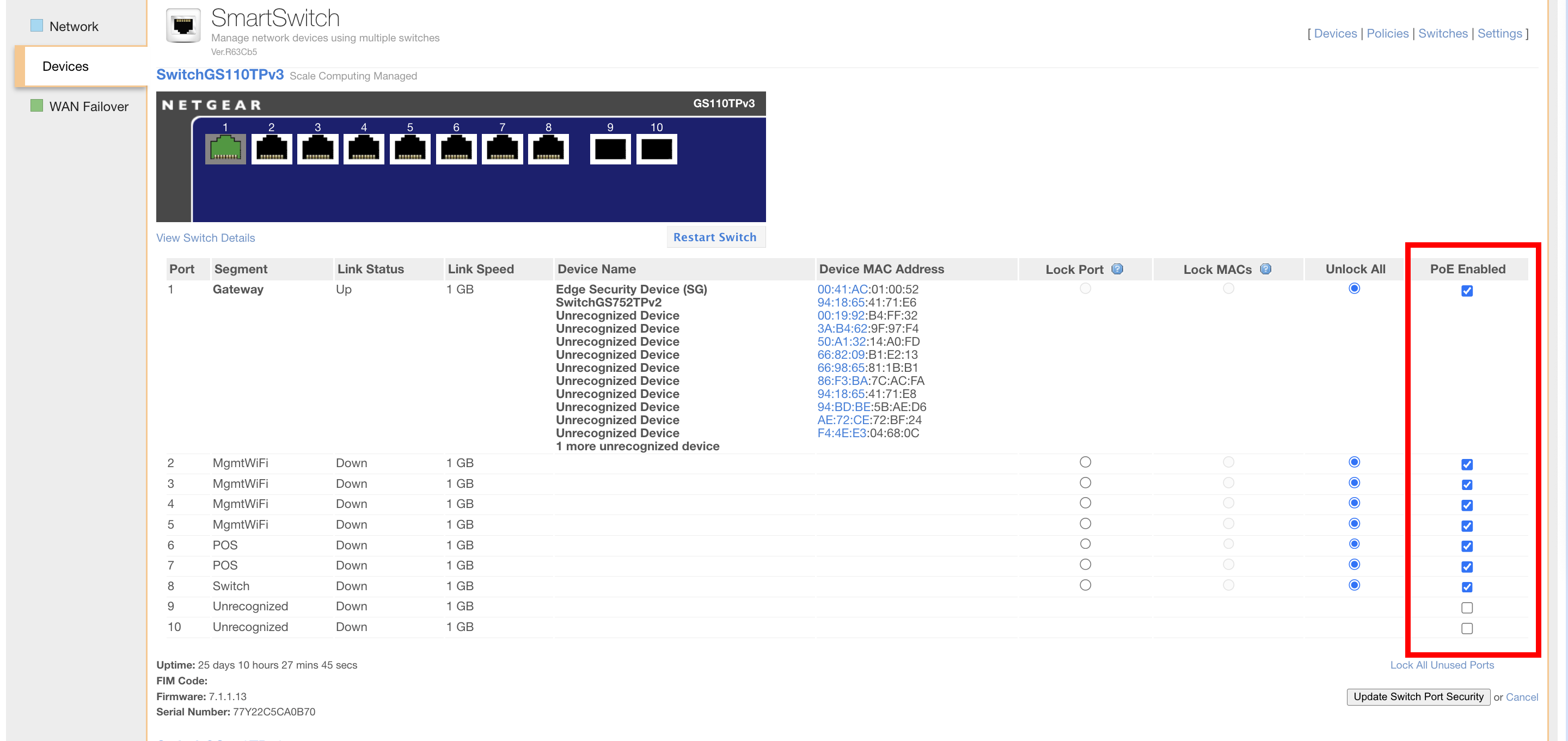
How to remotely power cycle a PoE device
To restart a PoE-powered device (for example, an unresponsive access point), turn its port's PoE off and then back on:
- Open the switch's port table (Switches > View Switch Details).
- Click Edit Switch Port Security to make the port settings editable.
- Find the row for the port the device is connected to. Use the Segment and Device Name columns to confirm you have the right port.
- In the PoE Enabled column, uncheck the box for that port to disable power.
- Click Update Switch Port Security to apply the change. Power to the device is now cut.
- Wait about 60 seconds so the switch has time to register the command and the device fully powers down.
- Click Edit Switch Port Security again, re-check the PoE Enabled box for the same port, and click Update Switch Port Security to restore power.
The device will power back on and begin its normal startup. Give it a minute or two to fully boot and reconnect to the network before checking whether the issue is resolved.
Note: A device that has just been power cycled will briefly show as offline or unresponsive while it boots. This is expected; wait for it to come back before troubleshooting further. |
Turning PoE on or off without power cycling
You do not have to toggle a port back and forth. If you simply want to:
- Turn off power to a device (for example, to take a camera or access point offline), uncheck PoE Enabled for its port and click Update Switch Port Security.
- Turn on power to a device, check PoE Enabled for its port and click Update Switch Port Security.
Common questions
Will disabling PoE affect other devices? Disabling PoE only affects the single port you uncheck. Other ports, and the data connection on the same port, are not changed by the PoE setting. However, any device powered through that one port will lose power.
Why is the PoE Enabled column missing or greyed out? PoE controls appear only for supported, Scale Computing managed PoE switches, on sites running SmartSwitch version R41000 or later. The column can be missing for any of the following reasons:
- The switch doesn't support PoE, or isn't Scale Computing managed.
- The site is running a SmartSwitch version earlier than R41000. Check the version shown beneath the application title.
- The switch doesn't report PoE over SNMP. SmartSwitch checks this at runtime by querying the switch's PoE power and PoE status SNMP values (OIDs). A switch that doesn't answer them shows no PoE controls, even if it's managed and the SmartSwitch version is new enough.
If the switch supports PoE but the controls still don't appear, contact Scale Computing Support. Open a ticket in the SC//AcuVigil dashboard, email team@scalecomputing.com, or call (512) 687-7401.
The device didn't come back after I re-enabled PoE. Confirm you re-checked PoE Enabled and clicked Update Switch Port Security. Give the device a full minute or two to boot. If it still doesn't return, the issue may be with the device itself or its cabling rather than power, so arrange for on-site investigation.
Can I cut power to a device that uses its own power adapter? No. PoE control only affects devices that draw power from the switch port. A device with its own plug-in power supply is not powered by PoE and is unaffected by this setting.