---
title: "Dataplane Configuration"
id: "dataplane-configuration"
project: "Adaptiv | Cloud Support Publication"
url: "https://docs.scalecomputing.com/articles/adaptiv-cloud-support-publication/dataplane-configuration"
updated: 2026-03-02T20:02:10Z
---
# Dataplane Configuration
# **Dataplane Configuration**
Dataplane configuration allows for Internet-bound traffic broken out at the Edge device to continue if a failure is detected on the primary ISP link. The monitoring and management are handled by the state machine responsible for the transition between the failed link to the backup.
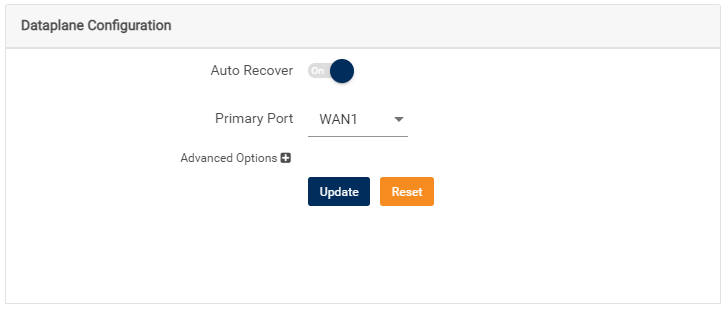
The data plane configuration applies to Edge devices running OS version 7.2.0 and above. It only supports the monitoring of links connected into WAN1 and WAN2 ports for breakout at the Edge.
The failover feature detects failure to the primary link and automatically enables failover to the backup link. This failover has a default time set to 50 seconds, in other words, it takes 50 seconds for the breakout traffic to failover once link failure is detected. However, this timer can be managed by adjusting the advanced settings to either increase or reduce the failover time. The failover of data sessions going through the overlay continues to remain seamless while the breakout experiences a delay as a result of the failover timer and the need to restart sessions with the new public IP address of the backup link.
|  | Setting the failover timer aggressively can result in network instability, especially in lossy networks. |
| --- | --- |
The **Auto Recover** option, enabled by default, only restarts new data sessions on the primary link as soon as it is identified as stable. Long-lived flows are terminated on the backup link only after the switch timeout expires. The default time on the switch timeout is 7200 secs (2 hours). When these flows are re-established by the application, it will be done over the primary link.
## **Managing Dataplane settings**
1. Navigate to the **CPE Management** tab and open the **Configuration**page.
2. Scroll to the **Link Behavior** section > **Dataplane Configuration** settings.
* To disable or re-enable **Auto Recover** functionality, toggle the button to **On** or **Off**.
* To manage a primary port, select between **WAN1** and **WAN2** in the **Primary Port** drop-down menu.
* To change the values of default monitoring properties, click **Advanced Options**. To revert to default settings, click **Reset**.
Advanced Options
| **Property** | **Description** | **Settings** |
| --- | --- | --- |
| Link Down Threshold (seconds) | Defines the time in which the WAN port carrying data traffic is down before declaring the WAN port unusable. | **Default:** 30
**Min:**1**** **Max:** 120 |
| Link Up Threshold (seconds) | Defines the time in which the WAN port carries data traffic before declaring the WAN port usable. | **Default:**30**Min:** 1 **Max:** 120 |
| Unstable Window (seconds) | Defines the length of the unstable window (must be equal or greater than **Link Up Threshold**). The unstable window is created when the WAN port carrying data traffic loses internet reachability.
This event is independent of the **Link Down Threshold**. The window must end after the WAN port has carried traffic for a minimum of**Link Up Threshold**. | **Default:** 60**Min:** 1 **Max:** 120 |
| Switch Timeout (seconds) | Defines the maximum time required for transferring flows from the primary to the backup WAN port or vice-versa. Upon timeout, all flows not transferred are terminated. | **Default:** 7200
**Min:**10**Max:** 7200 |
| Connectivity List (number of strings) | The IP addresses used to validate Internet reachability from the WAN ports. | **Default:** 8.8.8.8, 8.8.4.4, and 1.1.1.1
**Min:**1 IP address**Max:** 5 IP addresses |
| Connectivity Fail Threshold (percent) | This percentage is the threshold of packet loss (ping loss) the Internet link test meet to declare the test successful. Hence, declaring the WAN port can reach the internet. | **Default:** 100
**Min:**10**Max:**100 |
| Connectivity Test Window (seconds) | Time required to ping a single server listed in Connectivity List. | **Default:** 5
**Min:**1**Max:** 20 |
| Connectivity Test Frequency (seconds) | Frequency of the ping test.
/articles/adaptiv-cloud-support-publication/dataplane-configuration | **Default:**60
**Min:** 2
**Max:** 60 |
3. To save and apply changes, first, click **Update** and then click **Save Configuration**.
## **Configuring failover timer**
In Internet Breakout, the state machine manages link failover, and its ability to do so is governed by the following parameters. They are configurable and dictate the speed at which a link fails over to the backup link.
* Connectivity Test Frequency – Frequency of the ping test in seconds.
* Connectivity Test Window – Time is seconds to ping a single server listed in Connectivity List.
* Link Down Threshold – Number of seconds the WAN port carries data traffic before declaring the WAN port unusable.
Achieving a minimum failover time requires decreased values for these parameters. The following example will illustrate how these values help to get desired failover time. Consider a scenario where the required failover time is 15 seconds. To achieve this failover time, the testing frequency must be increased and the test window reduced.
|  | Increasing the test frequency and reducing the test window increases the amount of network packet probes sent over the Internet links. |
| --- | --- |
Therefore, changing the test frequency to 2 seconds and updating the test window to 4 seconds will achieve a 15-second failover time as subsequent tests fail beyond the link down threshold of 13 seconds.
The following table illustrates the modifications required for each parameter to achieve the desired failover time.
| **Failover Time (seconds)** | **Configuration (seconds)** |
| --- | --- |
| 15 | Connectivity Test Frequency – 2
Connectivity Test Window – 4
Link Down Threshold – 13 |
| 30 | Connectivity Test Frequency – 4
Connectivity Test Window – 2
Link Down Threshold – 26 |
| 60 | Connectivity Test Frequency – 4
Connectivity Test Window – 2
Link Down Threshold – 56 |
* * *
[TERMS OF USE](https://www.adaptiv-networks.com/terms-of-use) | [ANTI SPAM](https://www.adaptiv-networks.com/anti-spam)| [PRIVACY POLICY](https://www.adaptiv-networks.com/privacy)| [USER LICENSE AGREEMENT](https://www.adaptiv-networks.com/user-license-agreement) | [PATENTS](https://www.adaptiv-networks.com/patents)
Copyright © 2026 Adaptiv Networks, Inc. [Send Feedback](mailto:docs@adaptiv-networks.com?subject=Feedback)